
How to Use Jego for Vibe Coding
AI Development Tools Proxy Configuration Tutorial
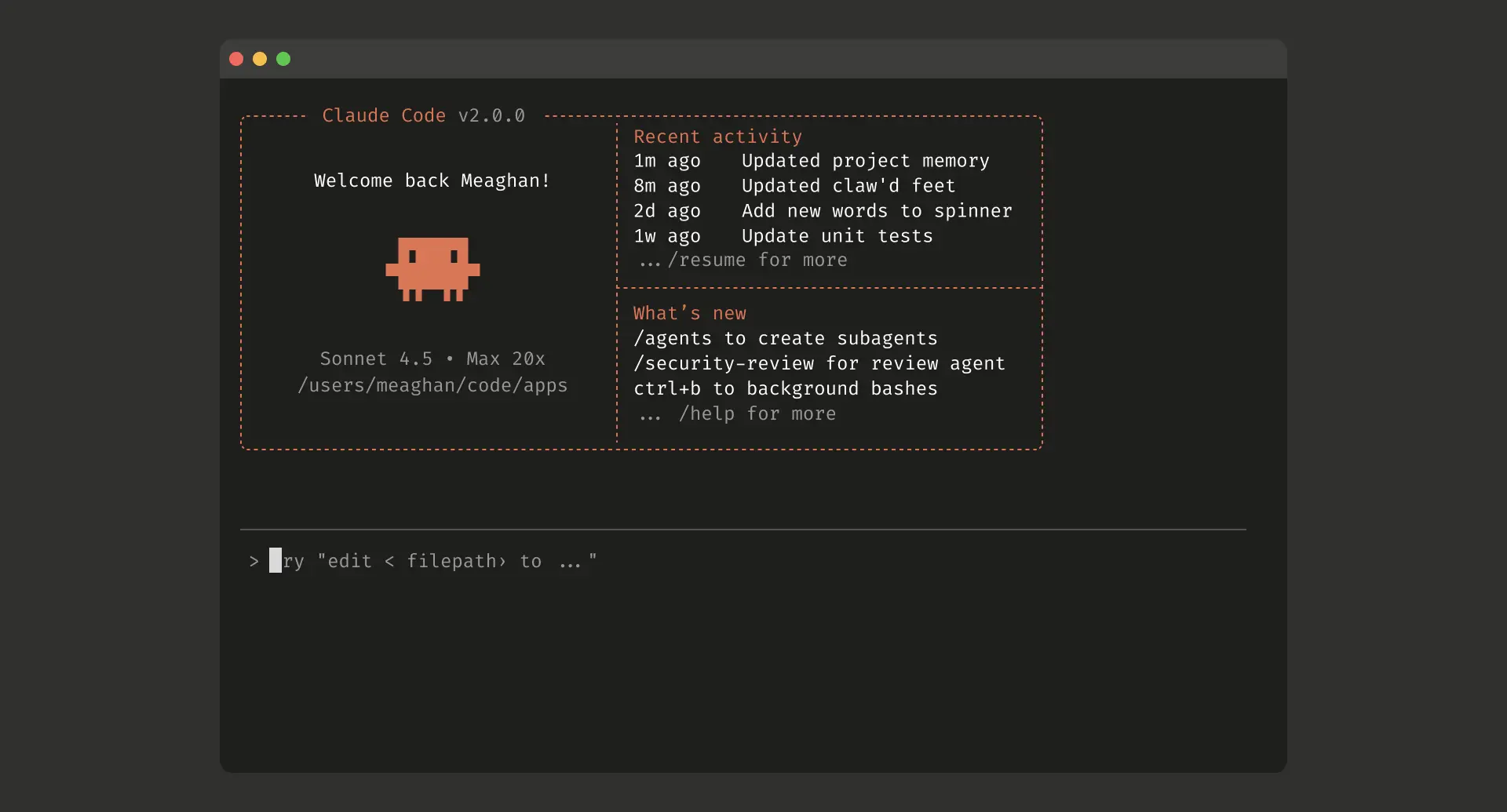
This guide uses the Jego subscription service and FlClash to configure a proxy for an IDE or command-line tool.
Applicable Scope
This tutorial uses the FlClash desktop interface. Other clients have different menus; Install by device opens the matching complete guide.
The key is understanding virtual network adapter mode and node routing strategies.
Configuration Steps
1. Dashboard: Enable Virtual Network Adapter and Rule Mode
In FlClash's dashboard:
- Enable Virtual Network Adapter (TUN mode)
- Set Outbound Mode to Rule Mode
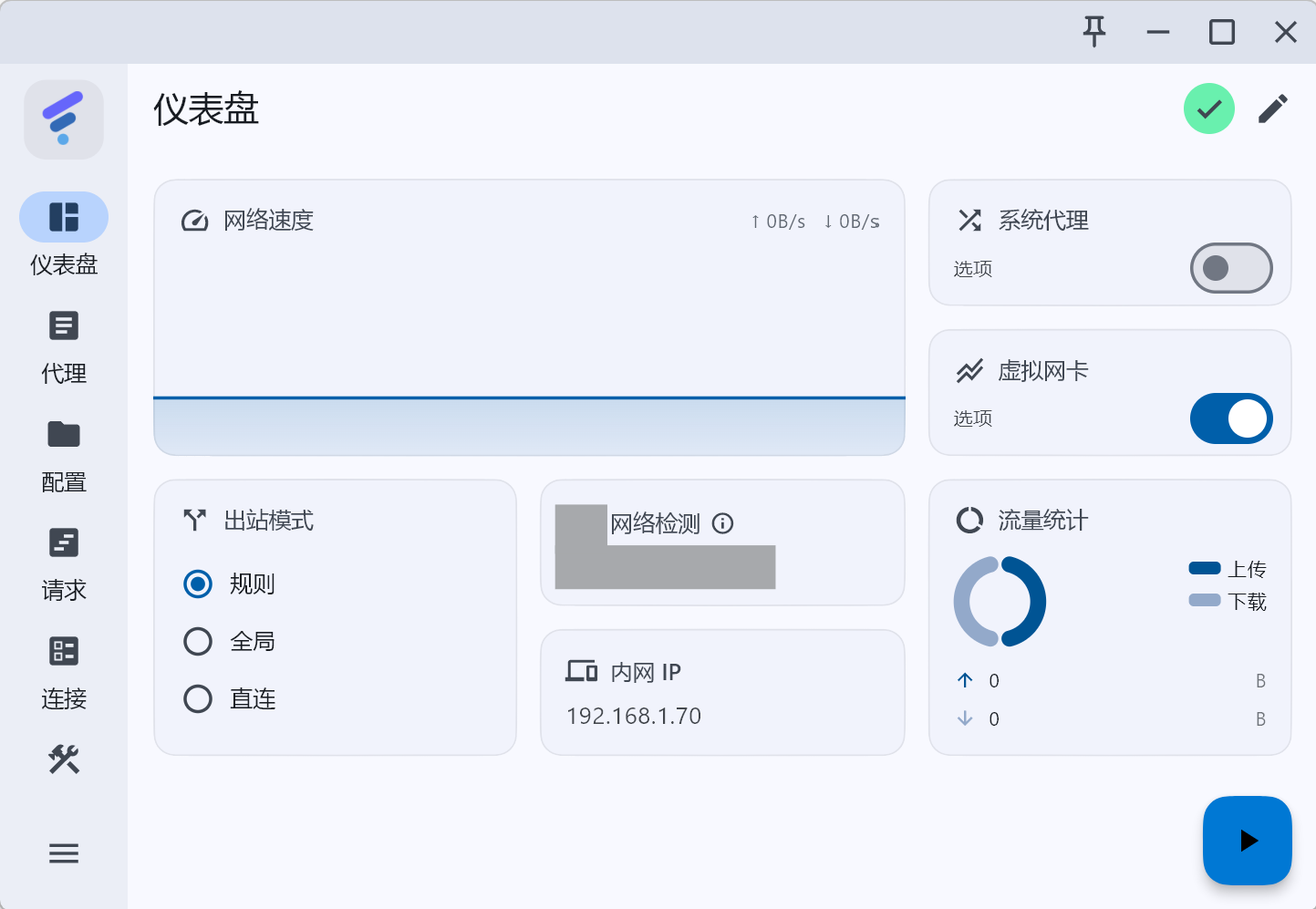
Why a virtual network adapter helps
Virtual Network Adapter (TUN) mode can process traffic the operating system routes to the virtual interface and is often used for desktop apps that ignore system proxy. Permissions, route exceptions, other VPNs, and app behavior still matter, so it cannot guarantee that every request uses the proxy.
If you only need browser access, we recommend using the Jego browser extension.
2. Profiles Page: Select Subscription
On the Profiles page:
- Make sure to select the Jego subscription file
- Keep the default auto-update settings
3. Proxy Page: Node Selection
Configure the following on the proxy page (node selection):
- Under ❇️Manual Select, choose a current candidate exposed by the Dashboard that can connect.
- If 🤖 ChatGPT Group still appears, choose a candidate from it and verify with the real API destination. “Hong Kong Ultra” and “Singapore Pro+” in the screenshot are historical examples, not promises that those names or performance remain.
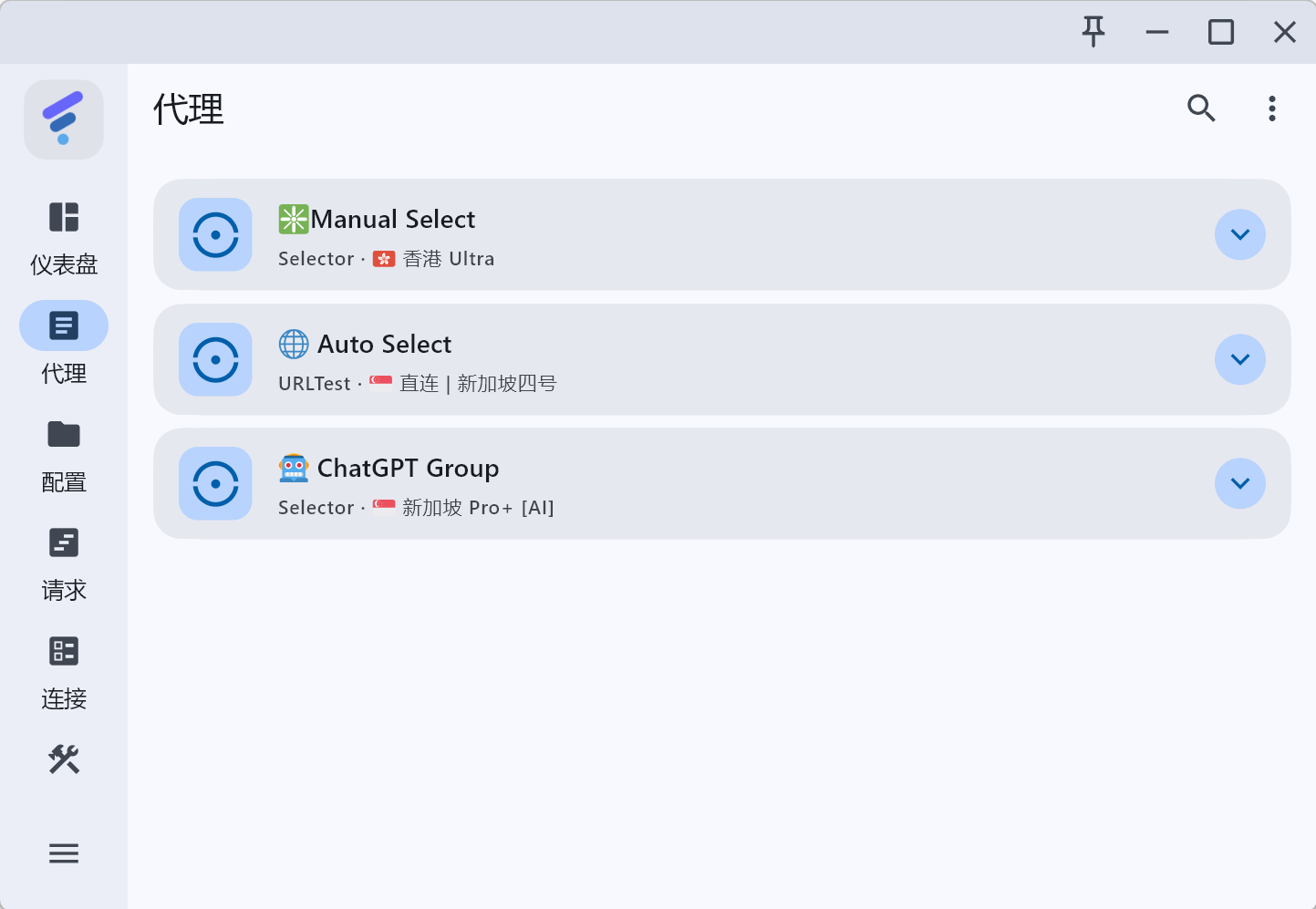
Node Selection Guide
Node names and groups come from the current subscription configuration and can change. Compare bandwidth, stability, and third-party availability through actual results on the same network and at the same time.
4. Start Service
Return to the dashboard and click the Start button in the lower right corner to activate the proxy service.
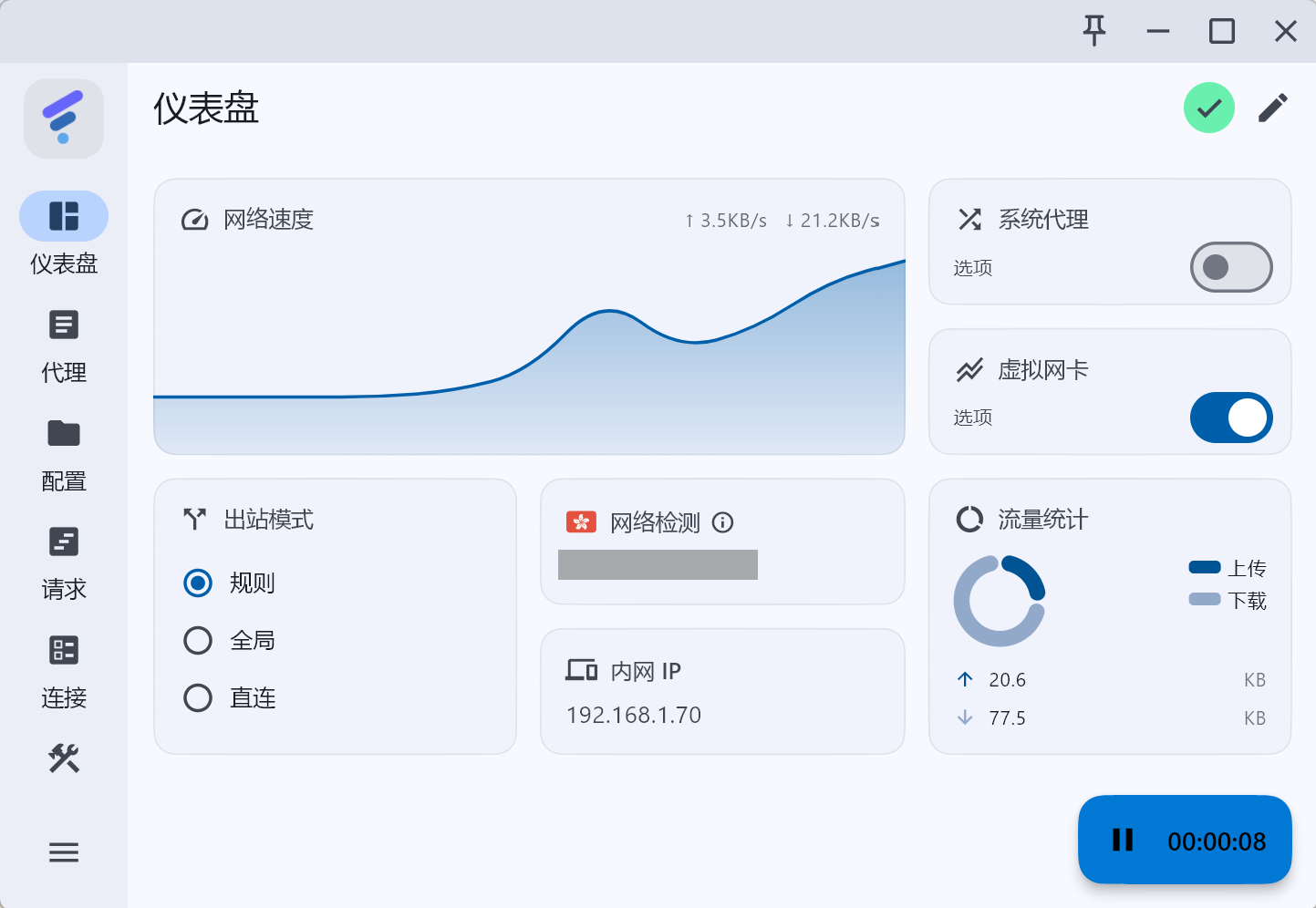
After starting, check the status, start time, virtual-adapter state, and outbound mode shown by the app, then open a test page or run the command below to confirm the connection.
5. Request Page: Verify Traffic Routing
On the request page (or connections page), confirm that traffic is being routed correctly:
- Check whether an AI hostname such as
api.openai.comorapi.anthropic.commatches the node currently chosen for the AI group. - Check whether an ordinary hostname matches the expected general group or direct rule. Record only hostnames; never publish query strings, tokens, or request content.
Custom Routing
If you need custom routing rules, you can add override rules (Overrides) in FlClash.
Example Steps:
For instance, if you need DeepSeek.com to connect directly (without proxy), follow these steps:
- On the configuration page, click the three dots ⋮ in the upper right corner of the Jego subscription card
- Select More
- Click Overrides
- Click Add
- In the popup dialog, configure:
- Rule Name: Click to select, e.g.,
DOMAIN-SUFFIX(domain suffix matching) - Rule Content: Click to enter, e.g.,
deepseek.com(main domain or subdomain) - Rule Target: Click to select, e.g.,
DIRECT(direct connection)
- Rule Name: Click to select, e.g.,
- Click save
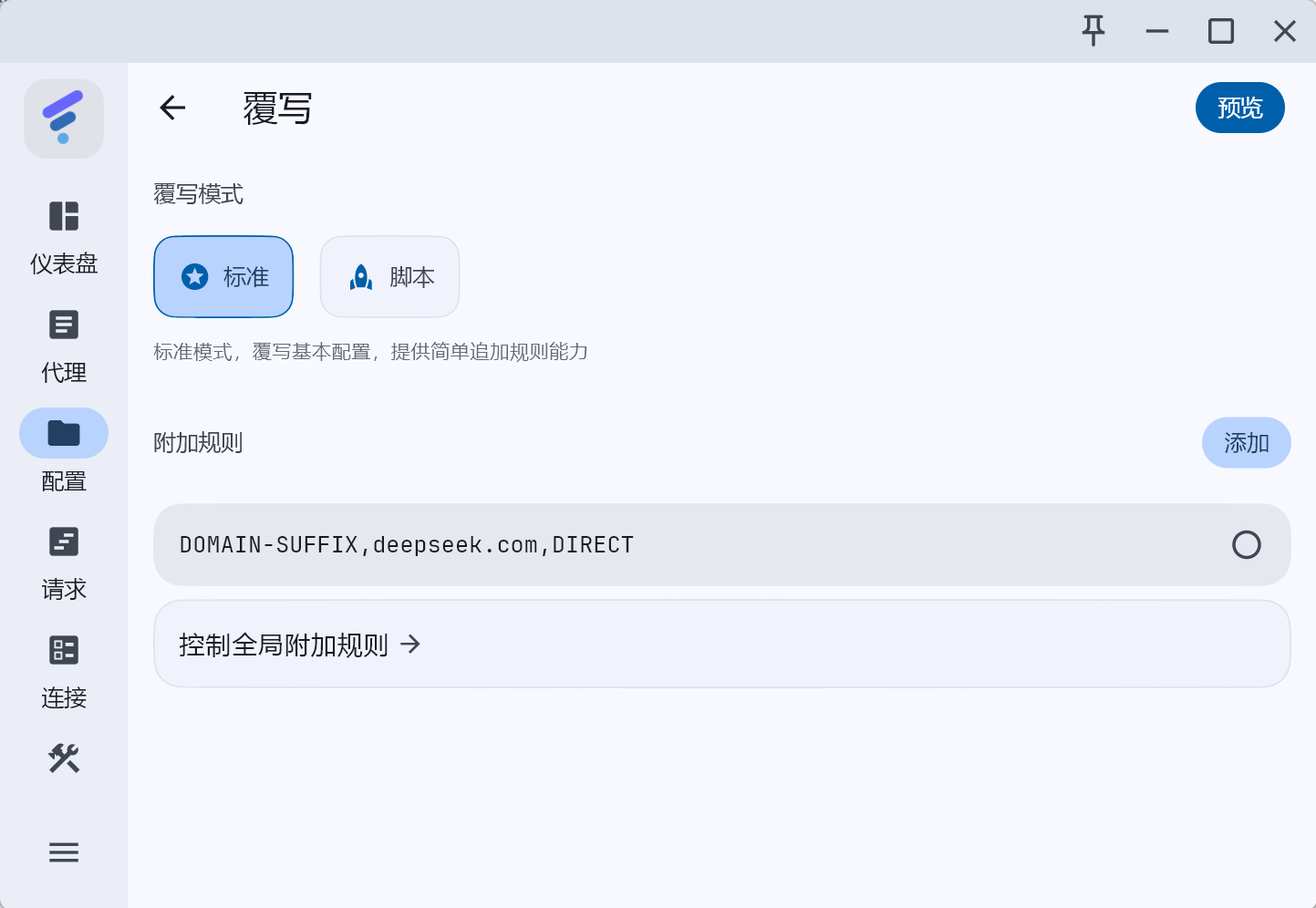
After this setup, visits to DeepSeek.com will bypass the proxy and use your local network directly.
Verify Configuration
You can check the public exit IP of this one request from the command line. The third-party lookup service will see that exit address — skip this step if you prefer, and check the client's request page instead:
curl ip.sbThe returned address belongs only to this test request; it does not prove that every domain, IDE/CLI, or third-party account uses the same path. Test the actual tool after configuring it.
Further Verification
You can also try using AI features in Cursor or other AI coding tools, such as code completion or chat, to verify that you can access AI services normally.
Common Issues
AI tool connection failure
- Check if virtual network adapter is enabled: Ensure TUN mode is active
- Check node selection: Confirm that the current AI group has a usable candidate selected.
- Check subscription updates: Run one manual update per the client tutorial and record its time.
- Review request logs: Inspect only redacted lines relevant to this incident; never publish tokens or request content.
Using system proxy mode
Yes, depending on whether the AI tool honors system proxy or supports proxy environment variables. Test system proxy first; if the app demonstrably bypasses it, evaluate TUN and retest. Neither method guarantees stability.
Configure other proxy tools
The objective is similar, but menus and capabilities are not necessarily the same. Follow the specific tool tutorial for proxy entry, rule mode, node groups, and verification rather than copying FlClash buttons or old node names.
Related Links
- FlClash Complete Tutorial - Learn all FlClash features
- Clash Verge Rev Tutorial - Multi-platform client tutorial
- sing-box Tutorial - Lightweight proxy tool
- Node Selection Guide (browser extension) - How to choose and verify nodes in the browser extension
- Device Configuration Overview - View proxy guides for all devices