
How to Bypass the Firewall with Jego
Jego is a free VPN extension built for Chrome and Edge. After installation, sign in, choose a mode and node, and you can start accessing websites worldwide in that browser. First-time users should begin with Rules mode and Auto Select.
It affects this browser only
Rules, Global, and Off control the browser where Jego is installed. To use a VPN in other apps on your computer or phone, see Use Jego on a computer or phone.
📺 Video Tutorial
If you prefer video, start with the complete installation and usage demo:
If the video does not load, just follow the five steps below.
Get started in five steps
- Click the Jego icon in the top-right corner of the browser.
- If you are signed out, enter your email and password and select Log In. Select Sign Up if you do not have an account.
- Choose Rules mode (in the Free version, select Connect).
- Under Current location, choose Auto Select.
- Open Google or the website you need. Reload it if it was already open.
The image below shows the free interface. Jego displays Free, Trial, or VIP status, while available modes and nodes follow the current account.
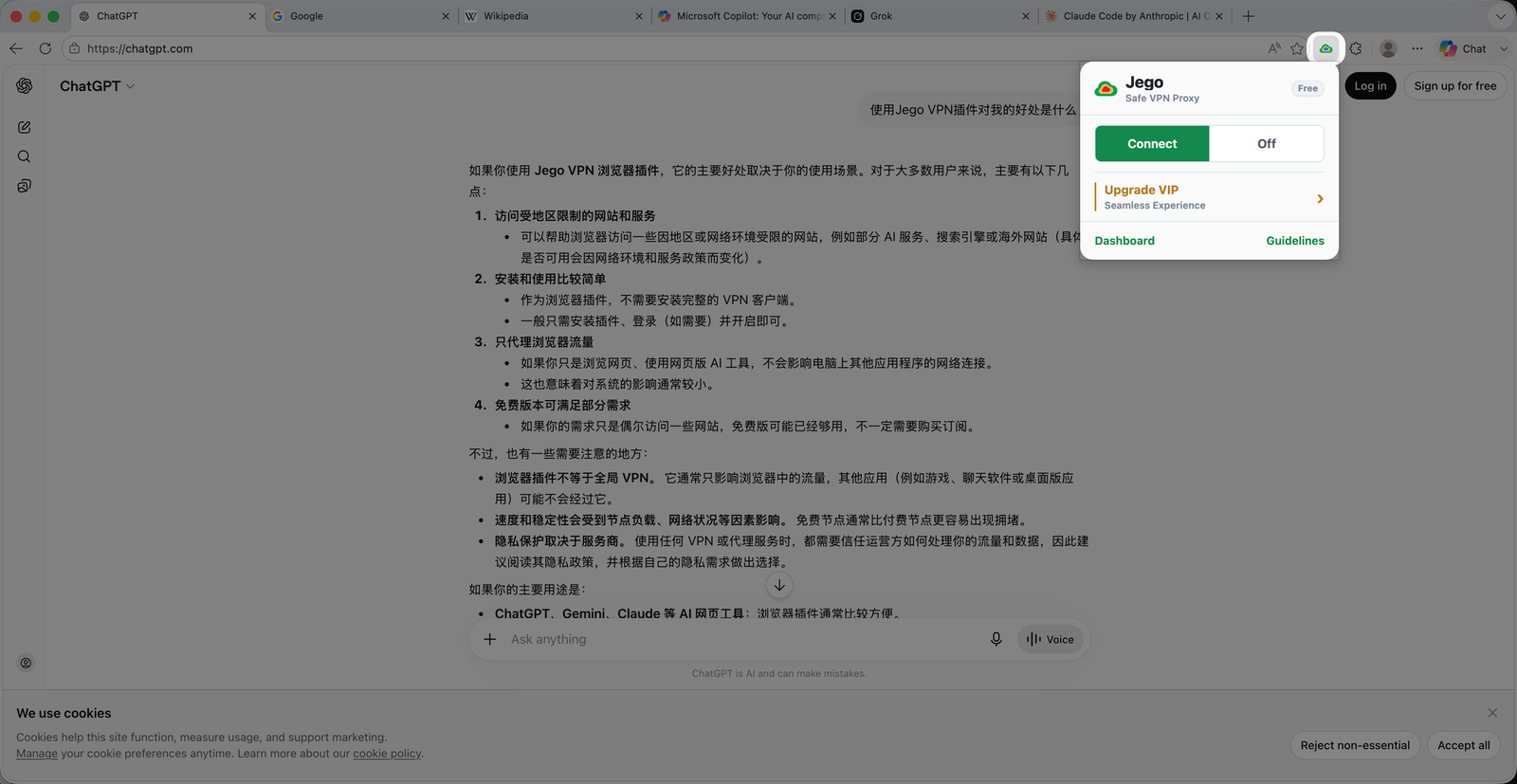
The Free version shows only Connect and Off: Connect starts the browser proxy (it works like Rules mode) and Off returns to the normal connection. Member accounts (including trial) show Rules, Global, and Off, as described next.
Choose Rules, Global, or Off
- Rules: Follows proxy rules for domains and IP addresses. Proxy requests use the current node, while direct rules use the local connection.
- Global: All browser requests use the current node, while local addresses still connect directly.
- Off: Stops the browser VPN and uses the normal local connection for every site.
The member interface below shows membership status, mode buttons, and node selection.
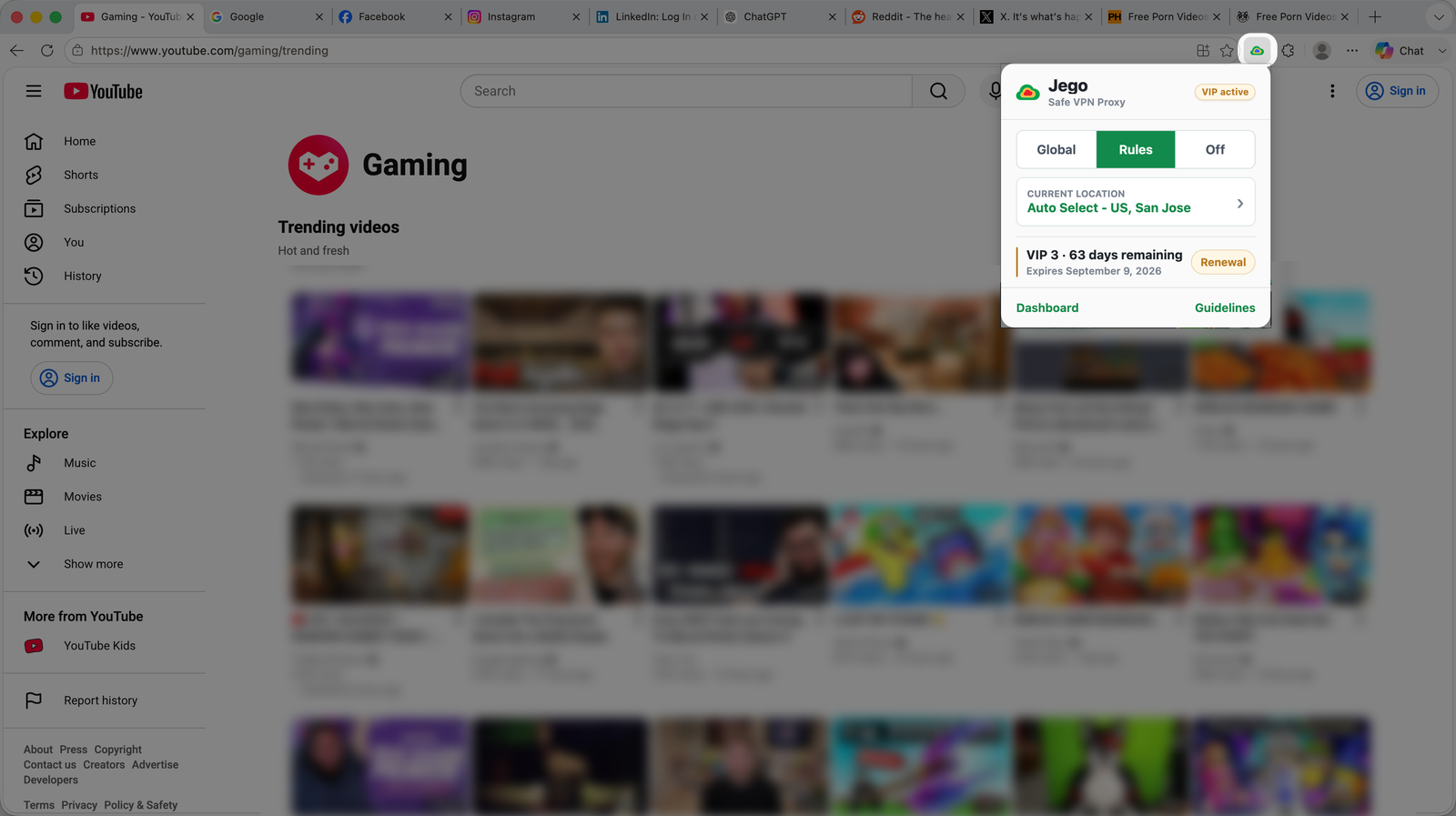
See Mode Selection for examples. If Rules mode does not proxy a website, add its domain through Proxy Rules.
Change nodes
Click the node shown under Current location, then choose Auto Select or a specific location. Start with Auto Select and switch manually when the current route is unavailable or slow. Node selection is disabled in Off mode, so choose Rules or Global first.
Operation Demo
The video demonstrates changing nodes and switching between Global and Rules mode.
Wait for the small dot to finish
After a mode or node change, the Jego logo becomes a breathing dot while the setting is saved and applied. The controls are temporarily disabled, so wait a moment.
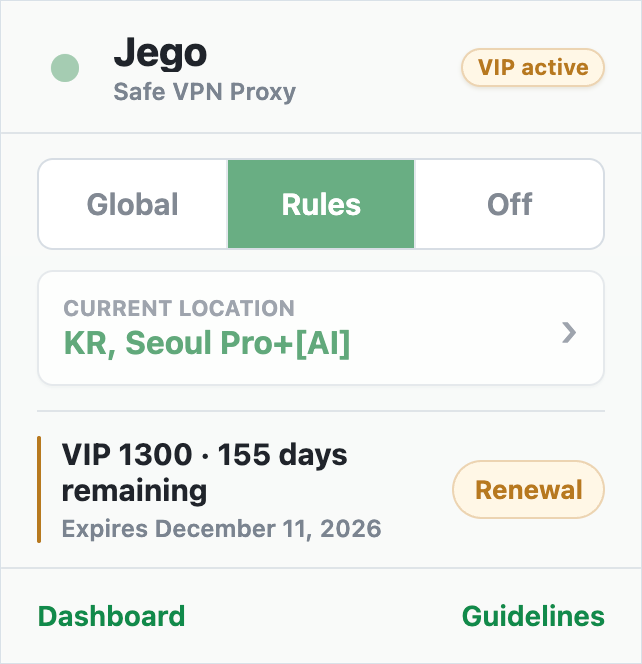
When the dot becomes the Jego logo again, the change is complete. Now reload the target website.
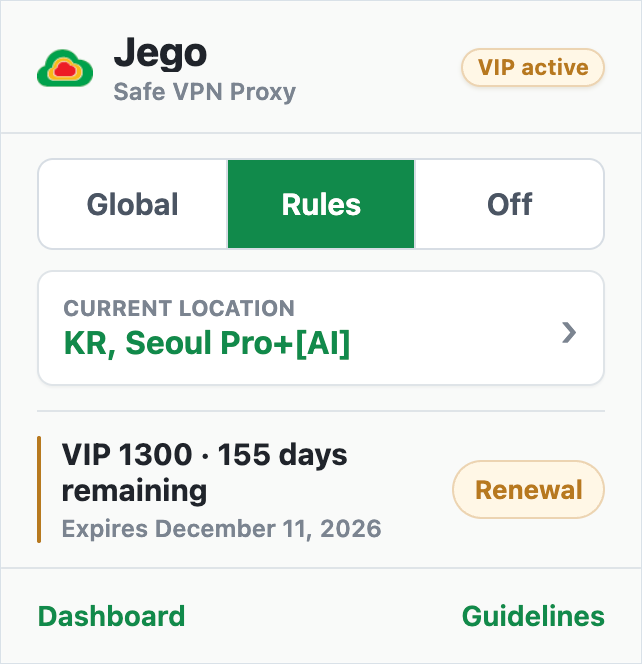
If a website still will not open
- Make sure Jego is not Off.
- Try another node or run Node test.
- Open Dashboard → Diagnostics → Connection and run the common-site check.
- If only one website fails, use Rules Check to see whether its domain is proxied.
More help: FAQ · Use ChatGPT, Claude, Gemini, and other AI products · Contact support
How to use Jego for proxy access on PC or mobile
The browser extension covers Chrome and Edge. Members can follow Install by device to use a Jego subscription in other computer or phone apps.