
US Apple ID Registration Guide
Some iOS/iPadOS proxy apps must be downloaded from an App Store region outside mainland China. If you do not have a usable non-mainland Apple ID, you can follow this guide to create a US account. Apple may also refer to Apple ID as Apple Account; follow the wording shown on Apple's pages during registration.
Before You Start
- An email address that has not been used to register an Apple ID. Gmail is recommended.
- An iPhone or iPad.
- Turn on Jego global mode and select any US node.
Step 1: Create an Apple ID
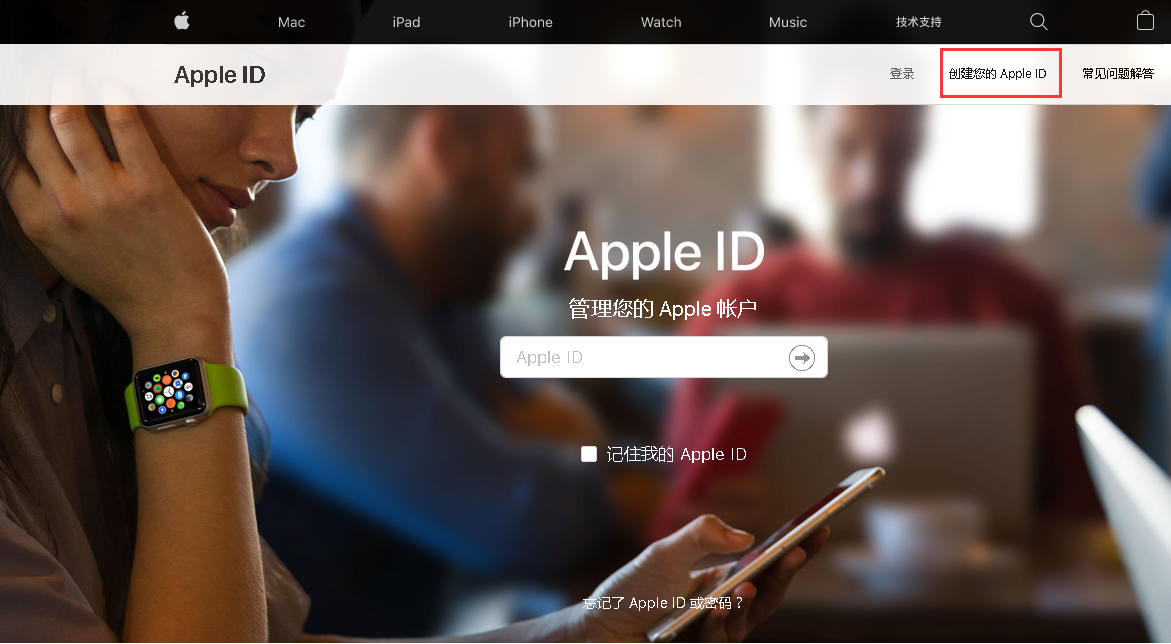
- Open the Apple ID website and click Create Your Apple ID in the upper right corner. The page language does not matter as long as the country or region is set correctly.
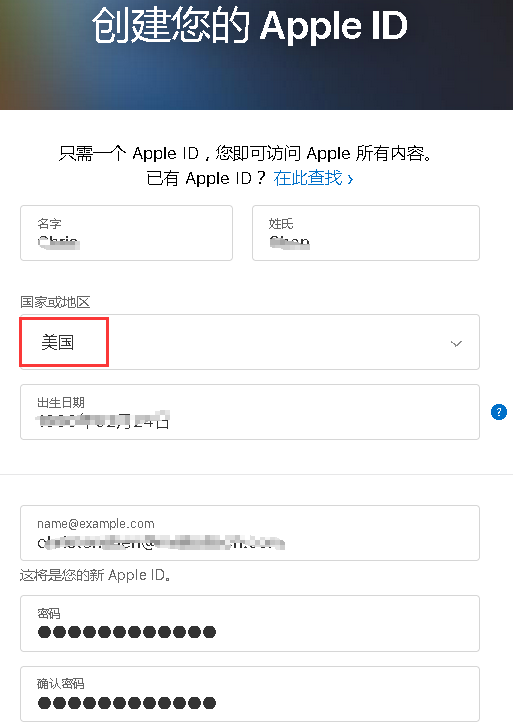
- Create a new Apple ID and select United States as the country or region. Use a real phone number and email address so you can complete verification. The password must include uppercase letters, lowercase letters, and numbers. After filling in the form, click Continue.
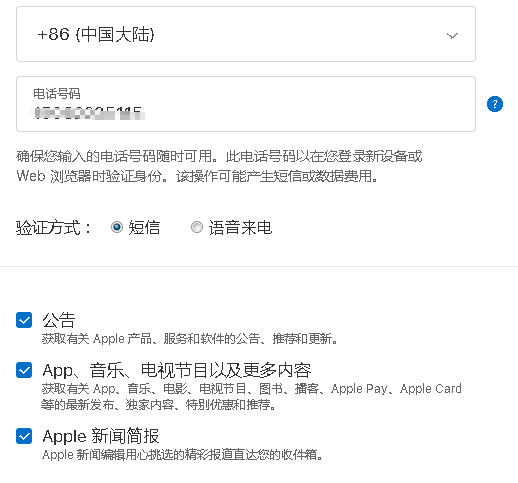
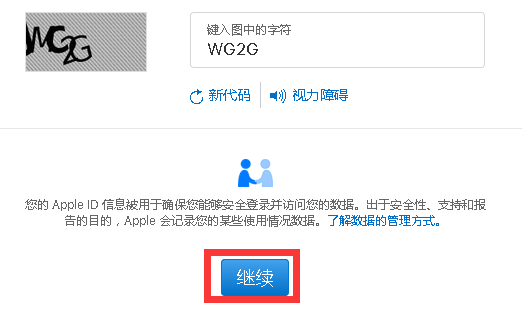
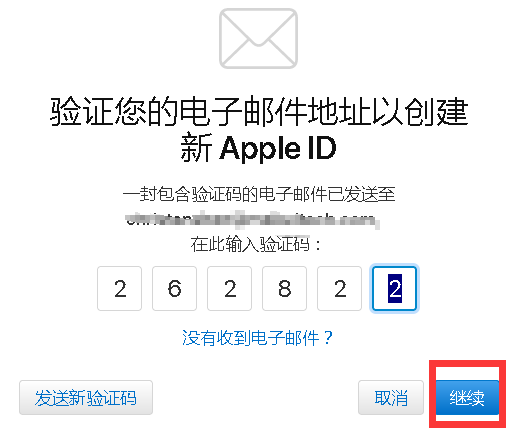
- Verify your email address. Enter the code from Apple's email and click Continue.
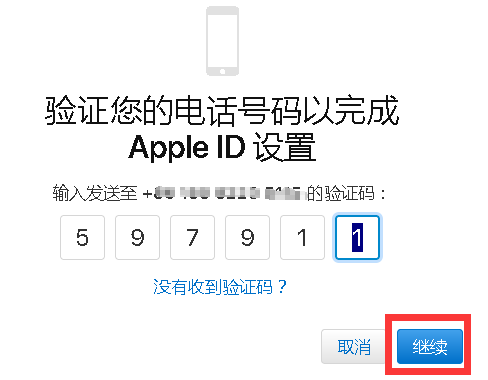
- Verify your phone number. Enter the verification code and click Continue.
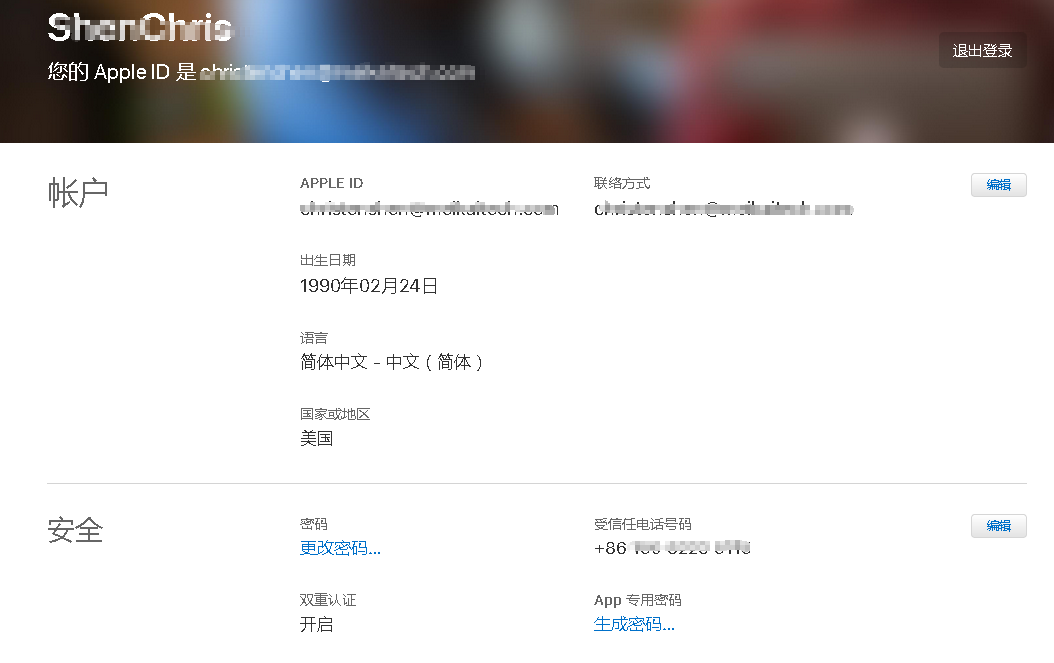
- At this point, the first stage of US Apple ID registration is complete. You still need to verify the account on an iOS device.
Step 2: Verify the Account
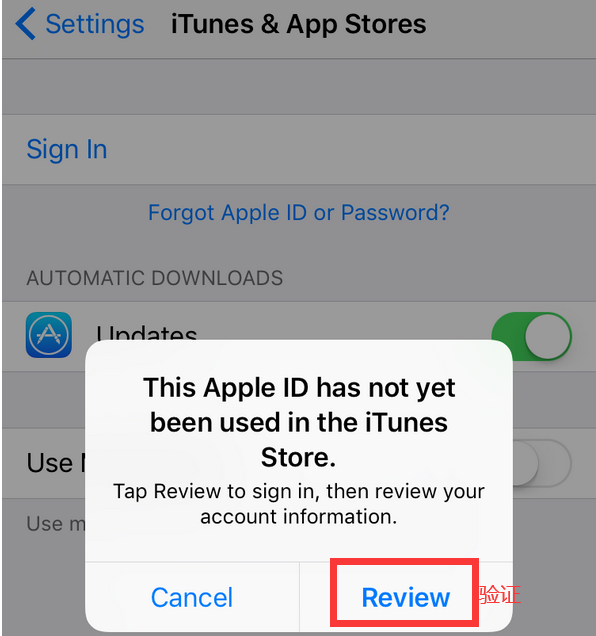
- Sign in to the newly created US Apple ID on your iOS device. After entering the correct account and password, a verification prompt will usually appear. Tap to verify.
Note
Your phone must be in proxy mode, and the selected node should be in the United States.
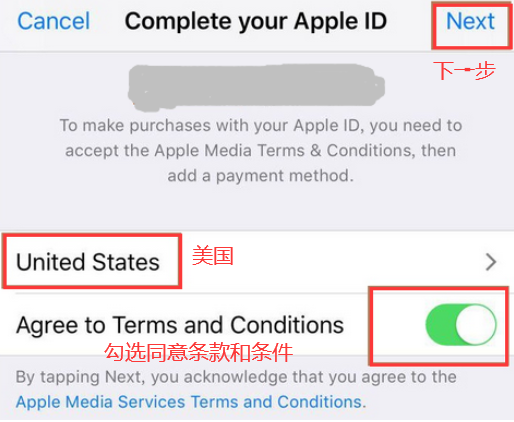
- Keep the region as United States, enable Agree to Terms and Conditions, then tap Next.
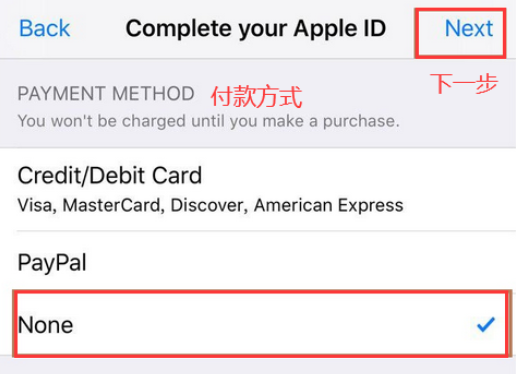
- Next, Apple will ask you to choose a payment method. If None does not appear, your phone network is usually not using a US IP address. Switch to a US node and try again. Choose None as the payment method.
Note
US accounts usually support payment methods such as bank cards or credit cards, US PayPal, and None. Cards issued in mainland China, including foreign-currency cards, dual-currency cards, all-currency cards, and US PayPal accounts bound to those cards, may fail during verification. Choosing None is recommended here.
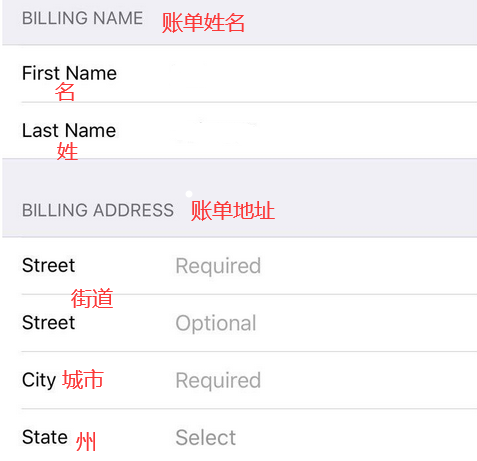
- Fill in the billing information, address, and phone number. You can search for a US address generator for the address. For the phone number, use a number that can reliably receive future verification codes, and avoid unstable or discontinued temporary SMS-number services. After filling in the information, tap Next to complete verification.
Note
Purchases made with a US Apple ID may be subject to sales tax. If you want lower tax when purchasing paid apps, use an address in a low-tax state such as Oregon, Alaska, Delaware, Montana, or New Hampshire.
- Your US Apple ID is now registered. You can download games and apps from the US App Store and use related US iTunes services.
How to Buy Paid Apps in the US App Store
Recharge with a Gift Card
A convenient method is to buy an iTunes Gift Card. You can purchase one from Apple's US website or from third-party platforms such as Amazon. Make sure the gift card region is the United States. Gift card purchases usually support foreign-currency cards, dual-currency cards, and all-currency cards issued in mainland China.
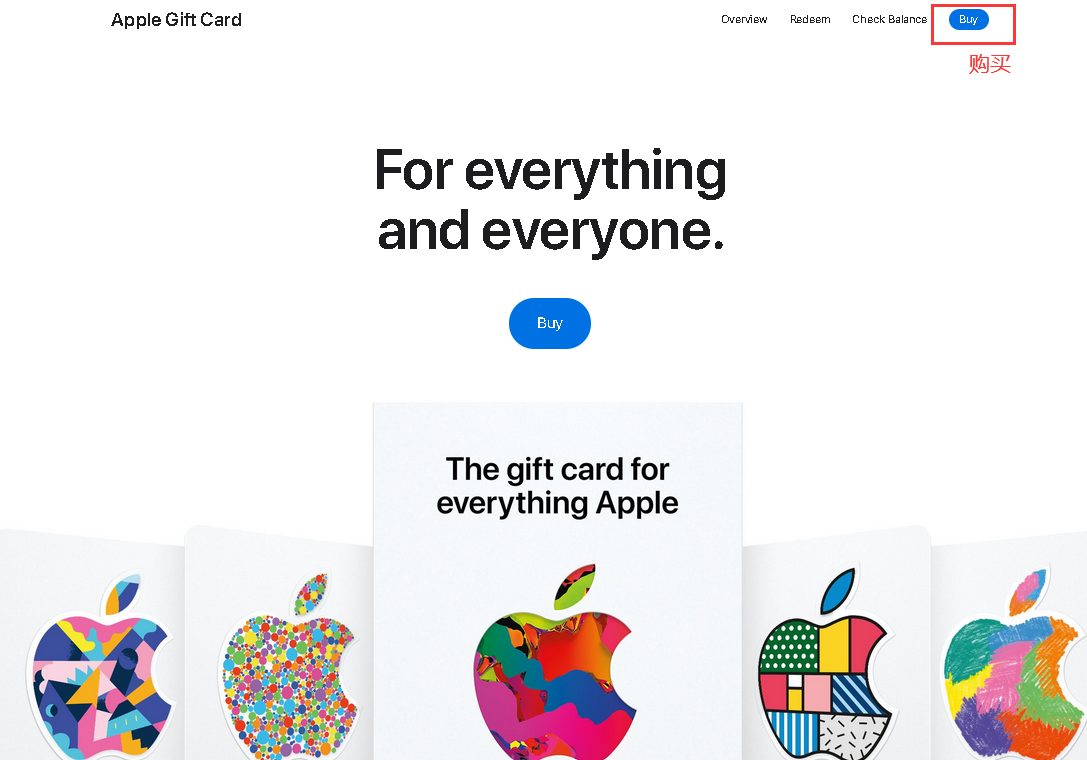
Open the gift card purchase page on Apple's US website, then click the buy button.
Note
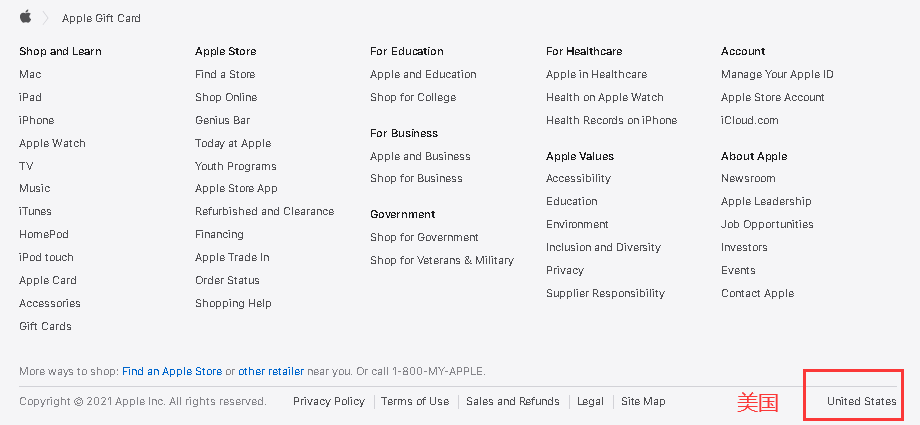
Check whether the country or region at the bottom of the page is the United States. If not, switch it to the United States first.
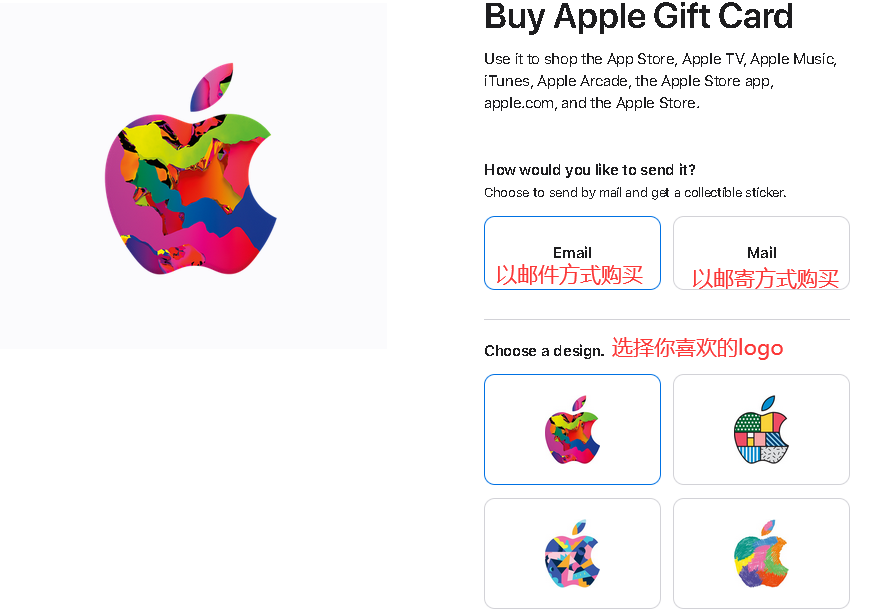
Then choose the purchase method, amount, and design.

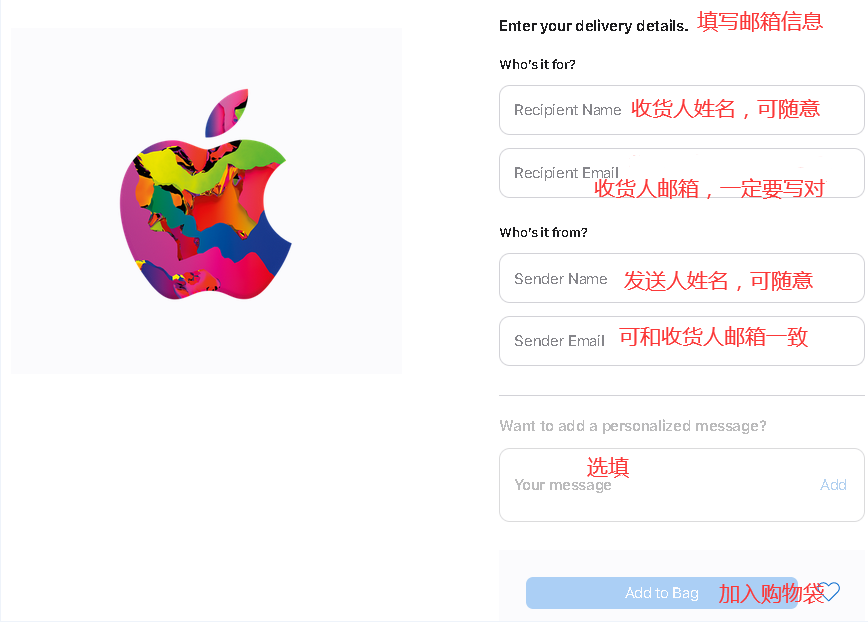
Next, review your order and continue as a guest.
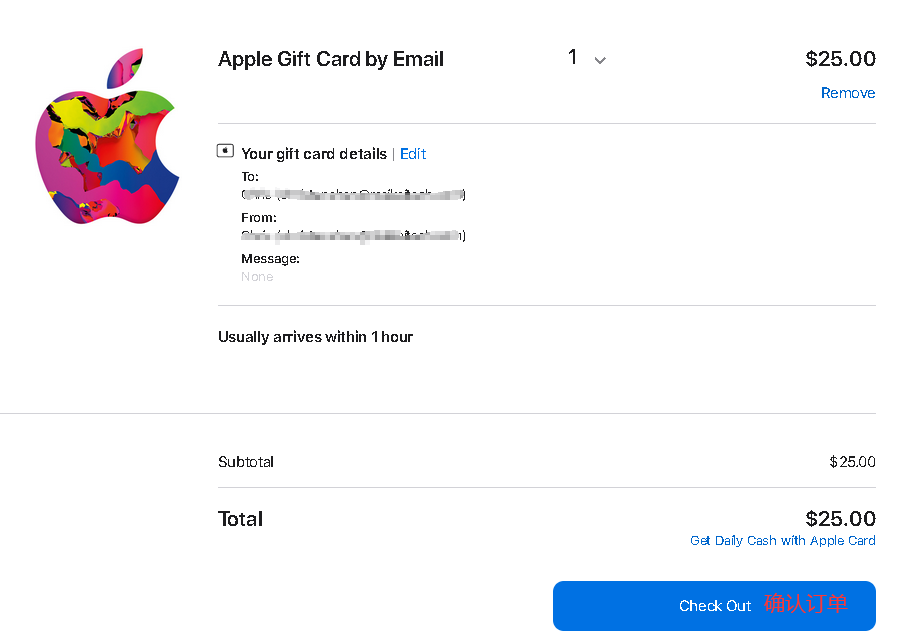
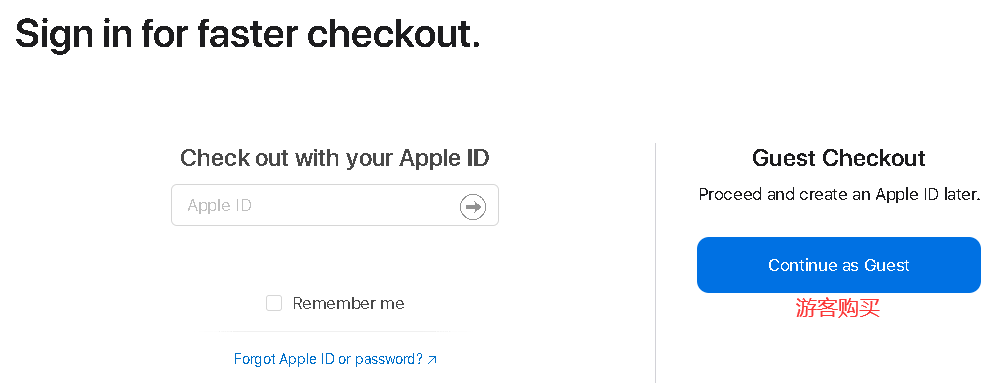
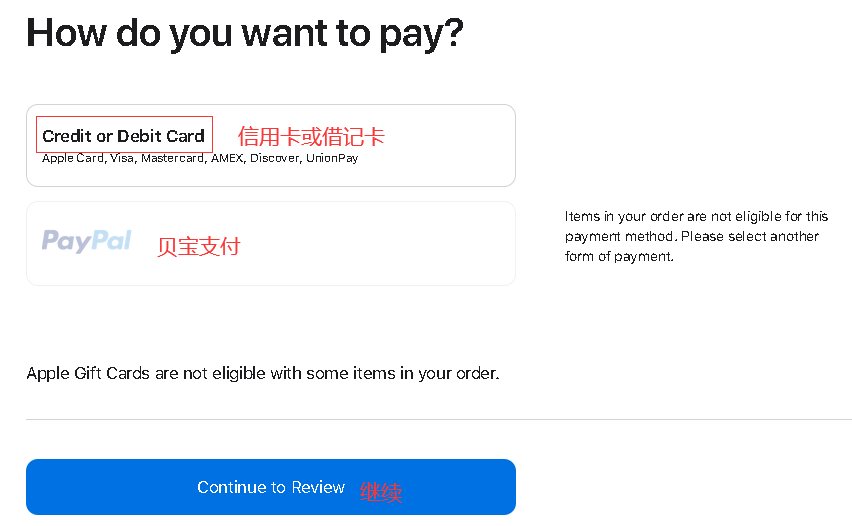
Then choose your payment method. Available options commonly include Apple Card, Visa, Mastercard, AMEX, Discover, UnionPay, and PayPal.
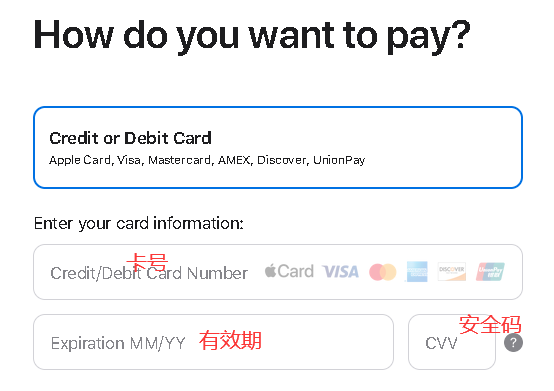
For credit card payment, fill in the card number, expiration date, and security code.
Finally, pay for the order. After the purchase succeeds, the gift card code is usually sent to your email within a few hours.
Redeem the Gift Card
Open App Store, tap your Apple ID avatar in the upper right corner, tap Redeem Gift Card or Code, then tap You can also enter your code manually and enter the code. After redemption, you can buy paid apps in the US App Store.
Note
Gift cards purchased from Apple's China website can only be used with China-region Apple IDs and are usually limited to App Store spending. Gift cards purchased from Apple's US website can be used not only in the App Store, but also in iTunes Store and other Apple stores.