US Apple ID Registration Guide
This page keeps its original URL and historical screenshots to identify Apple Account (formerly Apple ID) creation, verification, payment, and gift-card screens. The US flow applies when the United States is your real residence or legitimate account region. Everyone else can use an app available in their real region. Apple and each developer control app availability.
Apple says a region change may require spending the balance, cancelling subscriptions, leaving Family Sharing, and supplying a valid payment method and billing address for the new region. When those conditions are not met, select an app available in your current region and supported by Jego.
Before You Start
- An email address and phone number you personally control long term.
- A supported Apple device on which you can complete two-factor verification.
- Account details that match your real residence, payment method, and billing address. Creating or changing a region does not require using Jego to disguise location.
Step 1: Create an Apple ID
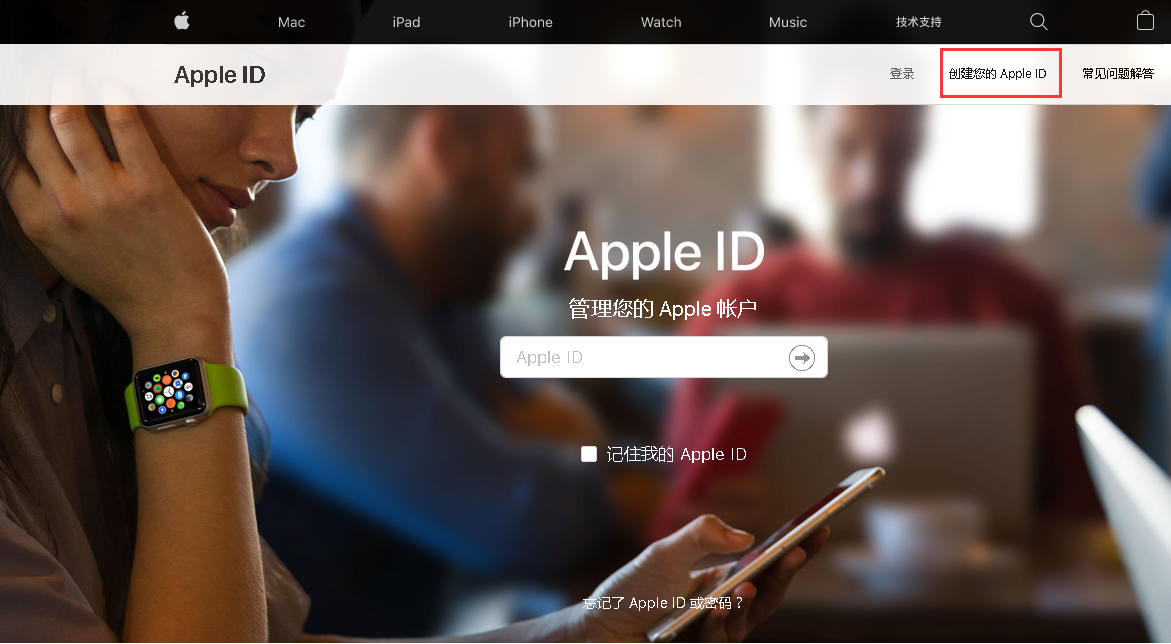
- Open the official Apple Account site and choose the account-creation entry. The screenshots below show an older interface; follow Apple's current wording.
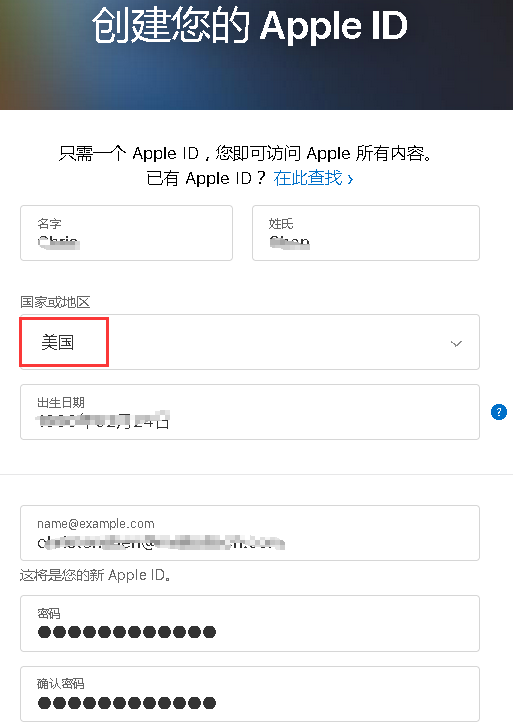
- Select United States only when it is your real account region; otherwise select the real region. Use accurate name, birthday, email, and phone details that remain verifiable. Follow the current password requirements shown by Apple.
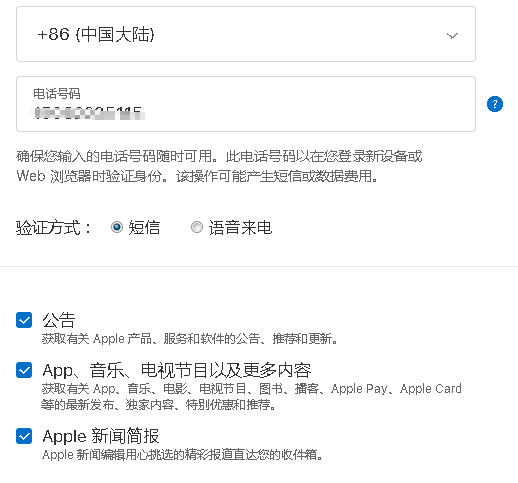
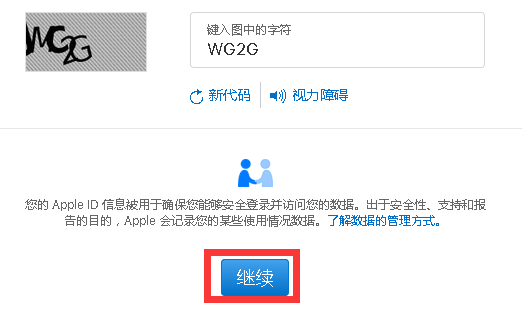
- Verify your email address. Enter the code from Apple's email and click Continue.
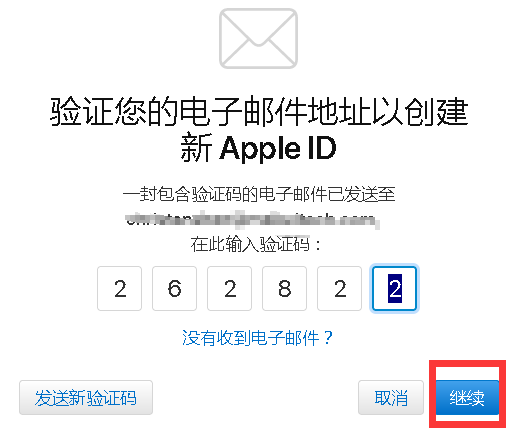
- Verify your phone number. Enter the verification code and click Continue.
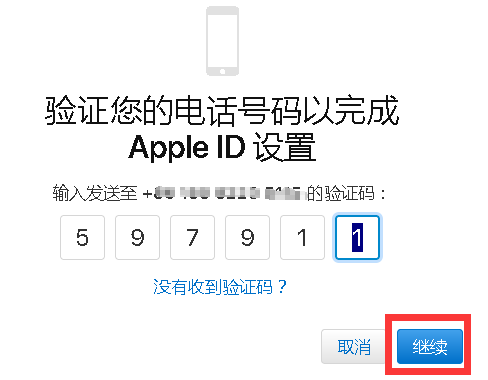
- After web creation, continue verification on an iOS/iPadOS device you control when Apple prompts you.
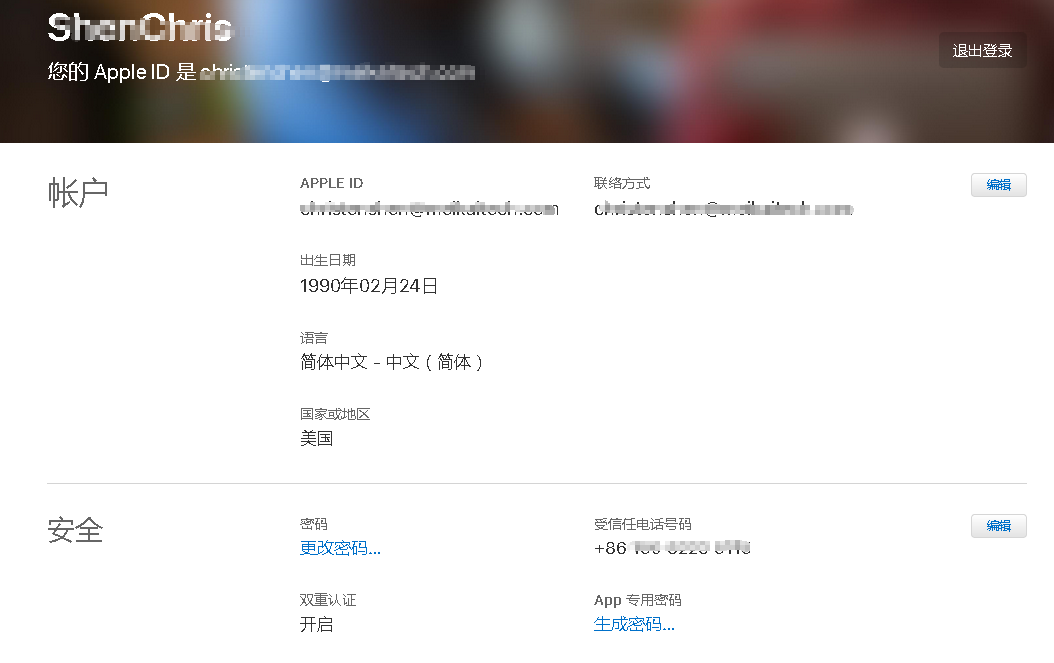
Step 2: Verify the Account
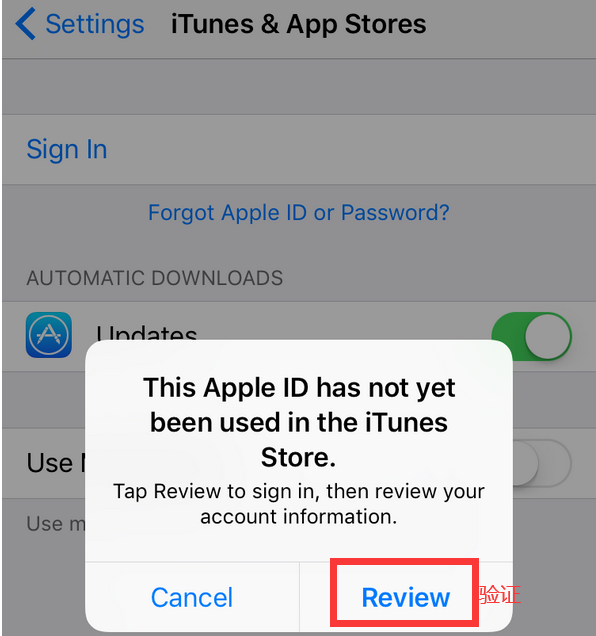
- Sign in to your own account on iOS/iPadOS. If a verification prompt appears, confirm that it is a trusted system screen before entering a code.
Protect credentials
Keep passwords, verification codes, and recovery keys on your own Apple devices. Jego support does not need these credentials to check a connection issue.
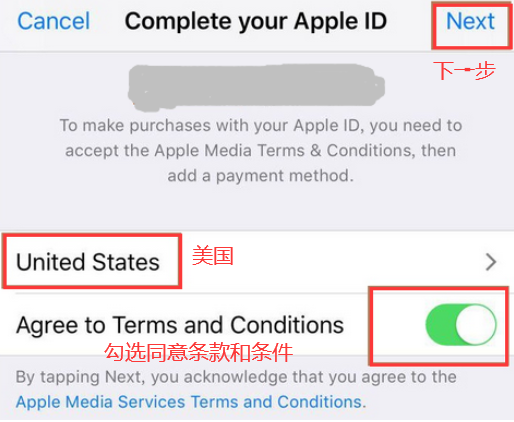
- Confirm that the displayed region matches your real account details. Read the terms before accepting and continuing. United States in the screenshot applies only to a legitimate US-region account.
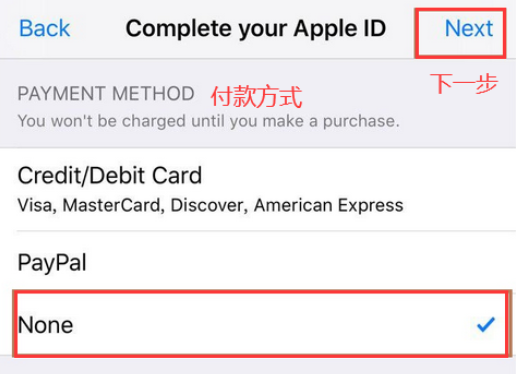
- Choose a payment method you own and that Apple currently accepts for the account region. Apple decides whether
Noneappears for the current account, so follow the page as shown.
Note
Available payment methods change. Name and billing address must match the financial institution's records. If payment setup fails, consult Apple's current regional payment-method page or the financial institution.
- Enter your own valid billing address and phone number, consistent with the payment record. Review the form and continue.
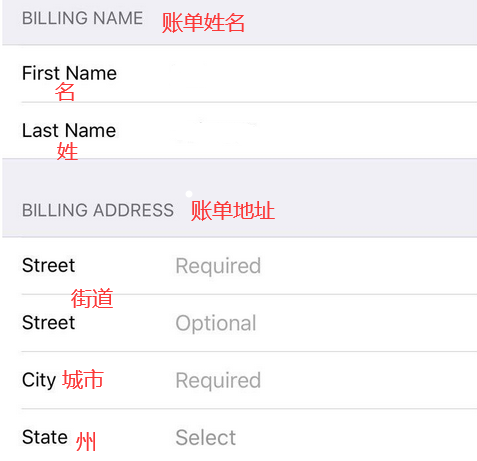
Tax and region
Tax is determined by the real billing address, applicable law, and Apple's checkout. Enter the state and address from your own payment record.
- After verification, available apps and content still depend on the account's current region, device, and developer rules.
How to Buy Paid Apps in the US App Store
Recharge with a Gift Card
A gift card can be redeemed only in the store country or region where it was purchased. Buy from Apple or a trusted authorized retailer and verify type, region, terms, currency, and refund conditions. Use Apple Account passwords and verification codes only on your own Apple device.
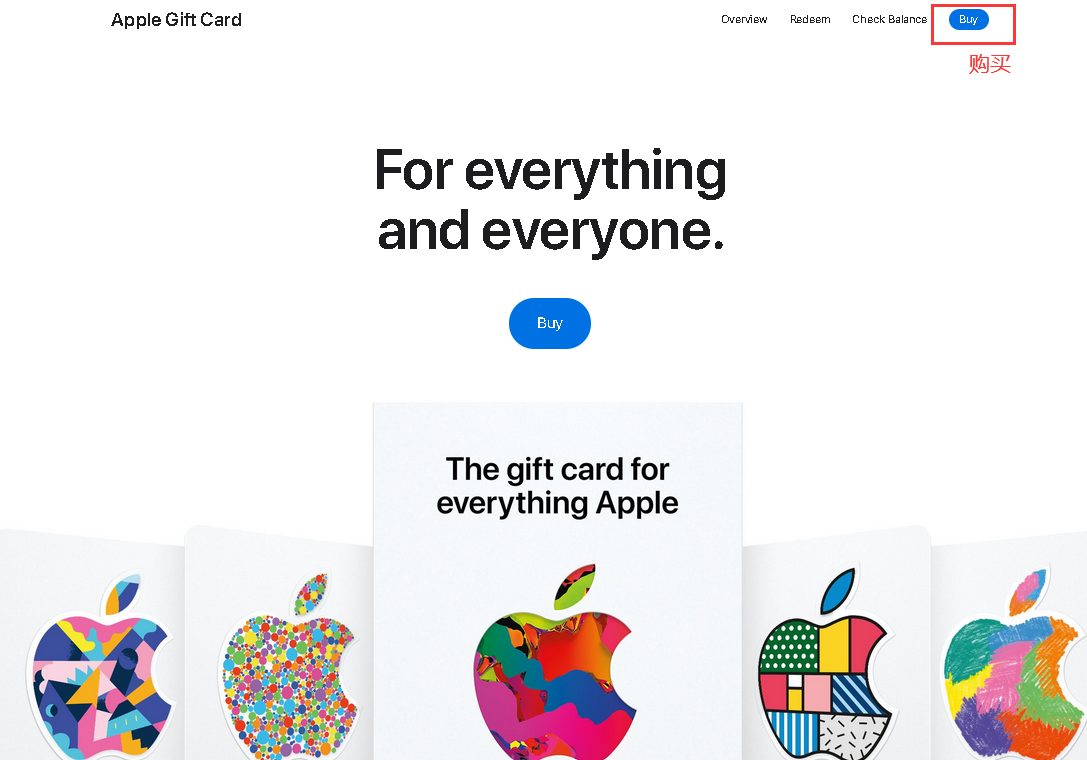
Open the gift card purchase page on Apple's US website, then click the buy button.
Note
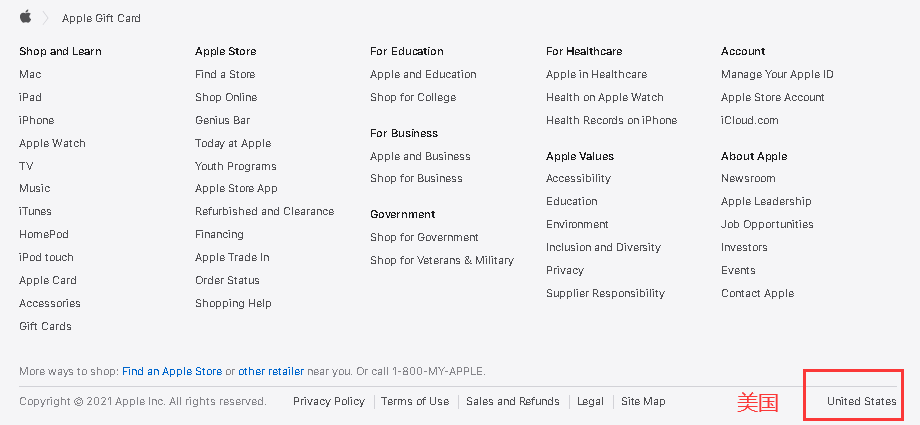
Check that the site country or region matches both your real account region and the gift card being purchased.
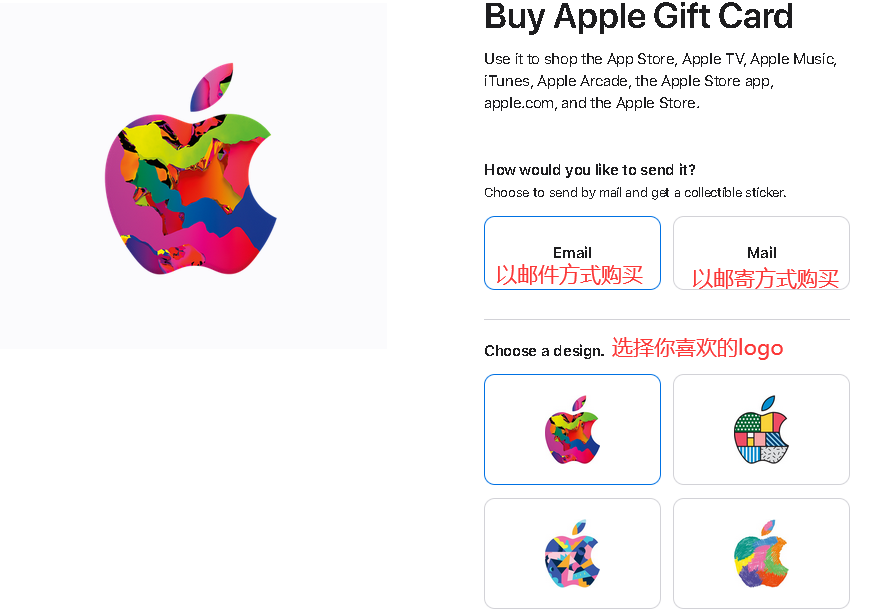
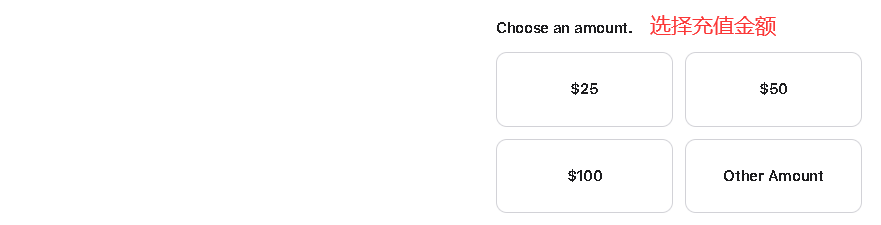
Then choose the purchase method, amount, and design.
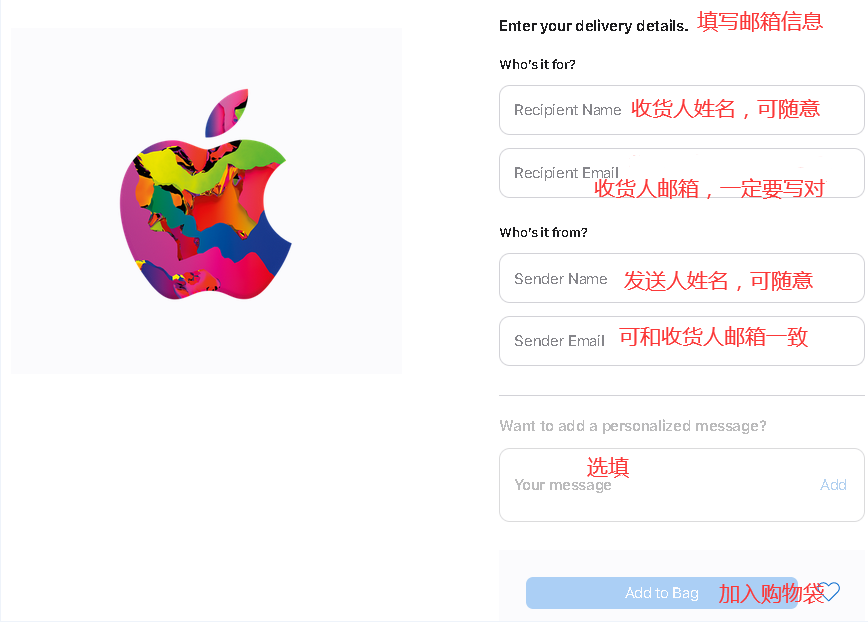
Next, review your order and continue as a guest.
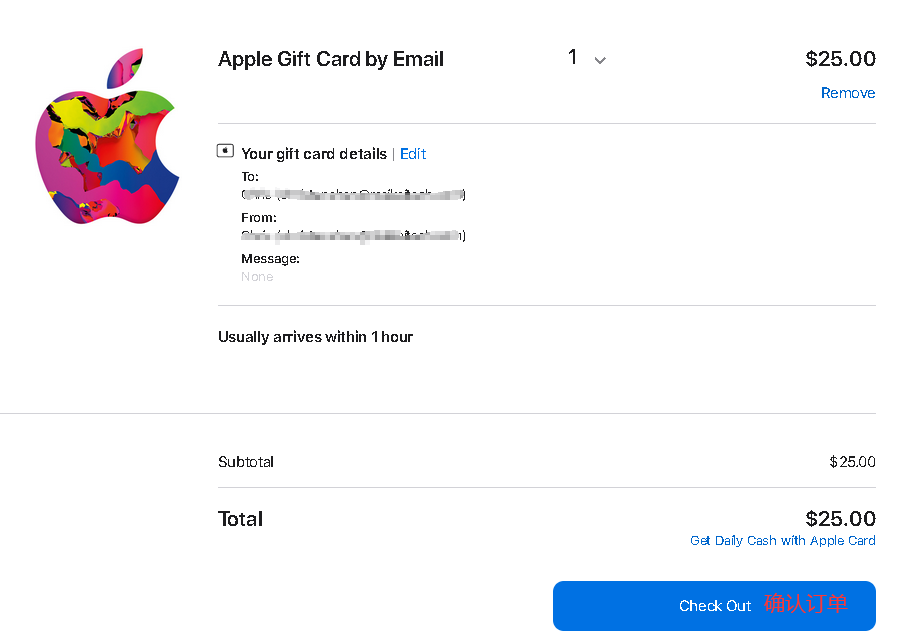
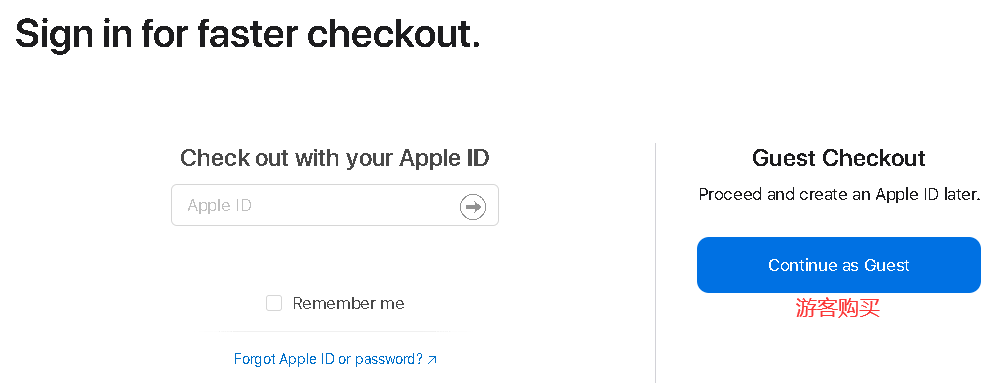
Choose a payment method you own and that the current checkout actually offers. The screenshot is historical; current methods are controlled by Apple.
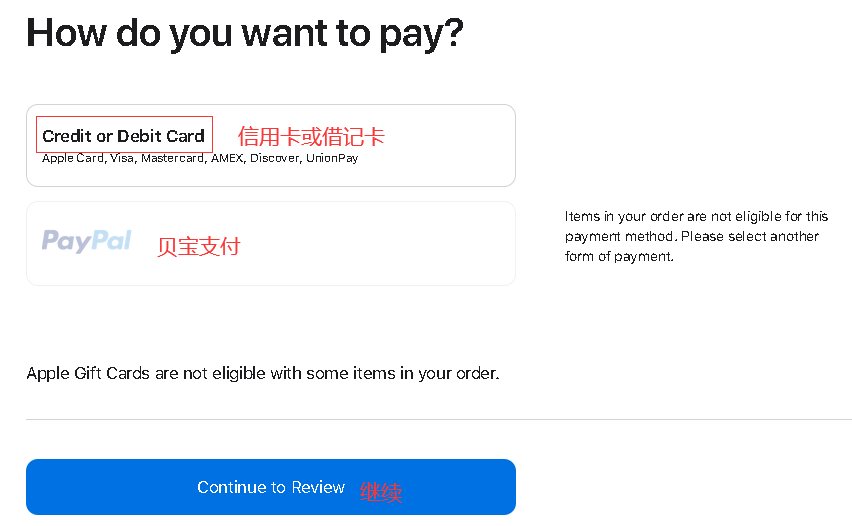
For card payment, enter the number, expiration date, and security code only after confirming that the secure checkout domain belongs to Apple. Keep these details on your own payment device.
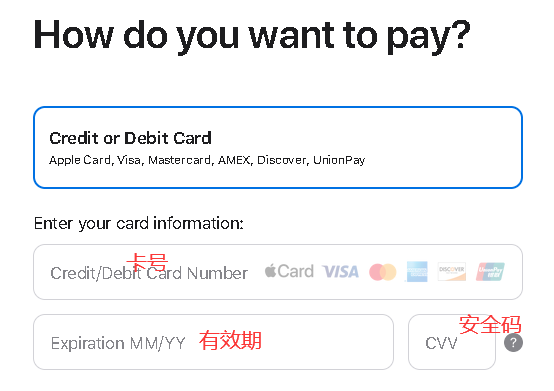
Before payment, recheck the recipient email, region, amount, and terms. Delivery timing is defined by Apple's order page and confirmation; this article makes no fixed-time promise.
Redeem the Gift Card
Open App Store, tap your Apple ID avatar in the upper right corner, tap Redeem Gift Card or Code, then tap You can also enter your code manually and enter the code. After redemption, you can buy paid apps in the US App Store.
Note
Apple states that gift cards cannot be redeemed outside their country or region of purchase. What a balance can buy depends on card type, account region, and Apple's current terms; verify the official support page before redemption.