
tvOS Proxy Guide
The currently recommended Apple TV client is the native Clash tvOS app. Download Clash from the App Store, then follow the steps below to add a Jego subscription and start it.
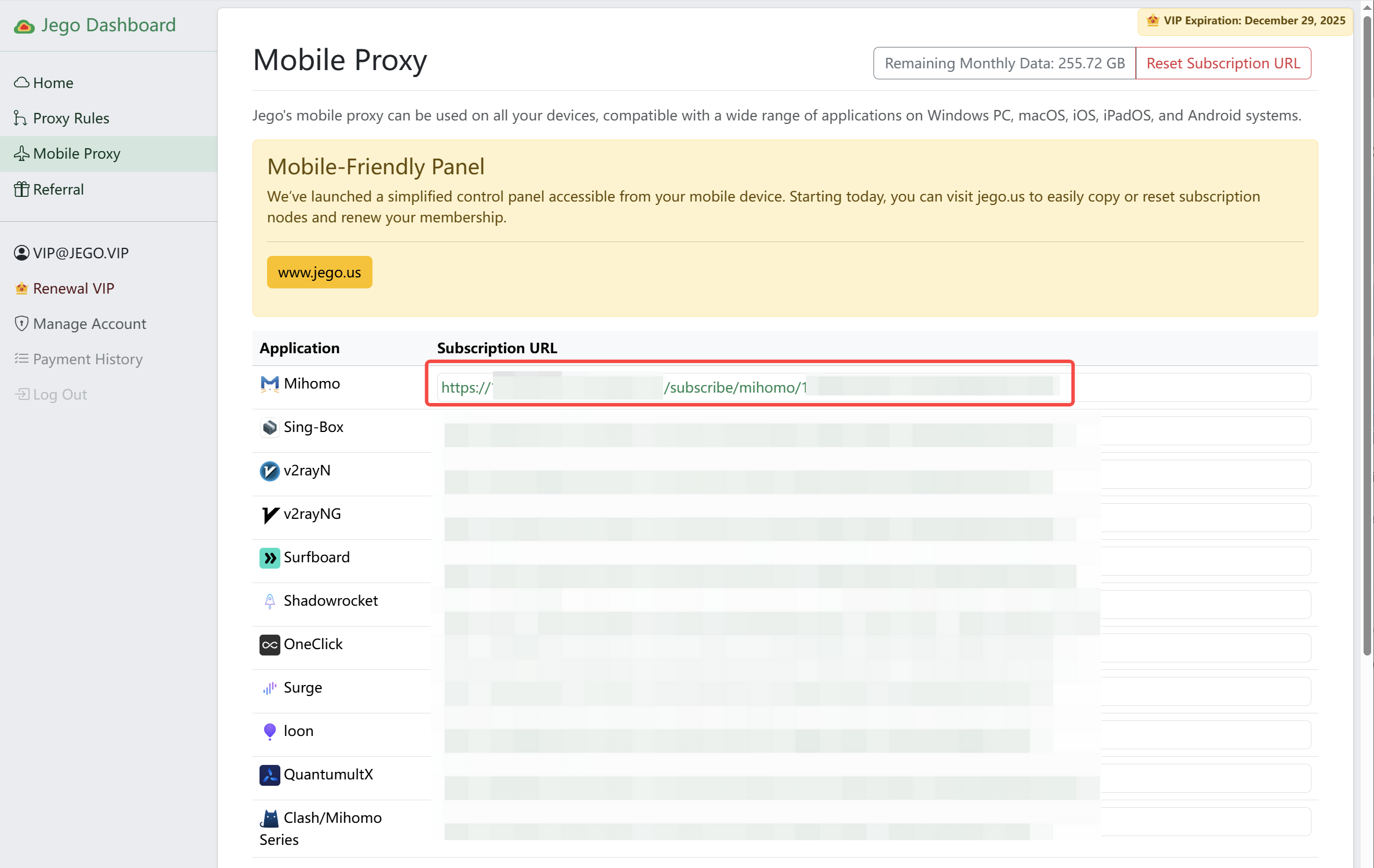
Copy the Mihomo subscription
- Sign in to the Jego Dashboard on a phone or computer.
- Open Mobile Proxy.
- Find the Mihomo subscription and select Copy.
Add the Profile and start
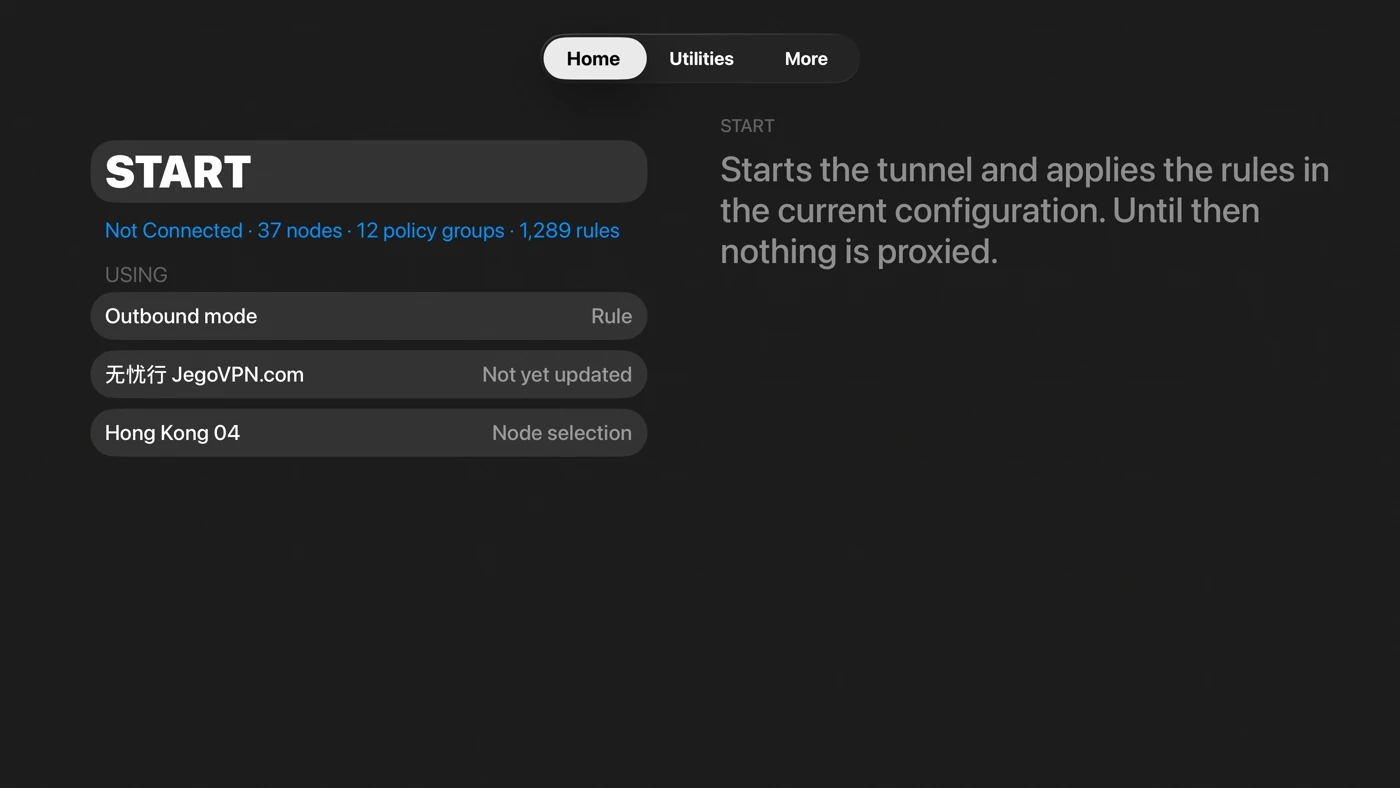
Follow screenshots 1–3 to add the Profile and return Home. Allow the VPN configuration when tvOS asks on the first start.
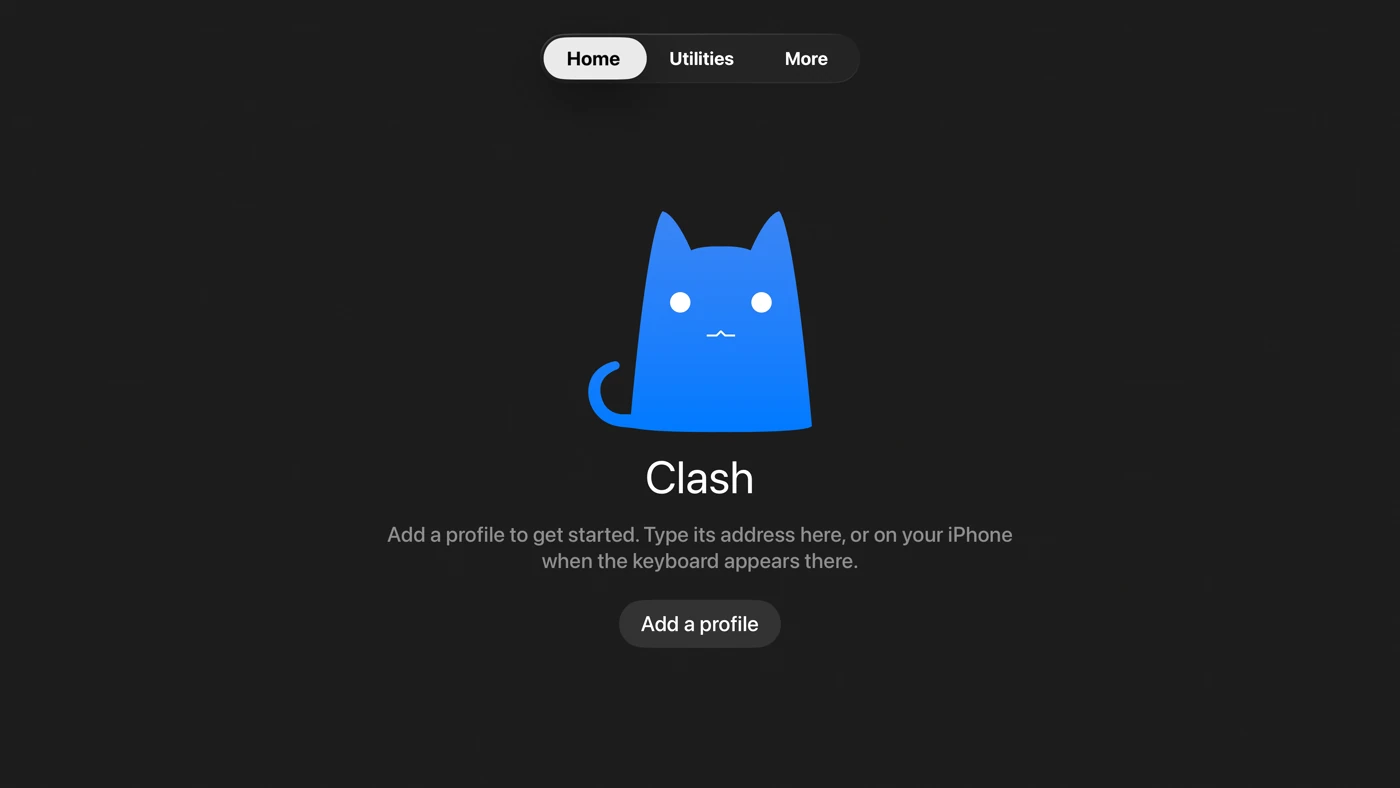
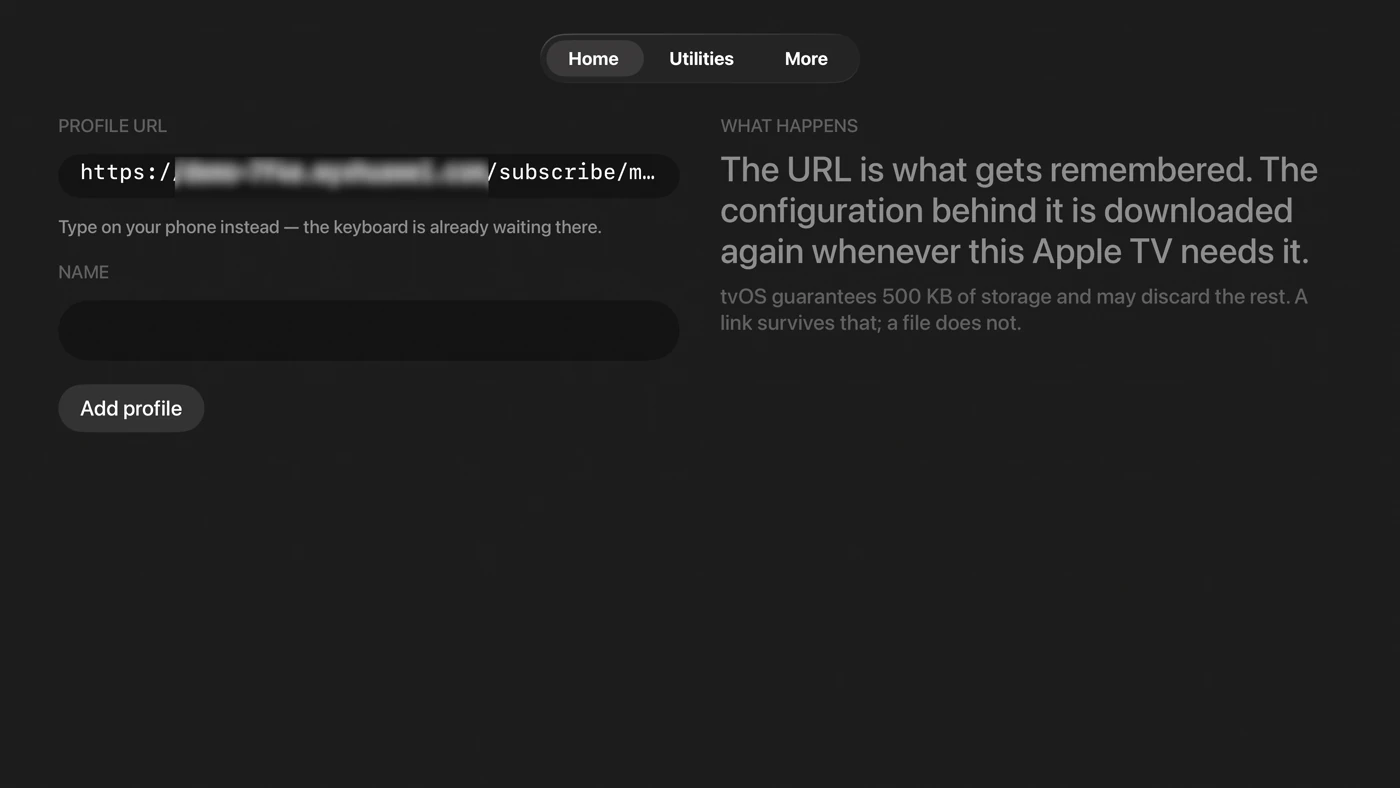
For a long URL, use the Apple TV keyboard notification on a nearby iPhone or iPad, or type with the keyboard in Apple TV Remote.
Choose a node
Select Node on Home or open Utilities → Nodes. Choose a policy group on the left and a node on the right; the current node displays In use. Apple TV shows stored latency results but does not include Test All.
If the Tunnel does not start, confirm that 无忧行 JegoVPN.com displays In use, select Rule again, and retry.
See the official Clash tvOS guide for more interface details.
For another Apple device, return to Clash for Apple Platforms and choose iOS or macOS.