
Use a Jego subscription on computers and phones
Subscription service lets computer software and phone apps use Jego. Choose your device below and follow its client setup guide.
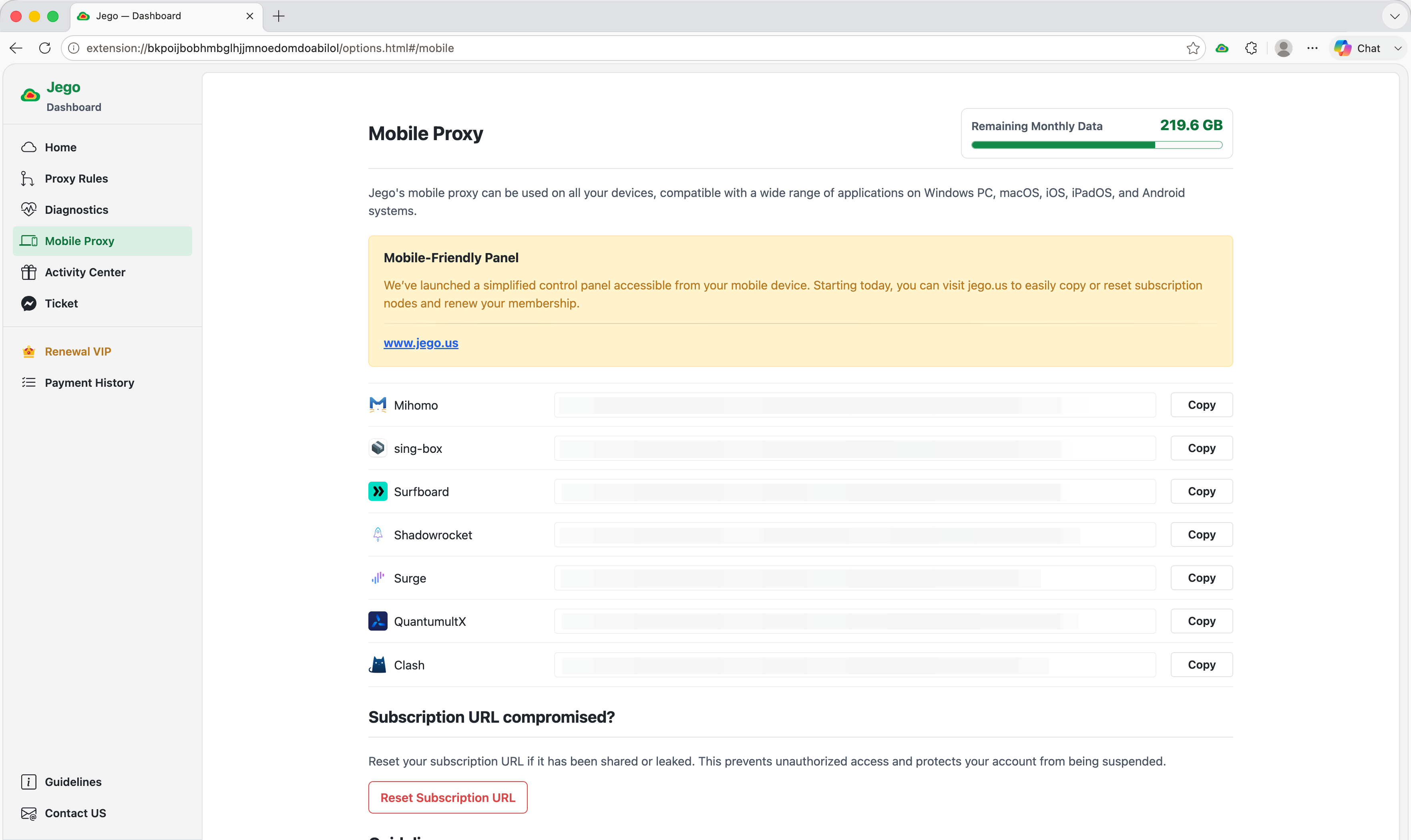
Subscription addresses are under Dashboard → Mobile Proxy, along with the remaining monthly data.
Install by device
Choose the device you are using to open its guide. Each guide begins with the clients Jego currently supports, then shows how to install one and add the Jego subscription.
You do not need to compare every client first. Start with one of the recommended clients at the top of your device guide.
 WindowsProxy guide
 macOSProxy guide
 iPhone / iPadProxy guideApple TV / tvOSProxy guide
 AndroidProxy guide
 LinuxProxy guide
 HarmonyOSProxy guide
The Apple ID guide covers App Store account details for iPhone and iPad.
Avoid conflicts between the extension and client
The Jego browser extension and a subscription client can both handle browser requests. Understanding the part each one covers makes it easy to use them together correctly:
- Browser extension: covers Chrome or Edge where Jego is installed and is the simplest choice for browser use.
- System proxy: the client writes a proxy setting to the operating system, which browsers and apps that support the setting can use.
- TUN mode: the client creates a virtual network adapter and handles requests that enter it according to the client's rules. It is useful when other computer apps also need the connection.
System proxy and TUN are both controlled by the subscription client. On phones, the client usually takes over network requests through a system VPN connection (shown as VPN in the status bar); the connection itself is still provided by the client and the selected node.
Jego extension while a client uses TUN
When a computer client has TUN mode enabled, keep the Jego browser extension Off so the browser requests are handled by that client.
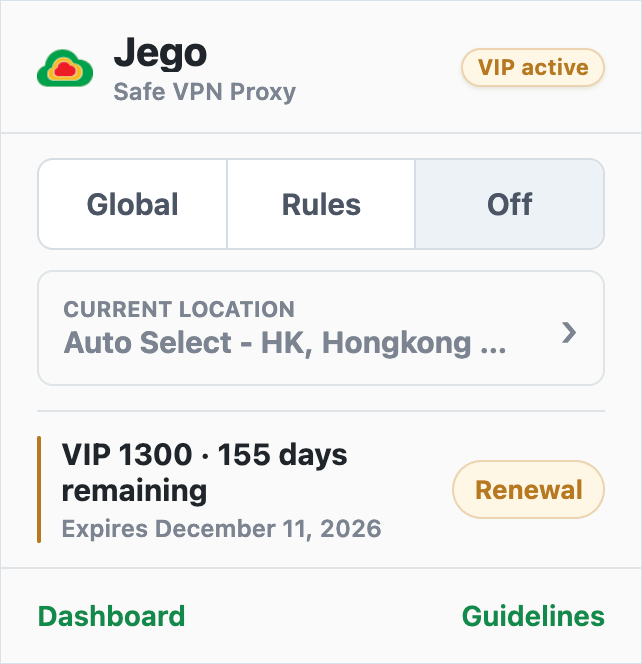
Off only disables the browser extension's own proxy function. It does not affect the computer client or TUN. When using only the browser extension, select Rules or Global in its popup. See Rules, Global, and Off for the full mode explanation.