Jego Dashboard
Use the extension popup for quick mode and node changes. The Dashboard brings connection status, Diagnostics, Mobile Proxy, and account services together on a full page. Open it from Dashboard at the bottom of the Jego popup.
Start with the three status items on Home
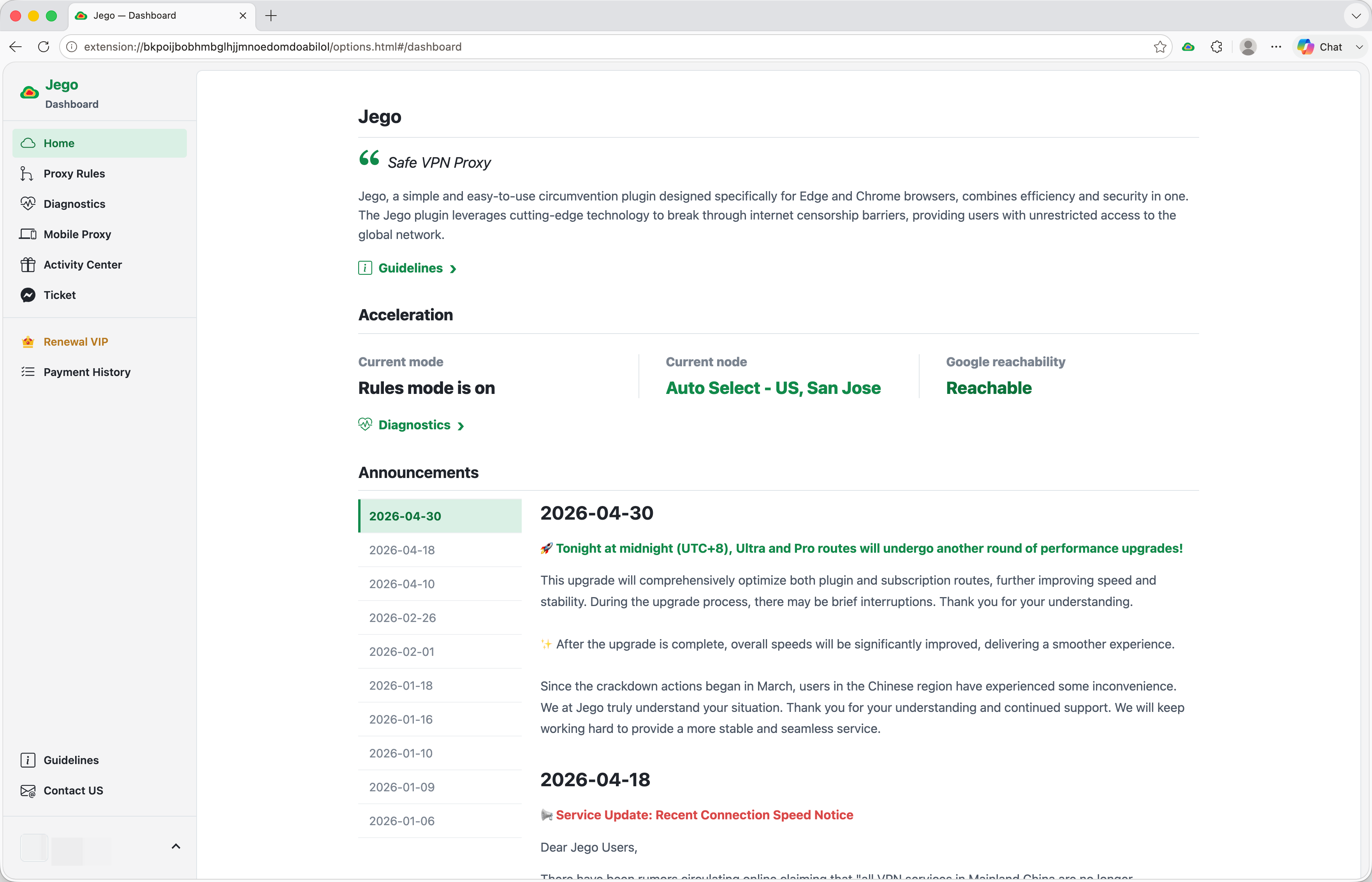
The Acceleration area in the middle of Home shows three items:
- Current mode: Rules or Global means Jego is on. Off means the browser is using the local connection.
- Current node: The selected route. Its name can remain visible in Off mode, but the route is not used.
- Google reachability: Reachable means Google can open under the current settings.
Select Diagnostics below this area when you want to check the connection. It guides you through common websites, the current proxy rule, and available nodes.
Announcements appears below the status area. Select a date on the left to read the corresponding release, route, or service notice on the right.
Open a sidebar item when you need it
Browser connections
- Proxy Rules: Add a proxy or direct rule for a domain or IP address. See Custom proxy rules for the full steps.
- Diagnostics: Check the current mode, node, common websites, route for one address, node speed, and Encrypted DNS. Start with the Diagnostics overview.
Computers and phones
- Mobile Proxy: Members can get a subscription URL here and import it into a supported computer or mobile client. See Subscription Services to choose a client by device.
Account and support
- Activity Center: View activities available to the current account.
- Ticket: Send a question and read support replies.
- Upgrade VIP / Renewal VIP (shown according to membership status): View currently available membership purchase or renewal options.
- Payment History: View created orders and their payment status.
- Guidelines at the bottom opens the in-panel guide page, which links back to the help center; Contact US opens the support entry.
- Click your account email at the bottom of the sidebar to open the account menu: membership details, appearance, Manage Account, and Log Out.
Start common tasks here
- See whether one address is proxied or direct: Rules Check
- Compare the nodes on the current account: Node test
- Apply your own connection rule to a website: Custom proxy rules
- Use the subscription in other computer or phone apps: Subscription Services (then pick the guide for your device)
Menus can vary slightly by account. If an entry you need is not visible, confirm that you are signed in, update Jego, and reopen the Dashboard. If it is still missing, record the extension version and menu name before contacting support.