
Jego Diagnostics guide
To understand how the Jego proxy is working, open Diagnostics. Check the Traffic handling card, common website results, and website route in order to see whether the next step is changing the node or adjusting Proxy Rules.
To open it: click the Jego icon → Dashboard → Diagnostics.
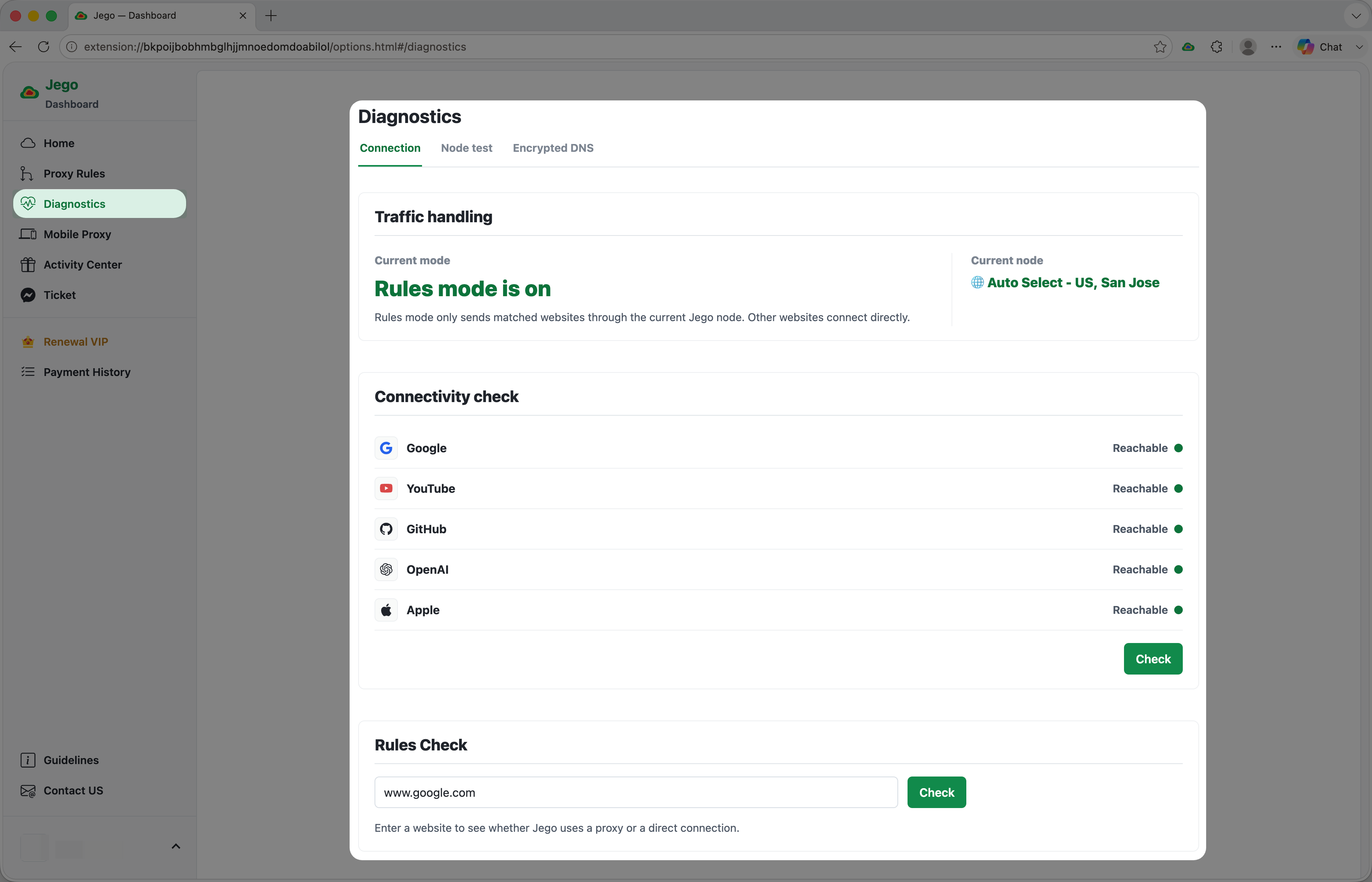
Traffic handling
First, check the current mode and current node. They determine how the checks below connect:
- Rules: Jego handles browser requests according to its proxy rules;
- Global: all browser requests use the current node, while local addresses connect directly;
- Off: the browser uses the local connection.
To use Jego, select Rules or Global mode. The current node is the route used by proxied traffic.
Connection
Next, select Check under Connectivity check. Jego will test:
- YouTube
- GitHub
- OpenAI
- Apple
Each website will show one result:
- Reachable: the current connection can reach this website;
- Unreachable: if only one website shows this result, check its route next; if several websites show it, choose another node in the popup and run the check again;
- Not checked: select Check to begin.
Check a Website's Route
Finally, enter a root domain such as openai.com under Rules Check, then select Check.
The page will show:
- Proxy: the domain will use the current Jego node. To use another route, choose a different node and try again;
- Direct: the domain will use the local connection. To send it through Jego, add a rule under Proxy Rules;
- Could not determine route: wait for routing data to finish syncing, then reload the page and check again.
If several websites remain unreachable after switching nodes, check the FAQ or contact support with your check results.