
v2rayN
v2rayN is a v2ray Windows client that is relatively friendly to beginners on PC platforms.
Version requirement
Use v2rayN 6.32 or later. In v2rayN, the Jego subscription is imported as one custom configuration that runs on the mihomo core and includes all nodes and routing rules. Versions earlier than 6.32 can use only some of the nodes.
 Get v2rayN
v2rayN official website download address: https://github.com/2dust/v2rayN/releases
Choose the stable build marked Latest.
Installation Tutorial
Software Directory
After downloading, find a suitable directory, it's recommended to install on a non-system drive, extract the compressed package, the directory after extraction is as shown in the figure below.
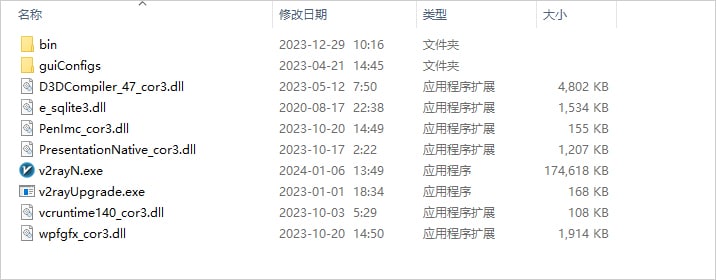
Find the main program v2rayN.exe and double-click the left mouse button to start using. After the program starts, it will minimize to the tray in the bottom right corner of the taskbar. Double-click the blue V small icon with the mouse to open the main interface of the software.
Add Subscription:
In the Jego Dashboard, click Mobile Proxy in the left navigation bar and copy the first row, Universal (all apps). It detects your client automatically and returns the matching format. If the universal URL imports no nodes or fails to update, copy the Mihomo row instead.
After import, v2rayN shows the Jego subscription as one custom configuration that runs on the mihomo core instead of listing each node. Choose nodes from that configuration's proxy groups. If you set a specific core (Xray or sing-box) for this subscription, the configuration fails to load, so change the subscription's core setting back to the default.
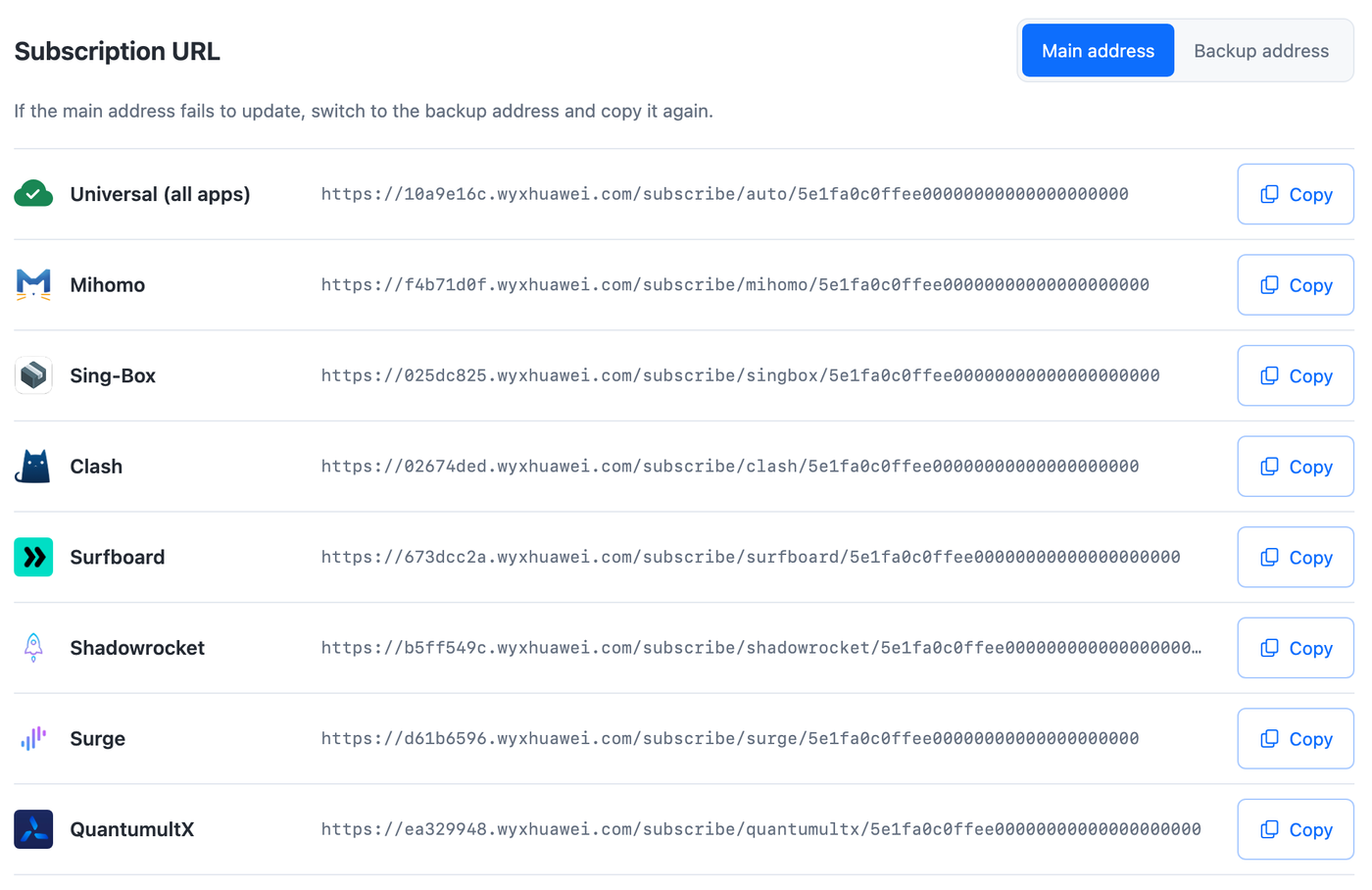
You can also get the subscription URL on your phone: open https://jego.us in the phone browser and sign in to copy it.
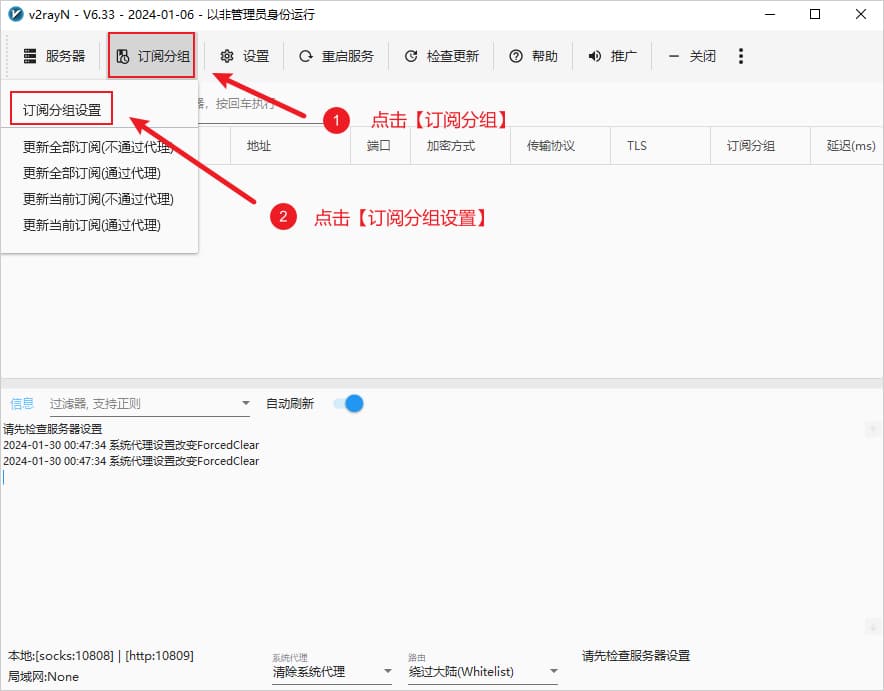
Click on Subscription Group in the software main interface, Click Subscription Group Settings, as shown in the figure below:
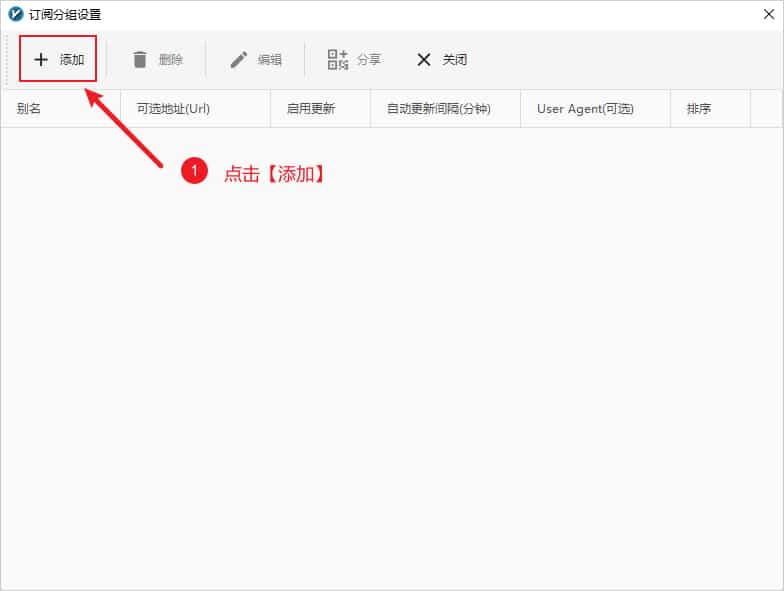
Click Add in the popup window, as shown in the figure below:
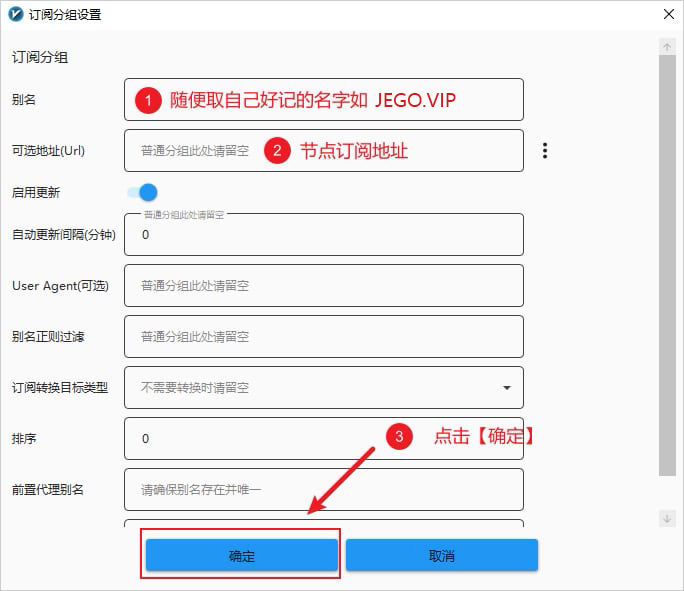
Then in the popup window, enter an alias, paste the subscription address in the Optional Address (Url) section, click Add, then click OK, as shown in the figure below:
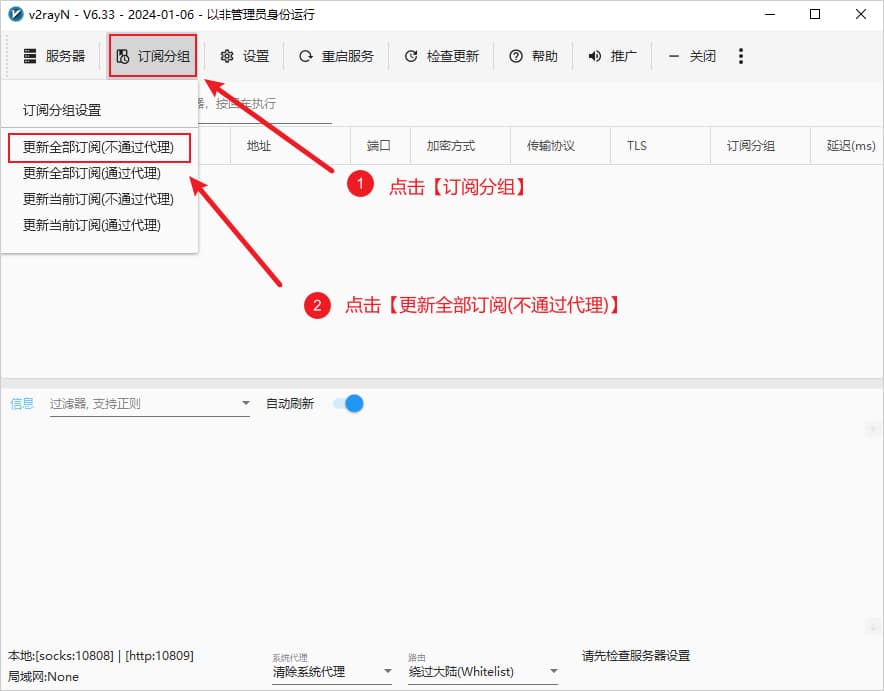
After adding, click on Subscription Group in the software main interface, then click Update All Subscriptions (Without Proxy) to successfully use the subscription address to add node information, as shown in the figure below:
Usage Tutorial
After updating the subscription, select the Jego configuration and enable the system proxy to start browsing, as described in Select Node and System Proxy below.
Select Node
After the subscription updates, the server list shows one configuration named after the alias you entered. Select it, right-click, and choose Set as active server, or double-click it.
Once it starts, the main window shows a Proxies tab with the Jego proxy groups and nodes. In a proxy group, right-click the node you want and choose Select active node, or double-click the node, to switch.
System Proxy
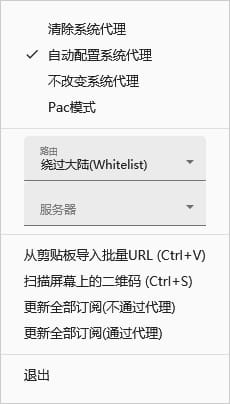
After configuring the server (node) according to the configuration tutorial above, you need to set the system proxy to enable the browser to support internet access function. Find the software icon in the system tray in the bottom right corner of the taskbar, right-click the mouse on the icon, click Auto Configure System Proxy, at this time the software icon will turn red, and you can start using it. Open Google to try if you can access it.
Routing Mode
The Jego subscription includes its own routing rules, so you do not need to choose a v2rayN routing mode. v2rayN's whitelist, blacklist, and other routing settings do not apply to this configuration.
To send all websites through the proxy temporarily, switch the mode from Rule to Global on the Proxies tab.
Icon Description
The icon color of the software is different in different states, refer to the icon color description in the table below.
| Icon | Software Status | Description |
|---|---|---|
 | Clear System Proxy | Every time the service is started/restarted, forcibly clear the proxy of the windows system (ie). |
 | Auto Configure System Proxy | Every time the service is started/restarted, forcibly set the proxy of the windows system (ie). |
 | Don't Change System Proxy | Every time the service is started/restarted, do nothing. The function is to preserve the proxy set by other software. |
Common Issues
Core type differences
The Jego subscription uses the mihomo core automatically. Do not change the subscription or configuration to another core such as Xray or sing-box, or the configuration will fail to load.
Supported protocols
 VMess, VLESS, Trojan, Socks, Shadowsocks, Hysteria2, Tuic and other proxy protocols.
Relationship with v2rayNG
 The Android version of v2rayN is called v2rayNG, but the Jego subscription does not work in v2rayNG. On Android, use sing-box for Android or FlClash instead.