
FlClash
A multi-platform proxy client based on Mihomo (formerly ClashMeta), simple to use, open source and ad-free.
Welcome
Welcome to the 2025 FlClash usage tutorial
FlClash is an open-source client based on Mihomo (formerly Clash Meta), with official builds for Windows, macOS, Linux, and Android.
 Get FlClash
- Github release: https://github.com/chen08209/FlClash/releases
After opening the Github Release page, you'll see many installation packages. Don't worry, just download and install according to your operating system.
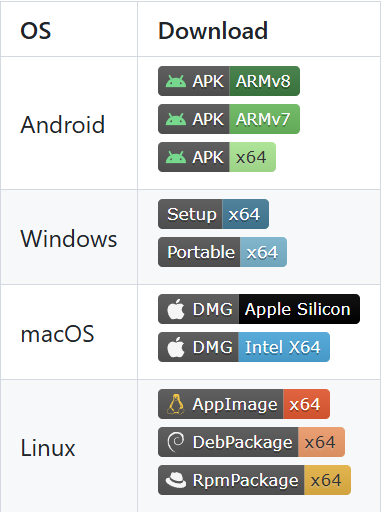
Download Instructions:
- Expand the Assets for the intended release and read its notes.
- Select a package that explicitly matches the operating system and CPU architecture.
- Do not mechanically download the first file or use an unofficial mirror.
- If architecture or package format is unclear, consult the project documentation first.
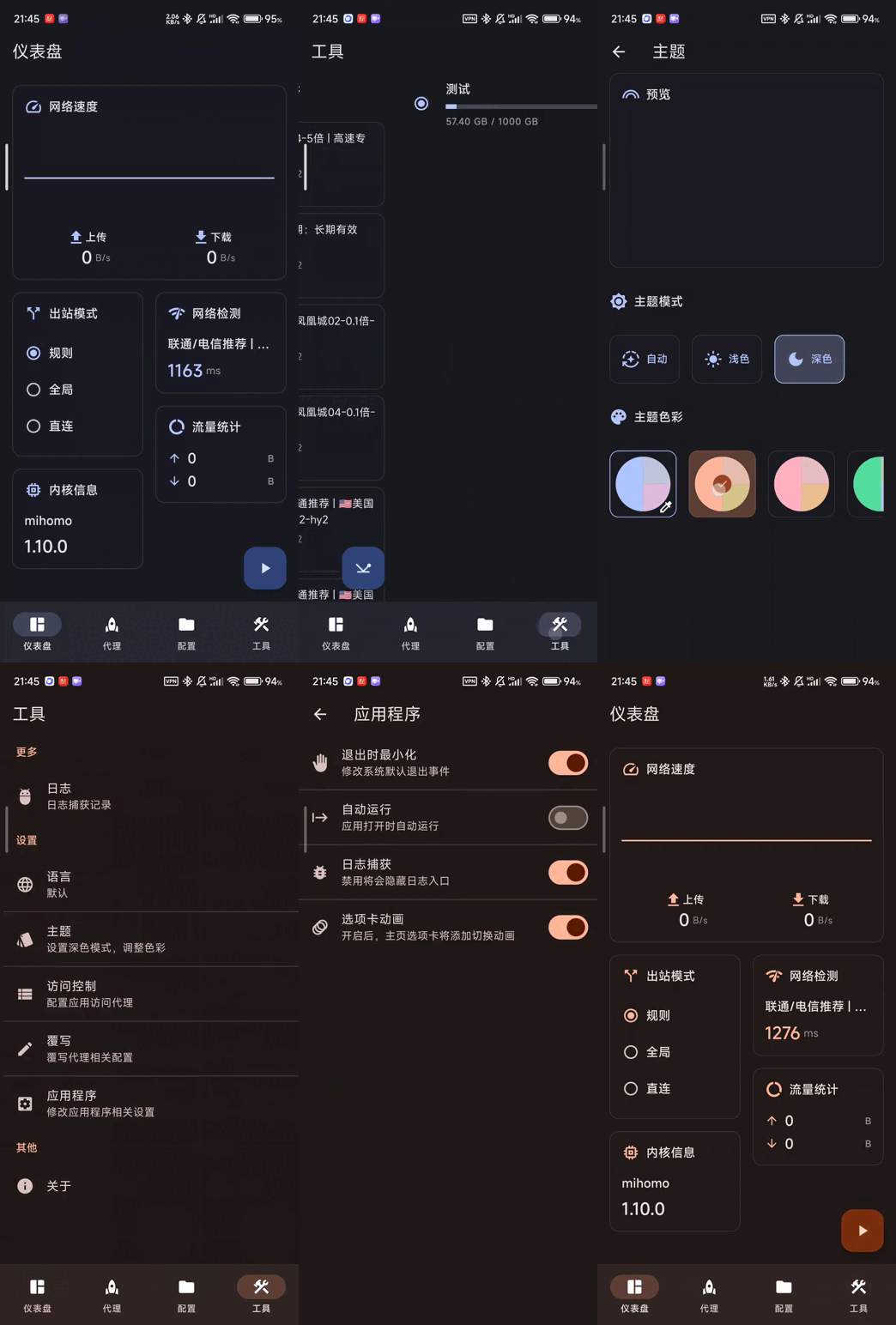
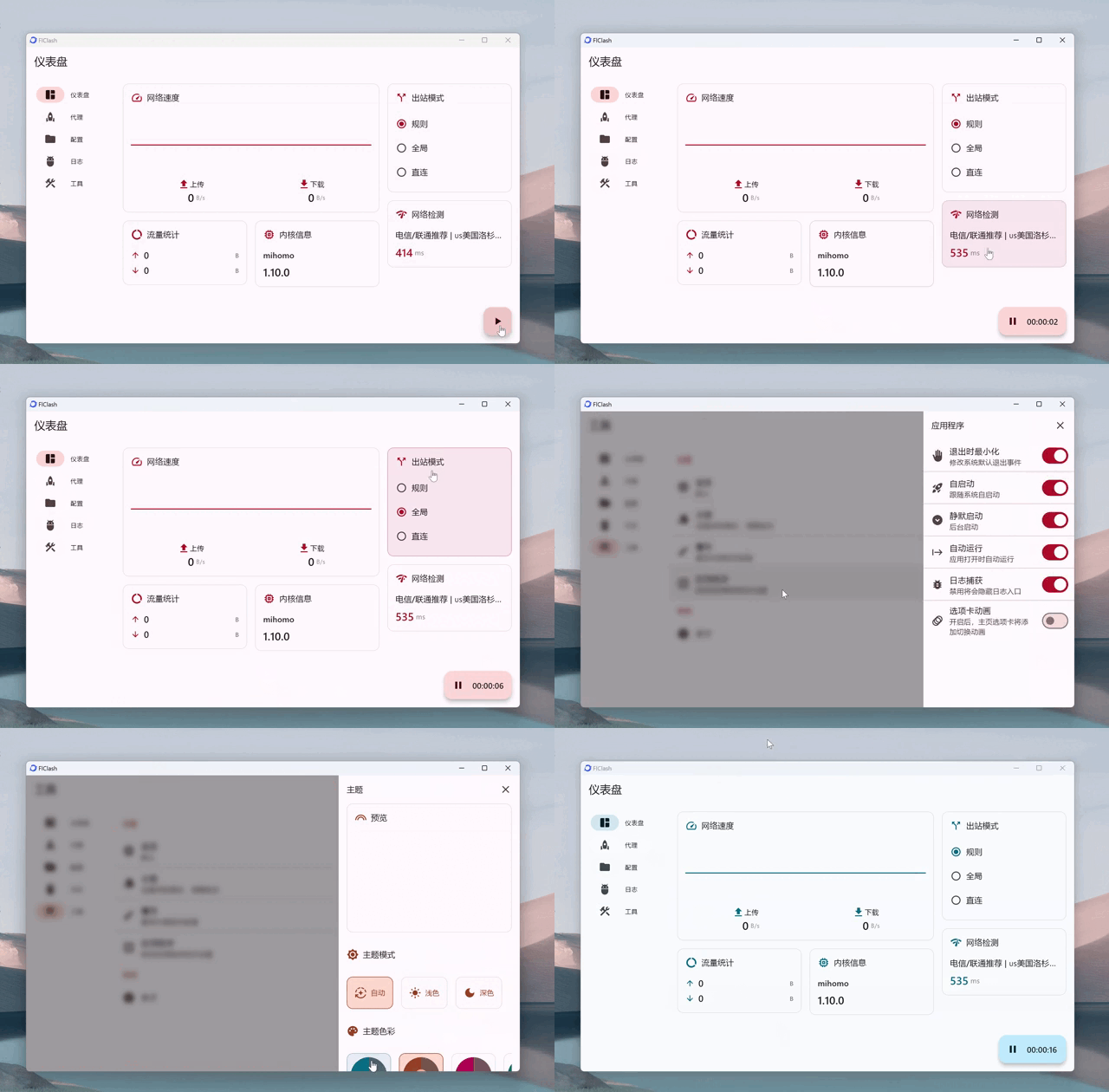
Operation Interface
Add Subscription
In the Jego Dashboard, click on Mobile Proxy in the left navigation bar, find the Mihomo subscription address and click Copy.
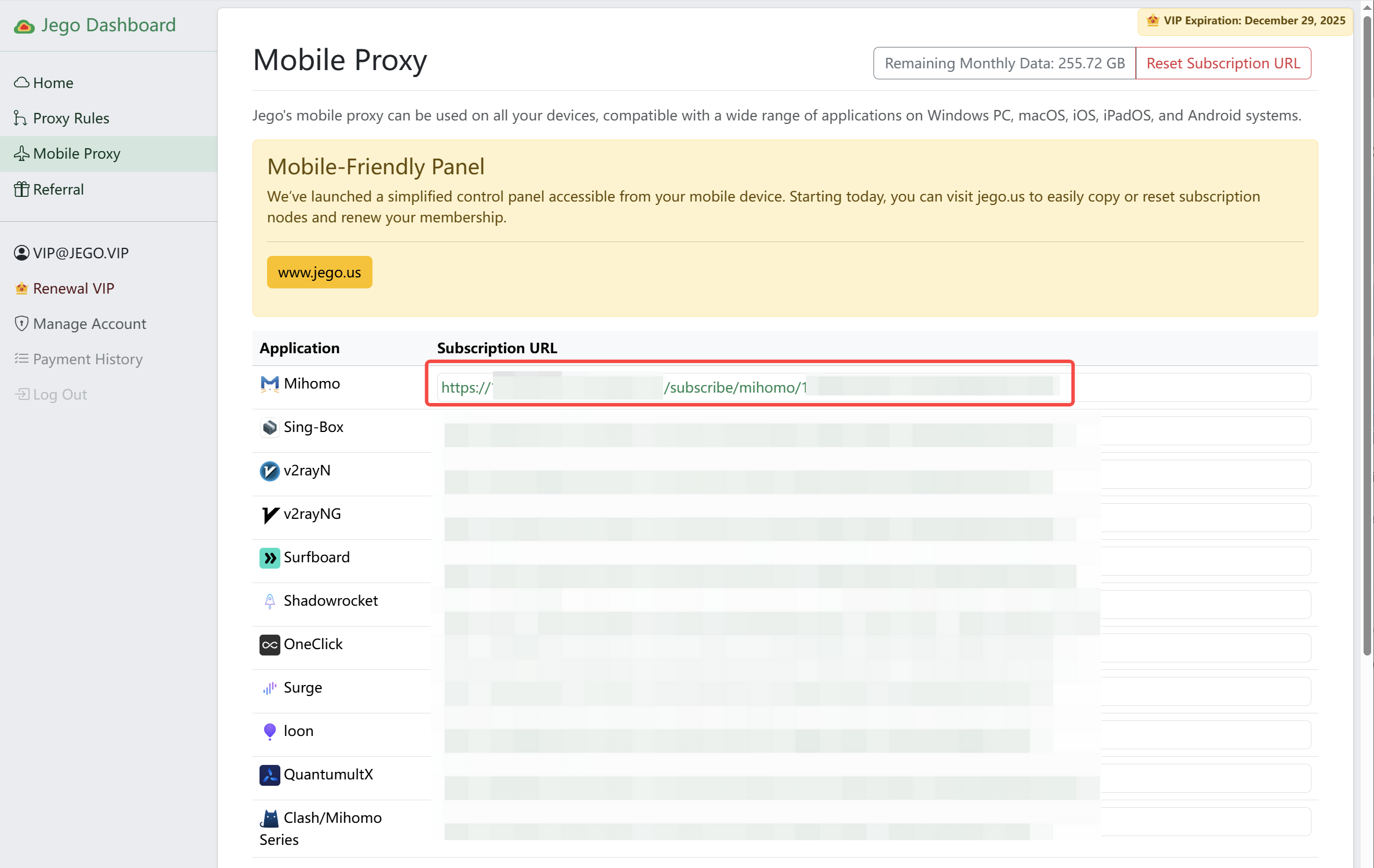
You can also get the subscription URL on your phone: open https://jego.us in the phone browser and sign in to copy it.
Open FlClash, go to Configuration > New Configuration+ > URL.
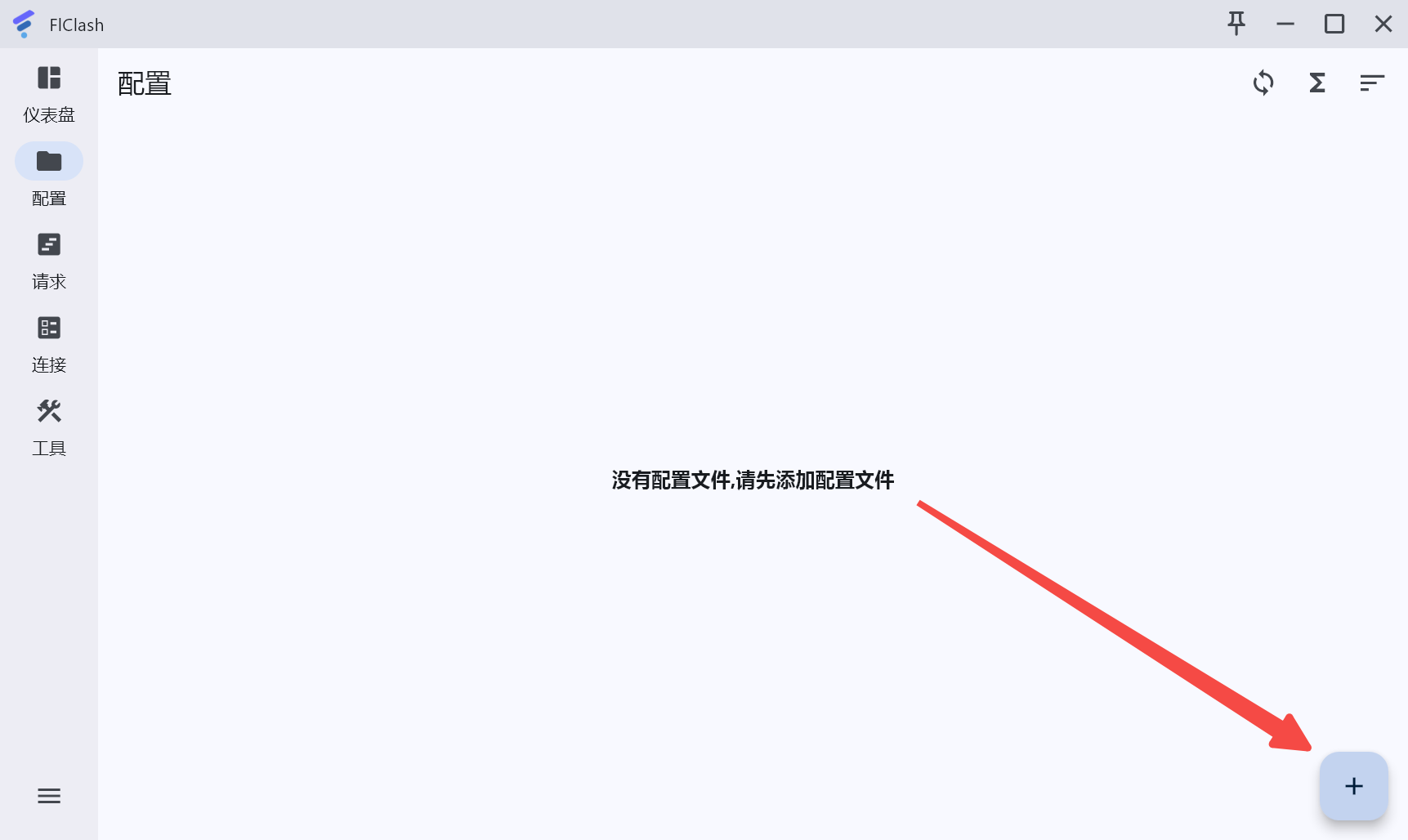
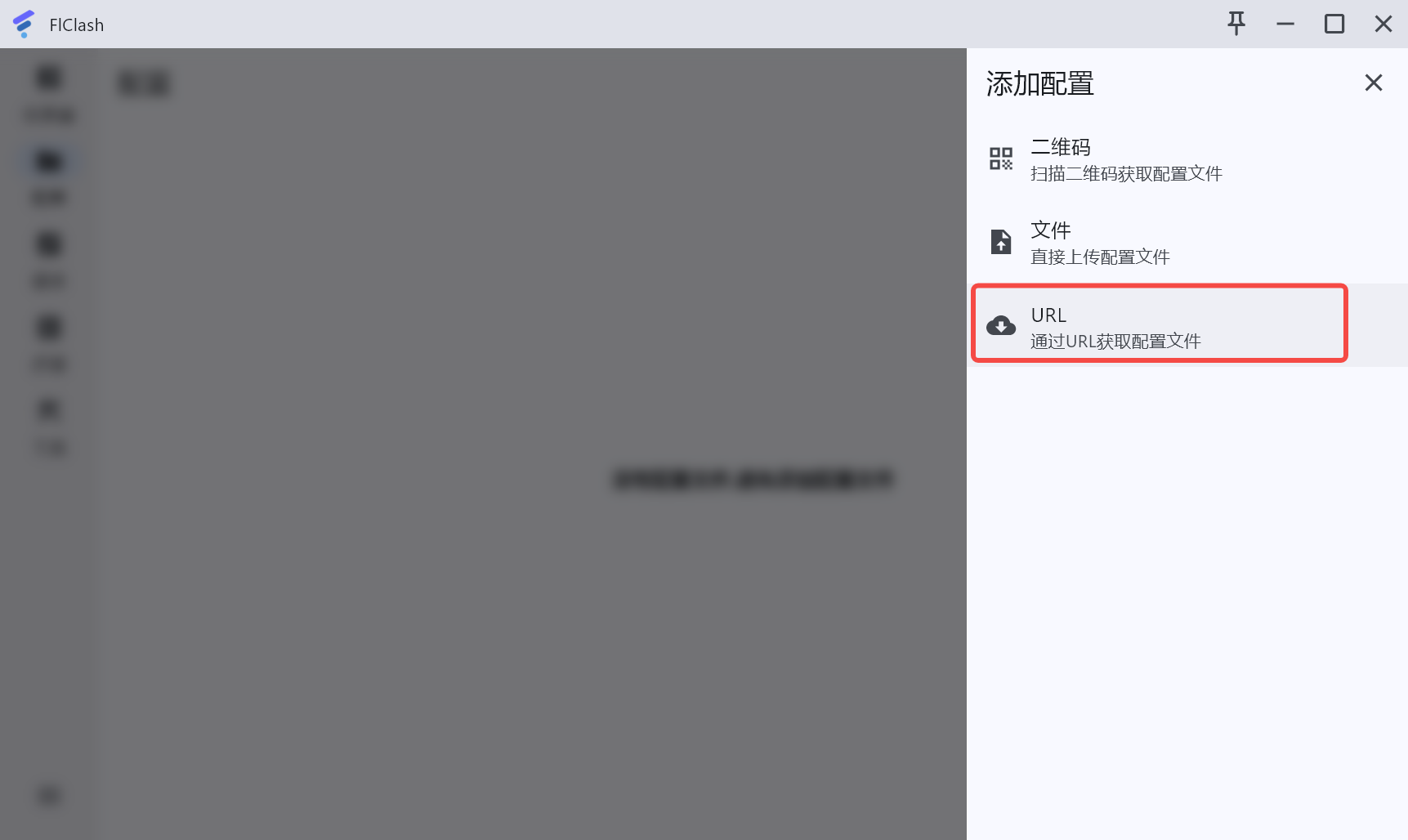
Copy the URL just now into the dialog box, then click submit. After successful import, you'll see the imported proxy configuration on the configuration page.
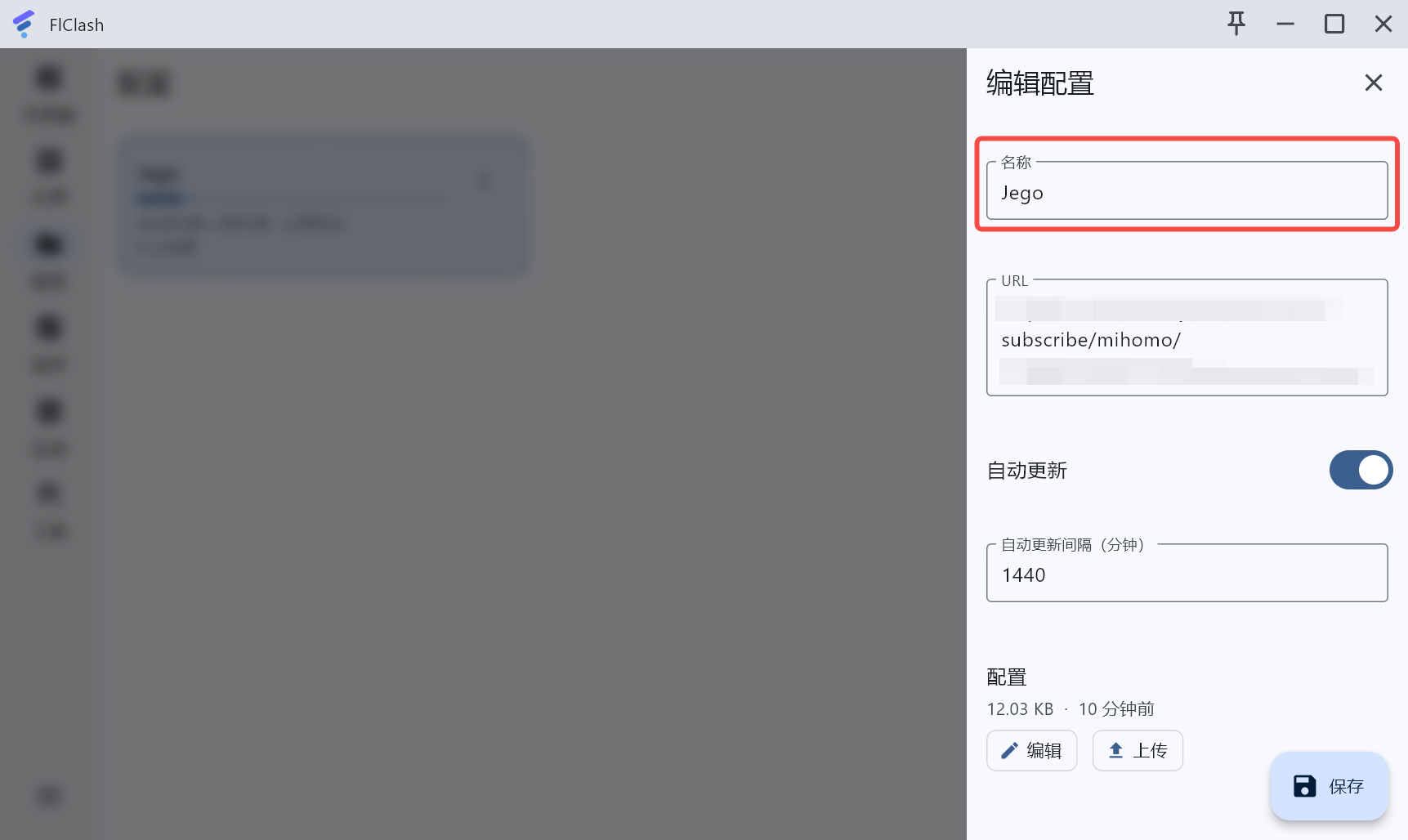
Click three dots -> Edit in the upper right corner of the configuration file. Don't change anything except the name.
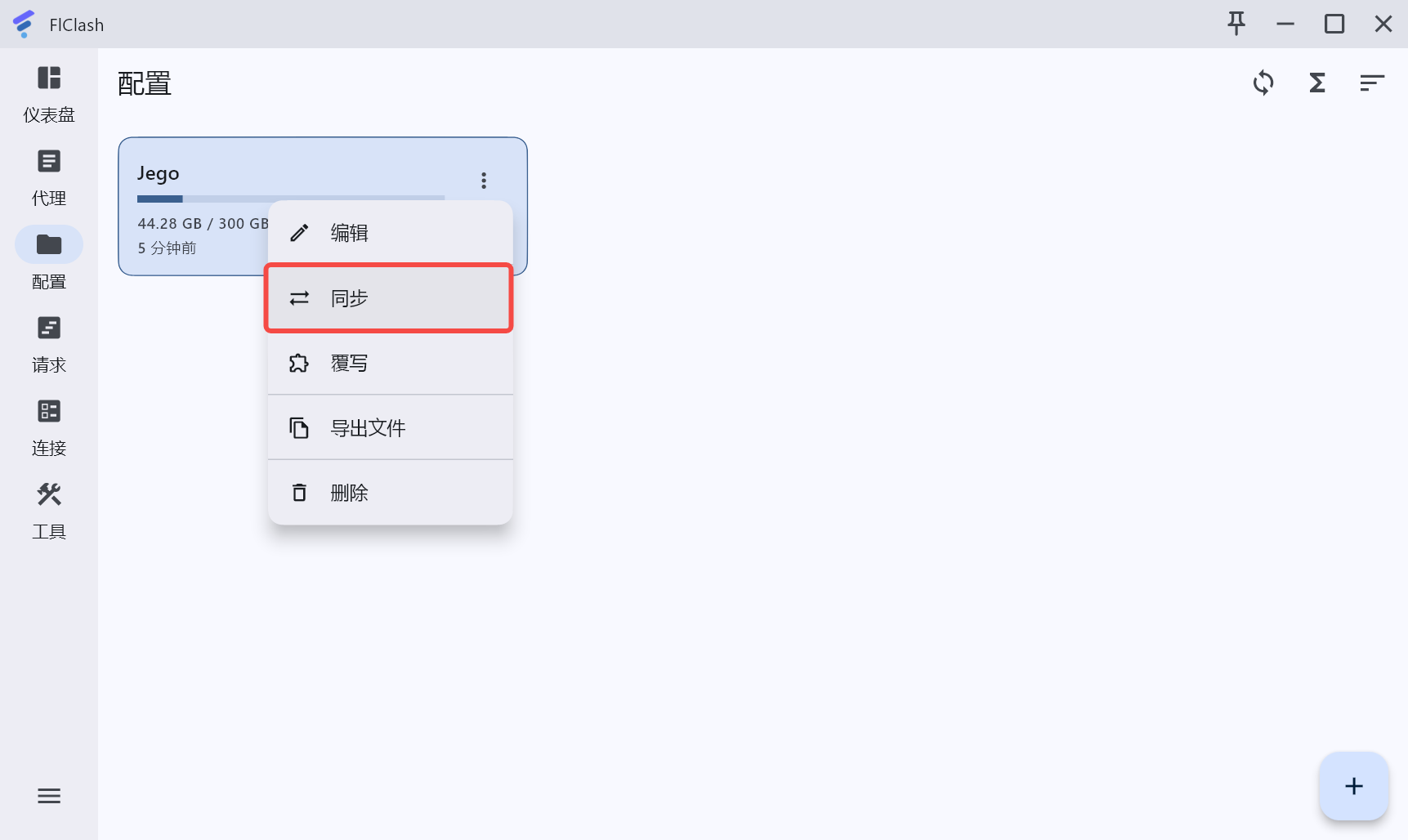
Click three dots -> Sync in the upper right corner of the configuration file, which means updating the subscription file.
Block QUIC (Recommended)
Browsers and AI apps such as Claude prefer QUIC (UDP port 443). When the current node does not support UDP, this traffic bypasses the proxy and connects directly, exposing your real IP. Add an added rule that blocks QUIC, and these apps switch to TCP and keep going through the proxy.
Go to Tools → Advanced configuration → Added rules, then follow the steps for your FlClash version:
- 0.9.0 and later: Click the lightning icon Quick actions in the upper right corner, select Block QUIC, then click ✓ in the upper right corner to confirm.
- Earlier versions: Click Add, set Rule name to
AND, enter((NETWORK,UDP),(DST-PORT,443))in Content, set Rule target toREJECT, then click Confirm.
This rule only blocks UDP port 443, so voice calls, games, and other UDP connections are unaffected. Added rules apply to every profile and stay in place after subscription updates.
Add Custom Rules (Optional)
If you need to customize proxy behavior for specific domains, add rules on the same page:
- Go to Tools → Advanced configuration → Added rules
- Click Add
- In the popup dialog, configure:
- Rule name: Click to select, e.g.,
DOMAIN-SUFFIX(domain suffix matching) - Content: Click to enter, e.g.,
example.com(main domain or subdomain) - Rule target: Click to select, e.g.,
DIRECT(direct connection),REJECT(reject),MATCH(match)
- Rule name: Click to select, e.g.,
- Click Confirm
Use Cases
Added rules are suitable for scenarios where specific domains need to go through designated nodes, such as AI development tools, specific website acceleration, etc. See Vibe Coding Setup Guide for details.
Enable Proxy
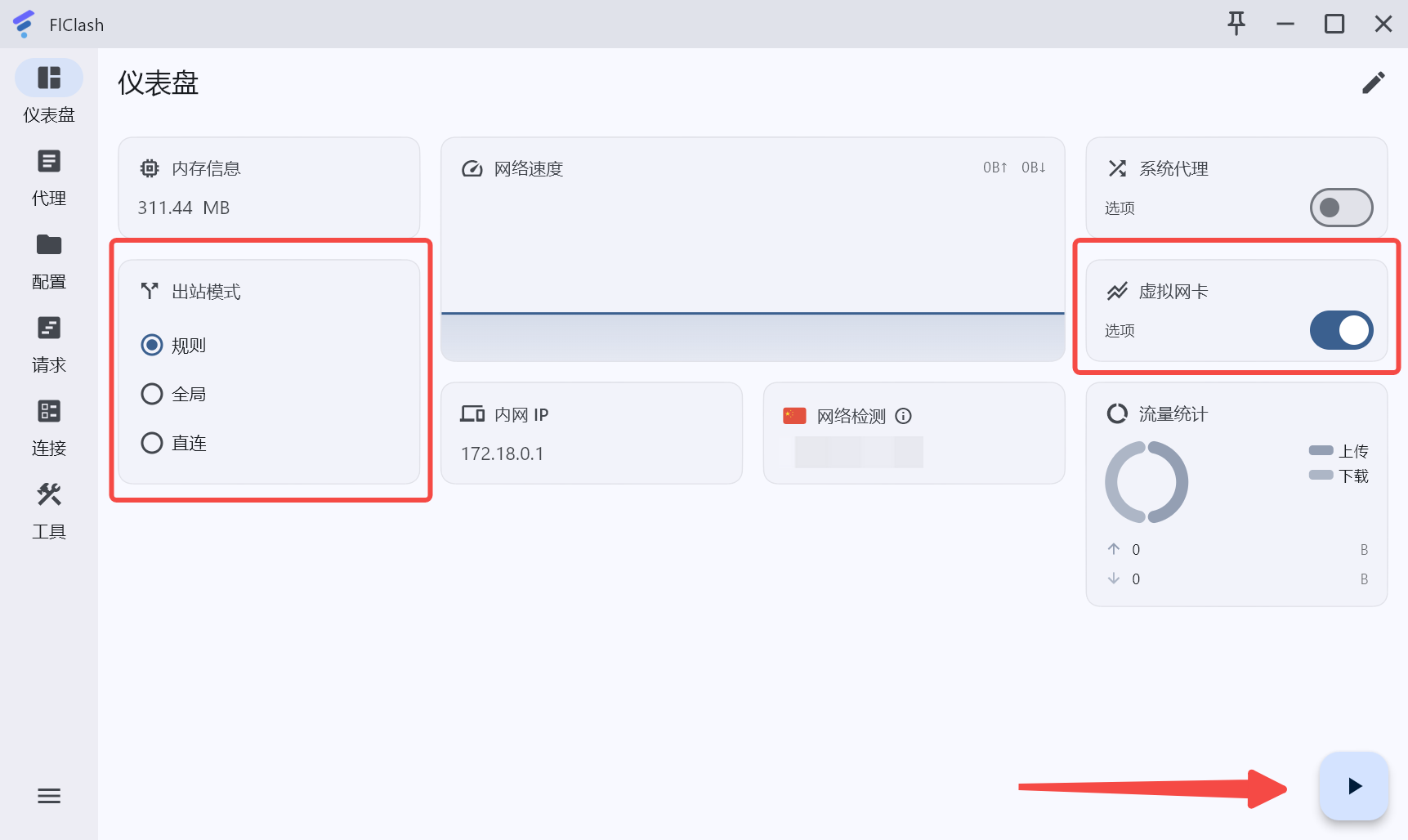
Then return to the dashboard: select Rule for outbound mode, turn on TUN (virtual network card), then click Start in the bottom right corner.
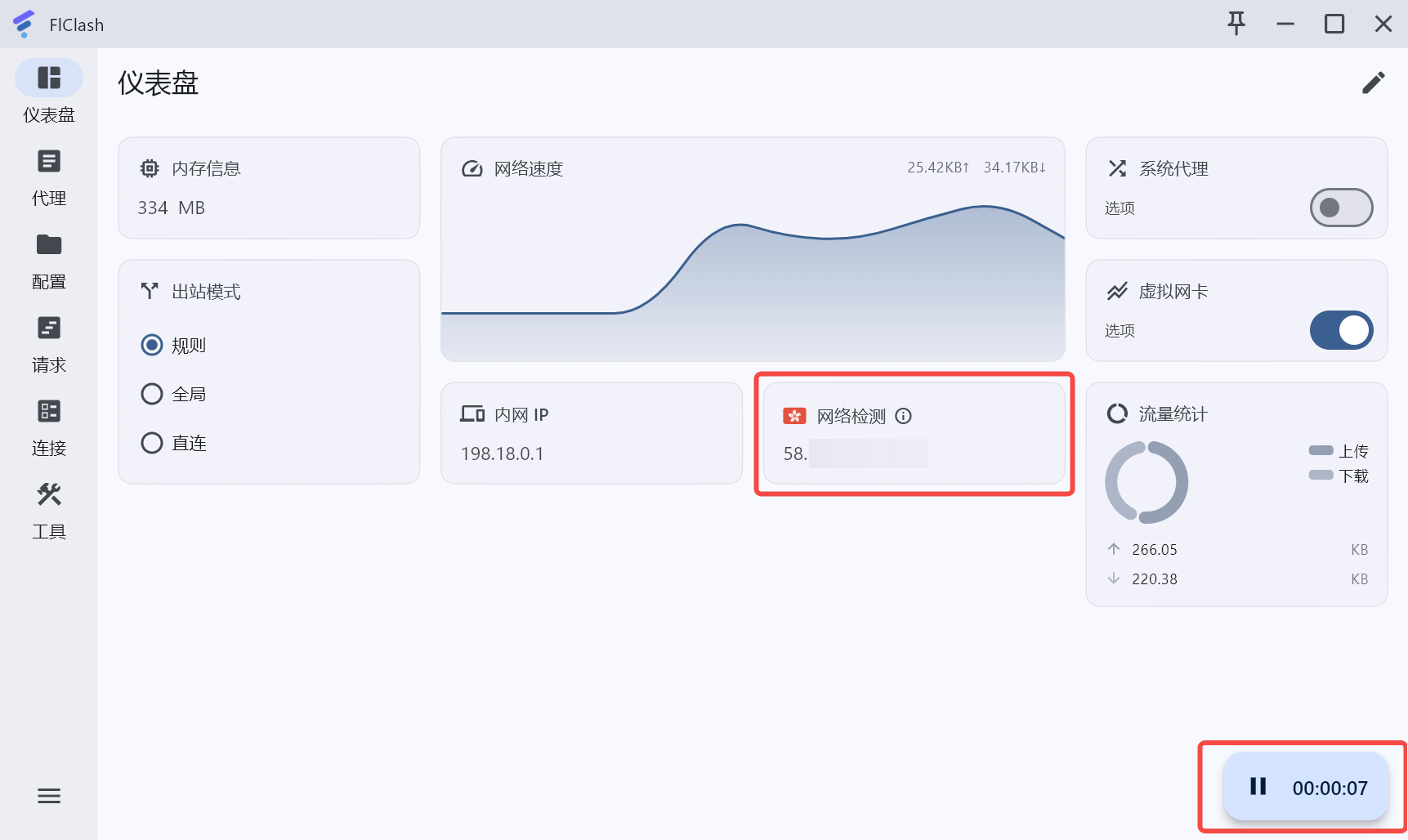
FlClash successful running interface is as follows:
- The IP detected by the network changes from China to overseas
- The start button becomes a running time statistics
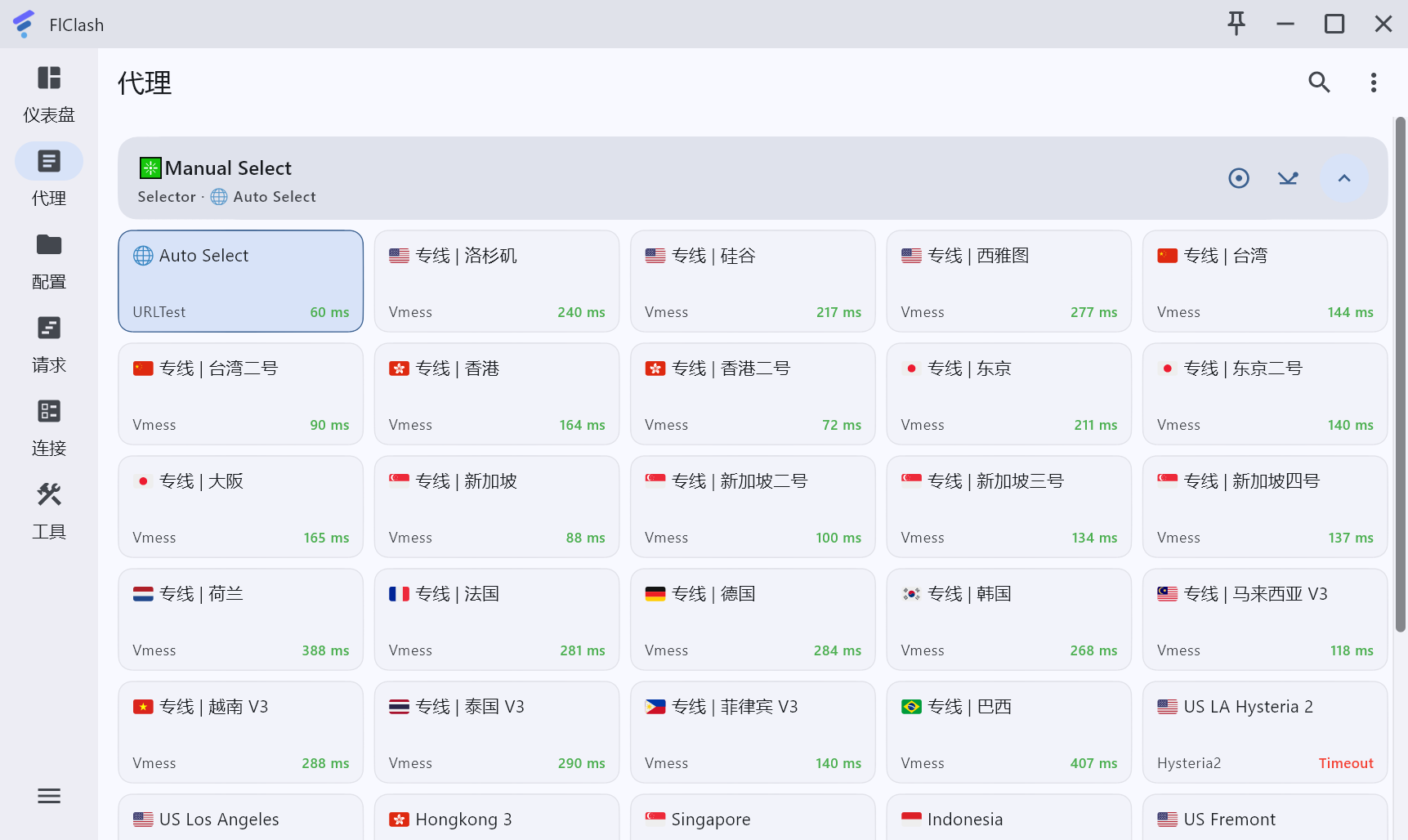
Node Selection
Proxy Interface Bug - Restart is the Solution
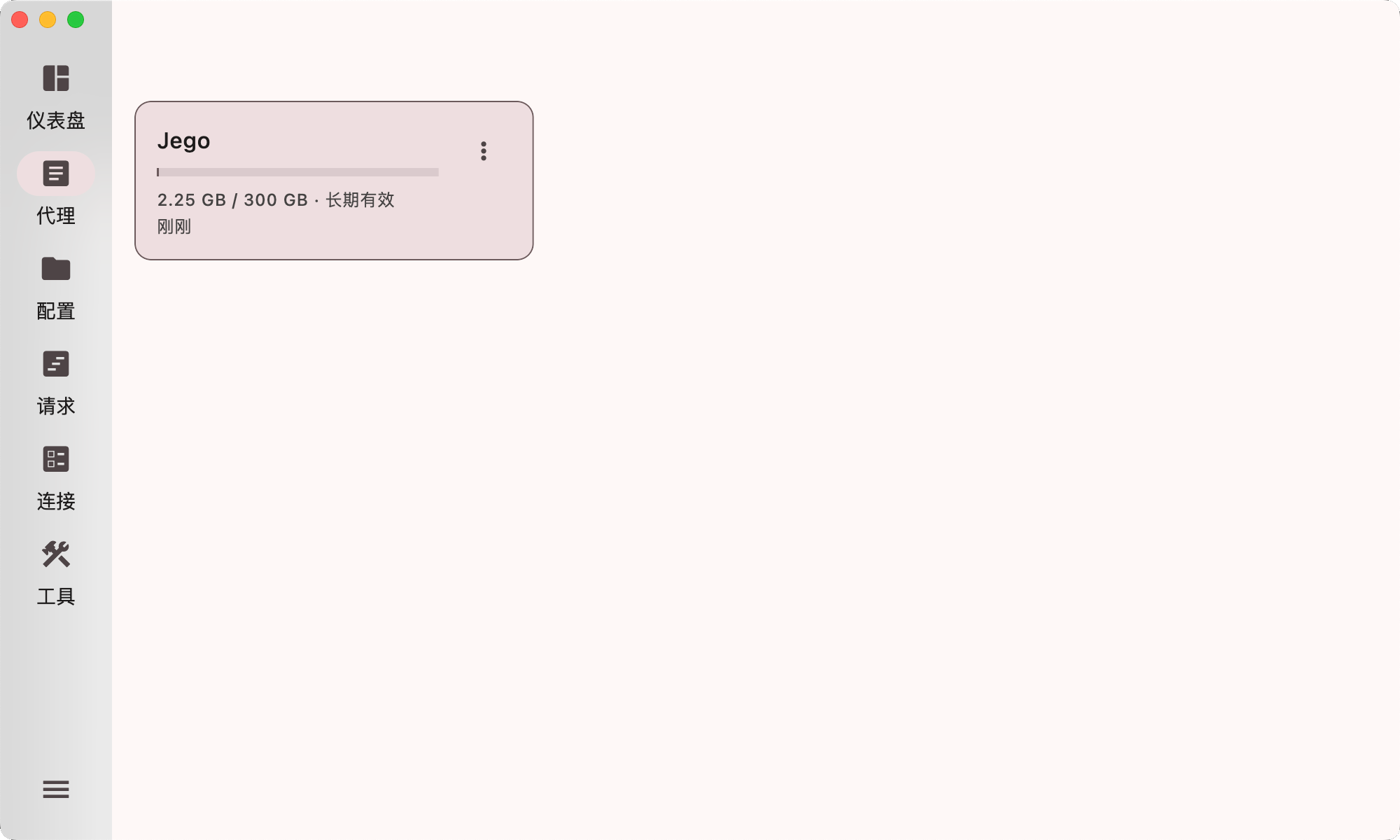 If you encounter an issue where the proxy interface only shows configuration files (without displaying node servers), this is a FlClash interface bug that occurs when adding configuration for the first time. Simply restart FlClash to resolve this issue.
 Click on Proxy: Choose according to your actual situation.
Note: latency is only a rough hint — low latency does not guarantee fast browsing, and high latency does not always mean slow. Judge by your actual browsing experience.
Select Outbound Mode
Rules / Rule: Only proxy foreign traffic
Suitable for users who use both domestic and foreign services.
In Rule mode, mainland-China traffic connects directly and does not go through the proxy server.
When querying IP on mainland websites, you get the local IP address.
When querying IP on foreign websites, you get the proxy IP address.
Traffic routing rules cannot be comprehensive and have timeliness. If you encounter the following situations, try global proxy.
- Unable to open international websites;
- Slow loading of international websites;
Direct / Direct: Do not proxy any traffic
Choosing this mode will result in inability to bypass restrictions, with the same effect as not using VPN.
Global / Global: Proxy all traffic
Suitable for users who do not rely on mainland services.
In Global mode, foreign traffic goes through the proxy as usual; mainland traffic also goes through the proxy server — it works, but noticeably slower.
FlClash Mobile Version Usage Tutorial
Please watch from 2 minutes 04 seconds of this video.