
sing-box for Apple platforms
sing-box for Apple platforms is listed as sing-box VT in the App Store and is the Apple-platform client from the sing-box project. Verify current protocols, price, and availability on the official project and store pages.
 Get sing-box for Apple platforms
Apple Family Series
macOS, iOS, iPadOS, and tvOS builds can be installed from the App Store when Apple and the developer make them available for your legitimate account region.
Account safety
Use only an Apple Account you legitimately own. Do not buy or share accounts or falsify region, phone, or billing details. If the app is unavailable, choose a supported tool offered in your current region.
macOS can also be installed through Github and command line
- GitHub Releases
- Command line:
brew install sfm
Additional explanation:
- SFI is the abbreviation of sing-box for iOS;
- SFM is the abbreviation of sing-box for macOS;
- SFT is the abbreviation of sing-box for tvOS.
Copy the subscription URL
In the Jego Dashboard, click on Mobile Proxy in the left navigation bar, find the Sing-Box subscription address and click Copy.
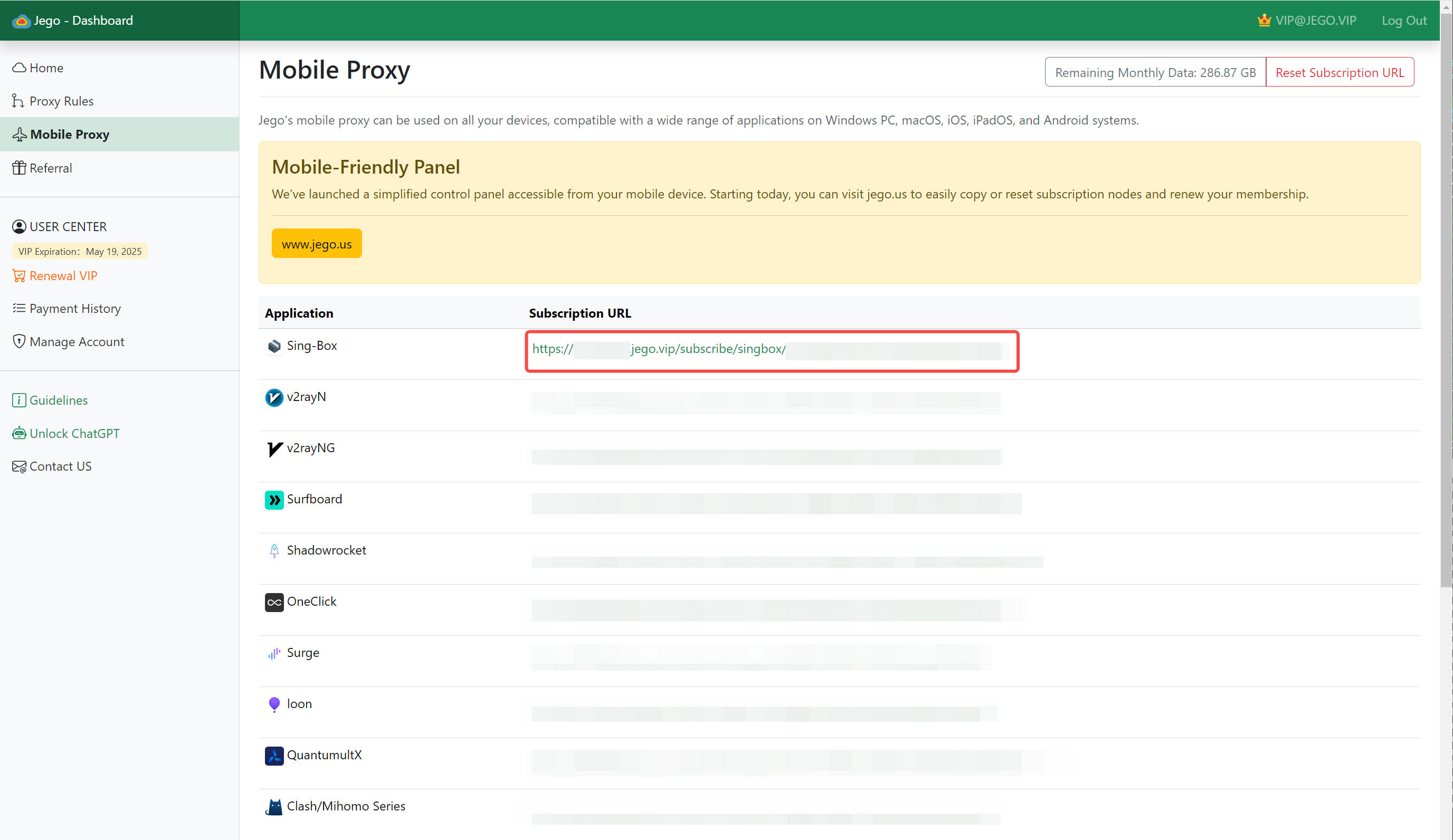
You can also get the subscription URL on your phone: open https://jego.us in the phone browser and sign in to copy it.
sing-box for macOS / SFM Usage Tutorial
Add Subscription
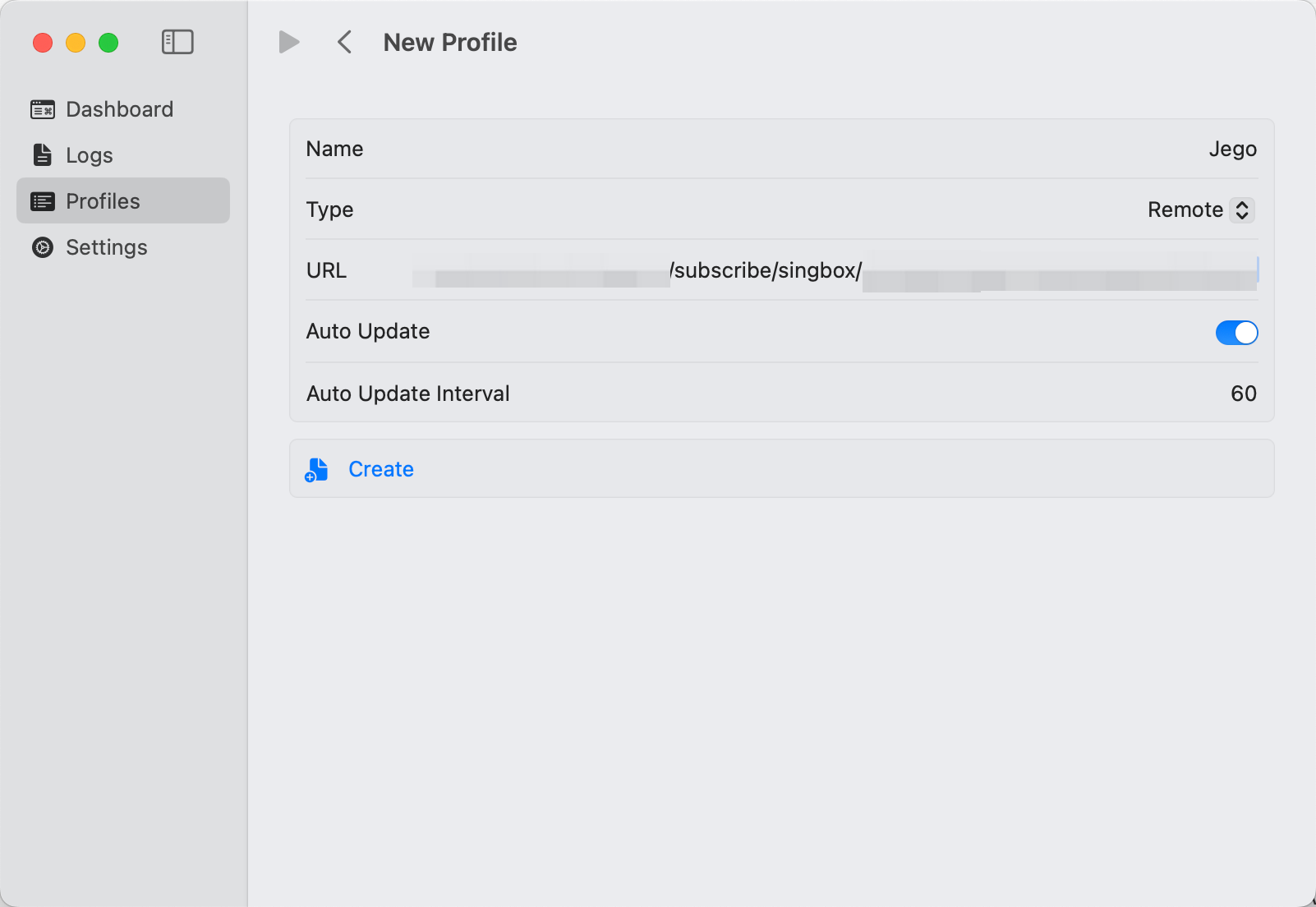
Open the sing-box client, go to Profiles -> New Profile
- Fill in
Jegoin Name - Select
Remotefor Type - Paste the
sing-box subscription URLcopied from Jego in URL - Don't change anything else, just click
Create
Enable sing-box
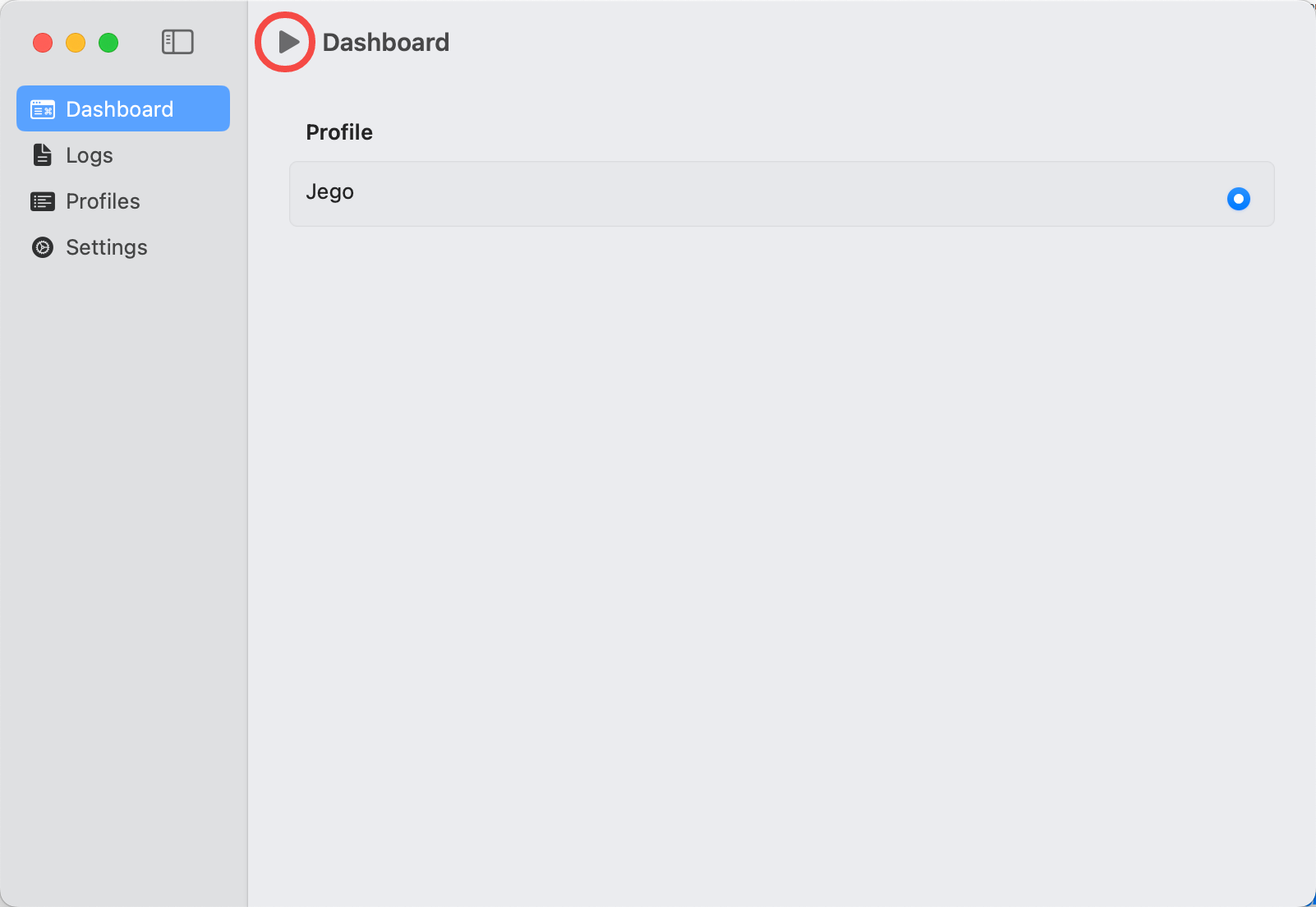
Click Dashboard, make sure Profile selects the Jego just created, then click the start button in the red circle.
Overview - Select internet mode
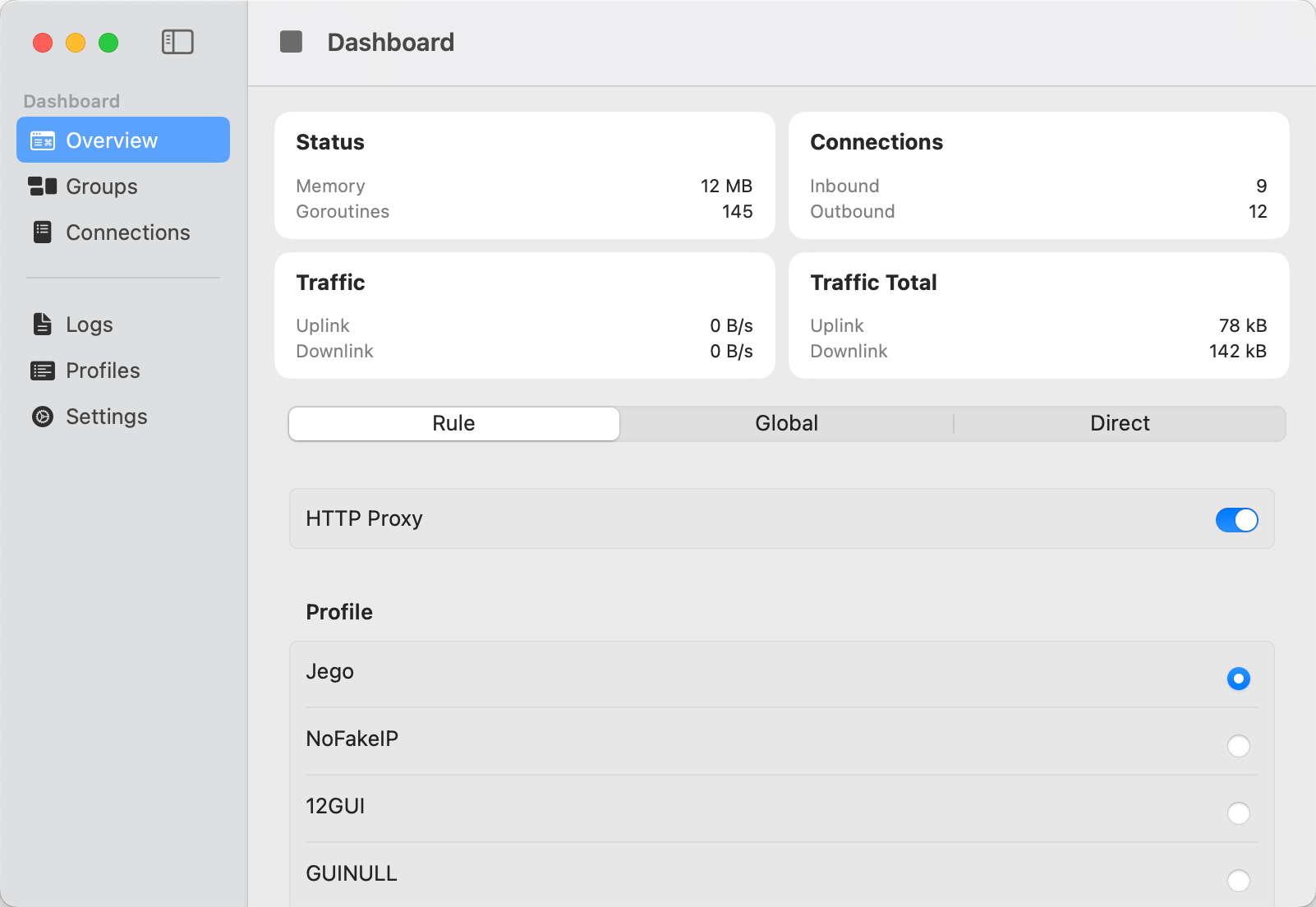
Reminder: The first time you use it, all three modes may not be selected. It's recommended to click on Rule.
Rule: smart routing — chooses direct or proxy automatically based on rulesDirect: direct connection — no traffic goes through the proxyGlobal: global proxy — all traffic goes through the proxy
Groups - Switch node servers
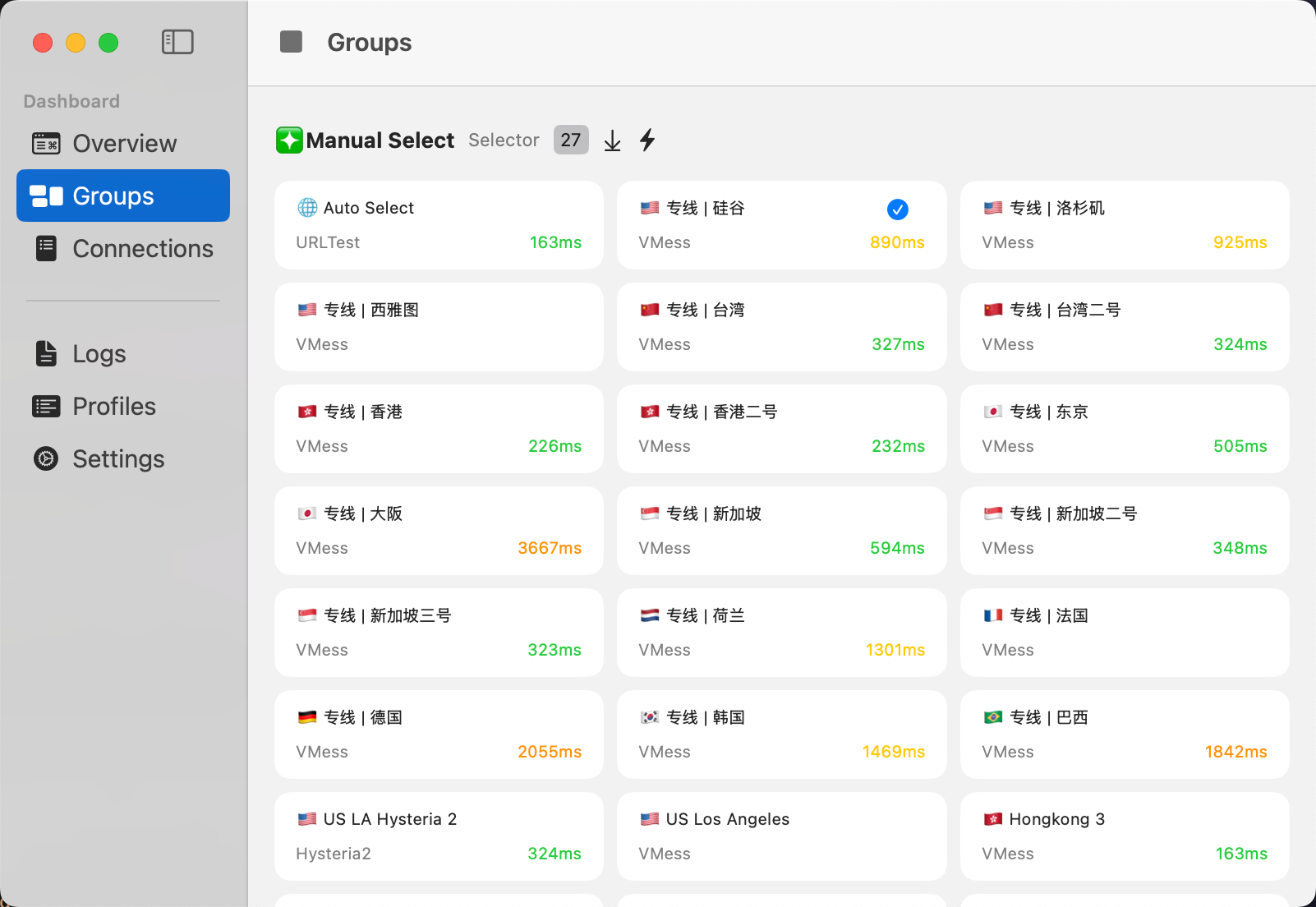
On this Tab, you can manually choose the node server you want to use.
sing-box for iOS / SFI Usage Tutorial
Add Subscription
Open the sing-box client, go to Profiles -> New Profile
- Fill in
Jegoin Name - Select
Remotefor Type - Paste the
sing-box subscription URLcopied from Jego in URL - Don't change anything else, just click
Create
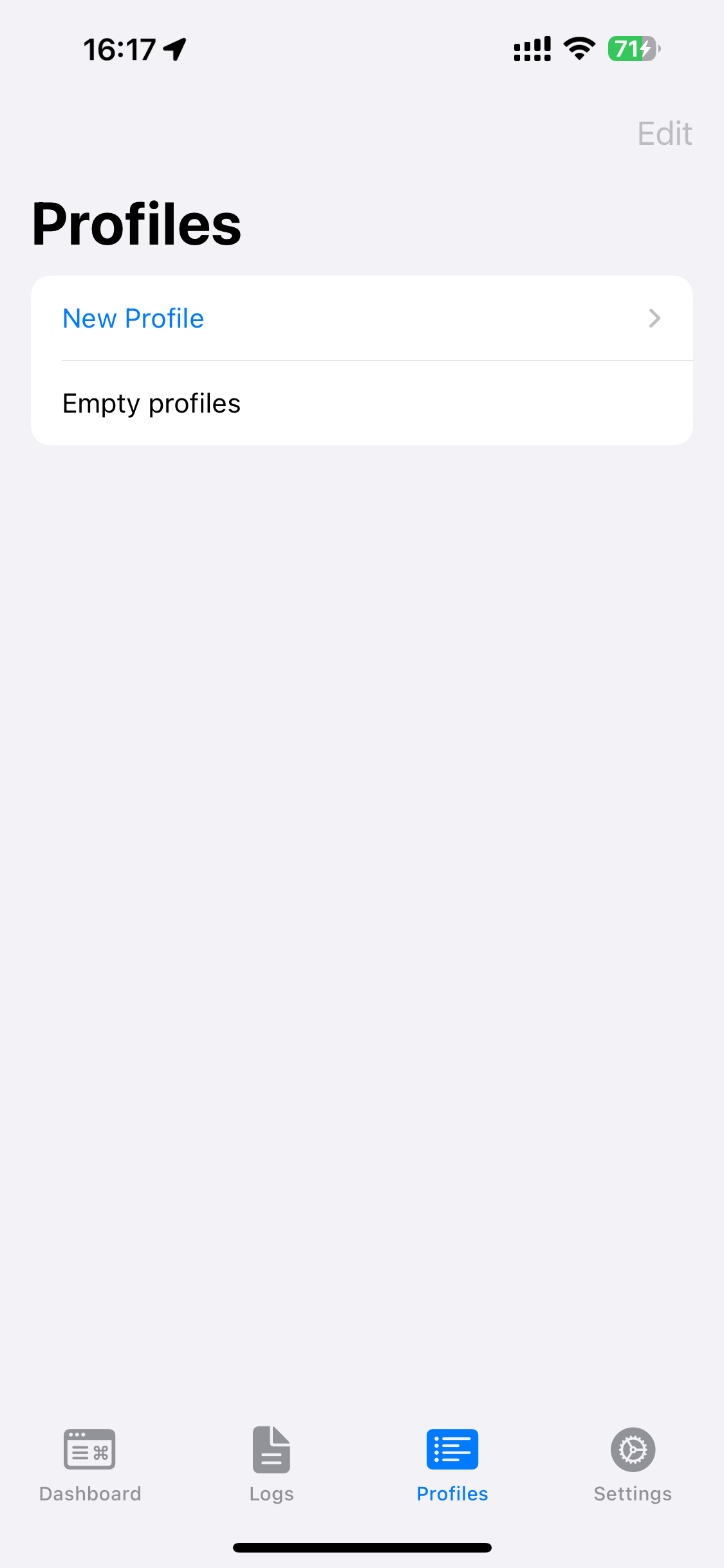
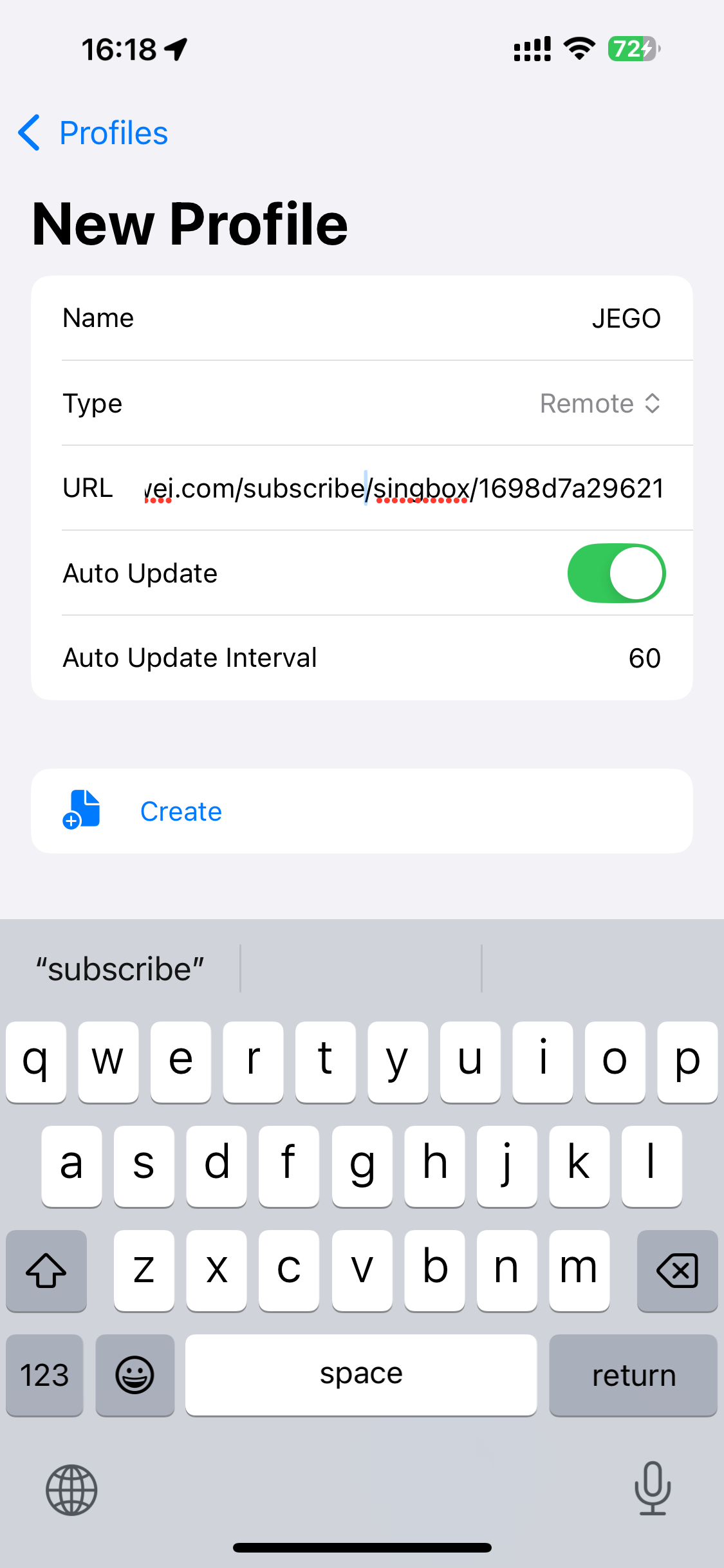
Enable sing-box
Click Dashboard, make sure Profile selects the Jego just created, then click the Enabled switch.
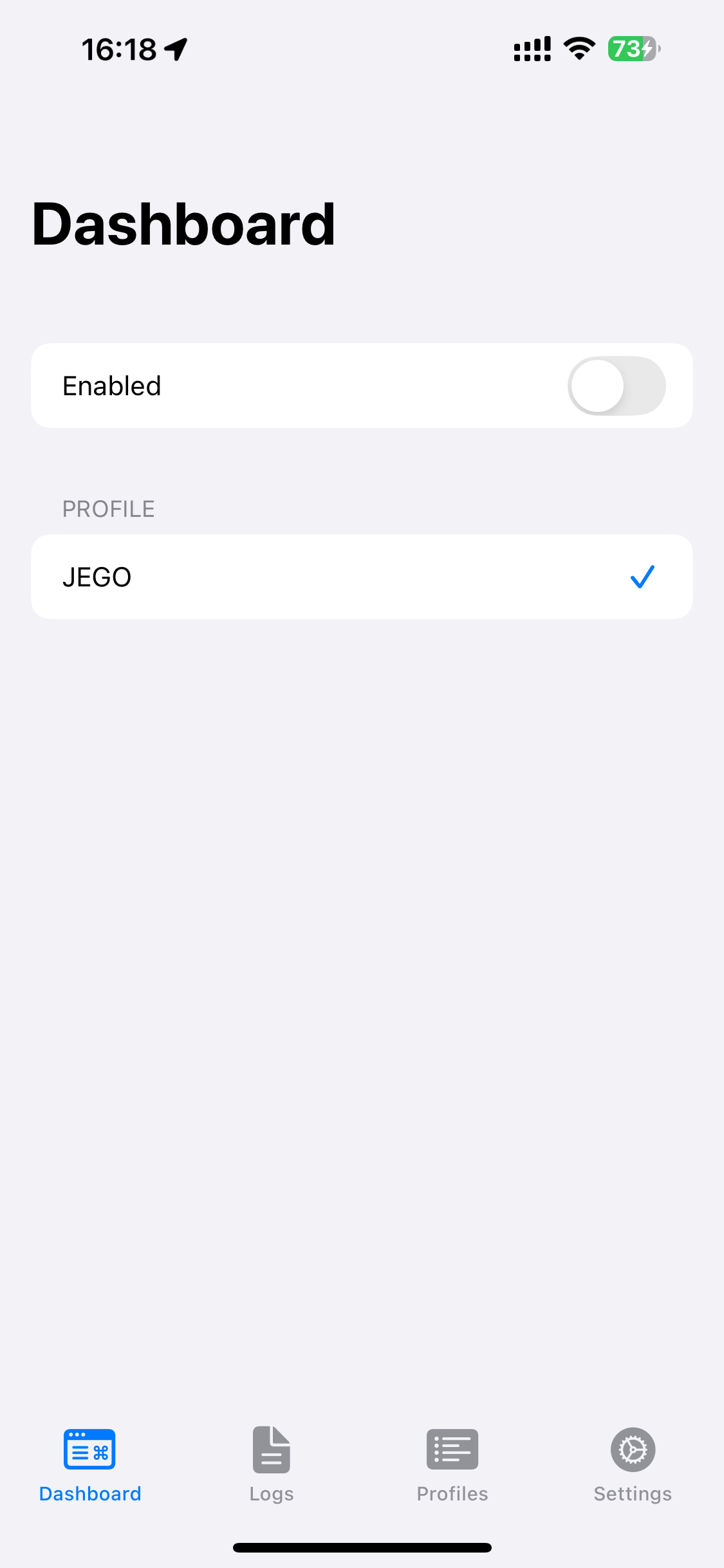
The usage logic is similar to macOS above, using the same UI framework.
Overview tab - Select internet mode
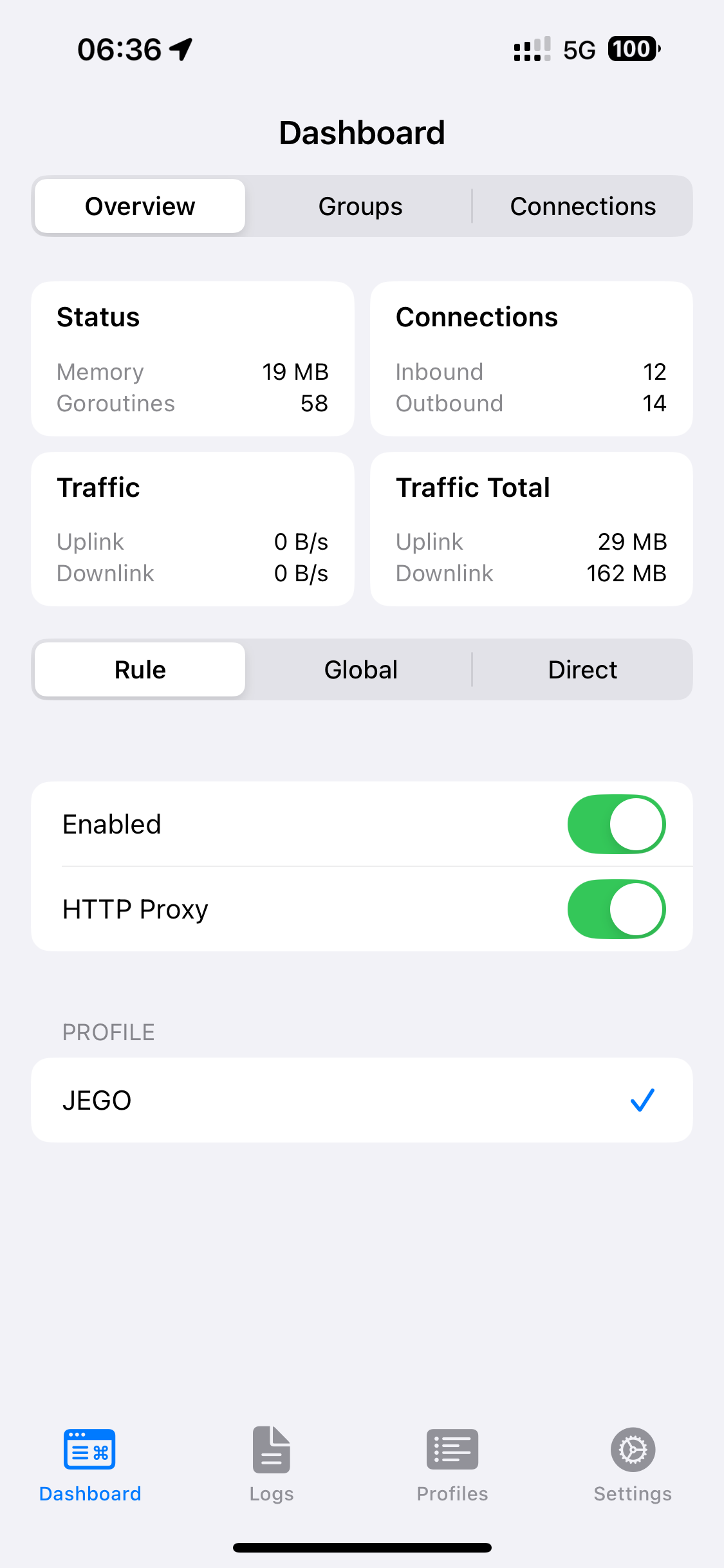 Reminder: The first time you use it, all three modes may not be selected. It's recommended to click on `Rule`.
 Rule: smart routing — chooses direct or proxy automatically based on rulesDirect: direct connection — no traffic goes through the proxyGlobal: global proxy — all traffic goes through the proxy
Groups tab - Switch node servers
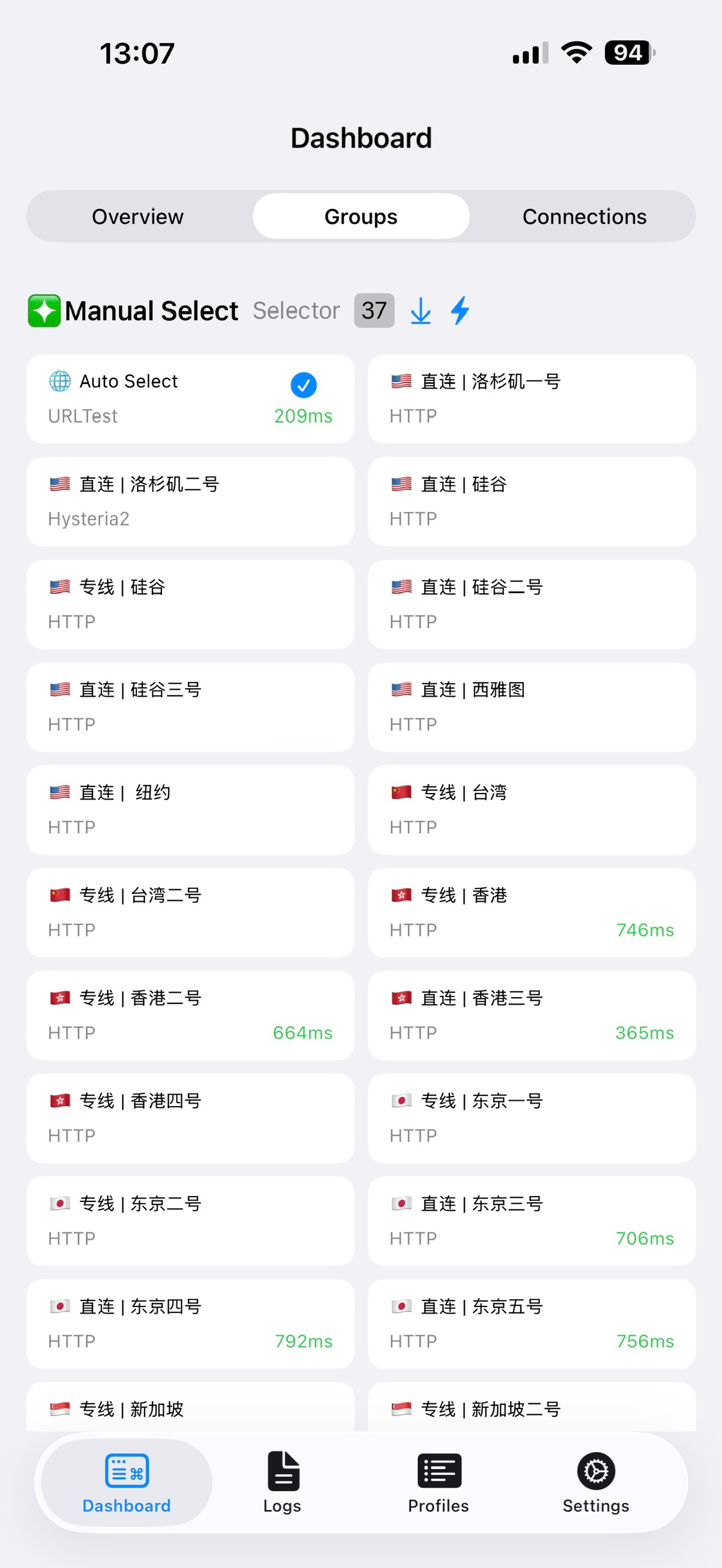
On this Tab, you can manually choose the node server you want to use.
After connecting, open www.google.com or another overseas site — if it loads, the setup works.
sing-box Common Issues
Only mainland China websites open
🟡 Situation 1: Just started
For a minute or two after startup, the client may still be testing nodes or downloading rule files, so some sites temporarily fail to open. Wait a moment, or pick a node manually as described below.
✅ Solution: If you don't want to wait for the speed test process, you can manually select an available node, so you can immediately access foreign websites.
🟡 Situation 2: Same problem occurs during use
If you also suddenly cannot access foreign websites during use, it's likely that the currently selected node is unavailable or has poor connection quality.
✅ Solution: Please check the connectivity of the current node, and manually switch to a stable available node when necessary to restore access.
💡 Note: This problem will not affect access to domestic websites, nor will it affect the use of services based on foreign IP (such as Telegram), only affecting access to foreign domain name websites.
⚠️ Report "Service Error", cannot start service
If you encounter the error shown in the image below when starting:
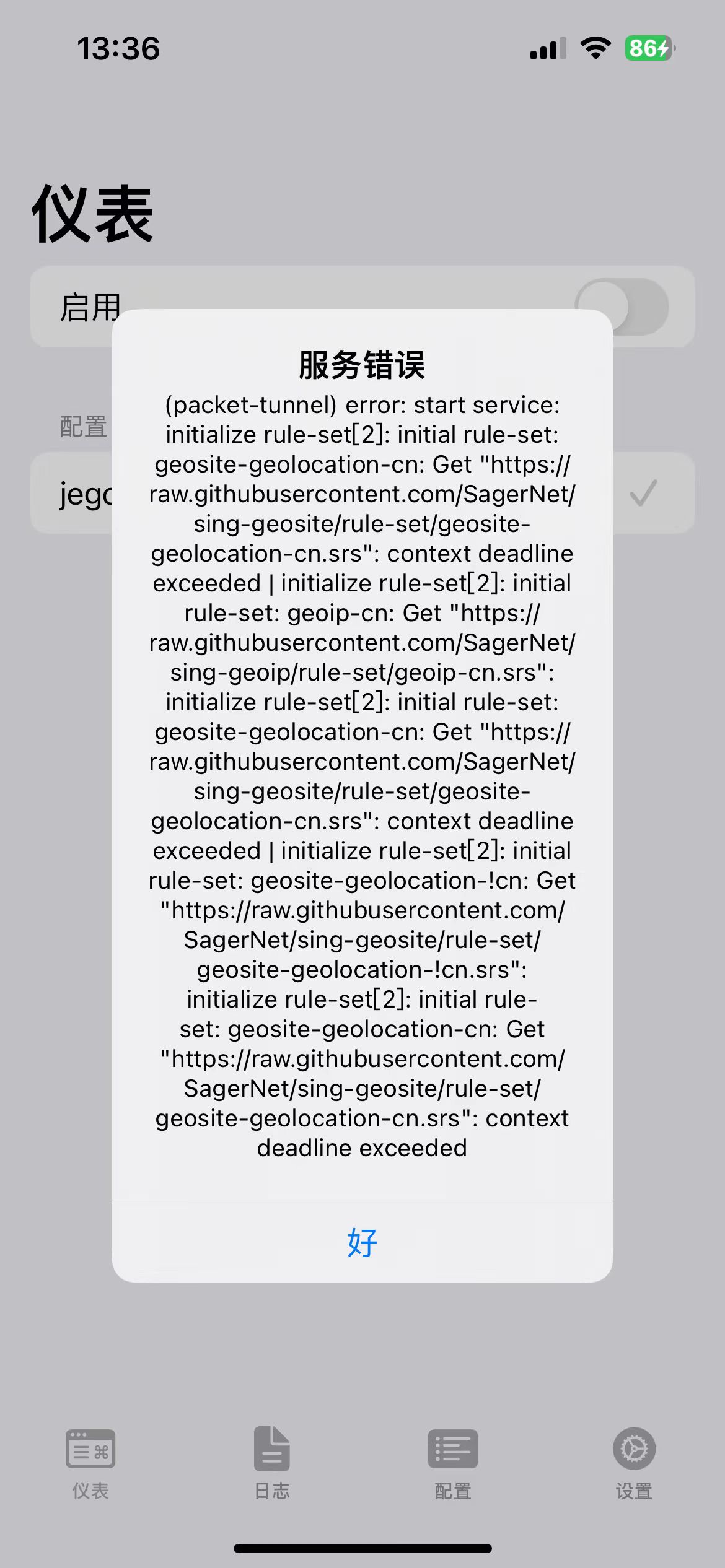
(packet-tunnel) error: start service: initialize rule-set[2]: initial rule-set: geosite-geolocation-cn: Get "https://raw.githubusercontent.com/SagerNet/sing-geosite/rule-set/geosite-geolocation-cn.srs": context deadline exceeded | initialize rule-set[2]: initial rule-set: geoip-cn: Get "https://raw.githubusercontent.com/SagerNet/sing-geoip/rule-set/geoip-cn.srs": initialize rule-set[2]: initial rule-set: geosite-geolocation-cn: Get "https://raw.githubusercontent.com/SagerNet/sing-geosite/rule-set/geosite-geolocation-cn.srs": context deadline exceeded | initialize rule-set[2]: initial rule-set: geosite-geolocation-!cn: Get "https://raw.githubusercontent.com/SagerNet/sing-geosite/rule-set/geosite-geolocation-!cn.srs": initialize rule-set[2]: initial rule-set: geosite-geolocation-cn: Get "https://raw.githubusercontent.com/SagerNet/sing-geosite/rule-set/geosite-geolocation-cn.srs": context deadline exceeded🟡 Problem cause: This is because your network environment cannot access GitHub, causing the rule files to fail to load.
✅ Solution: Please try switching networks, such as:
- Switch to other Wi-Fi
- Switch to mobile network (such as 4G/5G)
- Change network operator (such as from China Telecom to China Unicom, ask friends for hotspot)
💡 Note: Once the rule files are successfully loaded once, this error will not appear again.