
Shadowrocket
Shadowrocket is a fully-featured iOS proxy tool client that supports most common connection protocols. Macs with Apple silicon (M-series) can also install it from the App Store; the steps on this page apply there as well.
 Get Shadowrocket
Use an account you legitimately own and the official store; do not buy or share accounts. For Apple's official region requirements, see the US Apple ID Registration Guide; without a qualifying account, use another supported client available in your region, or the browser extension.
Download Shadowrocket
If the official Shadowrocket App Store page is available for your legitimate account region, purchase or install it there.
Add Subscription
In the Jego Dashboard, click on Mobile Proxy in the left navigation bar, find the Shadowrocket subscription address and click Copy.
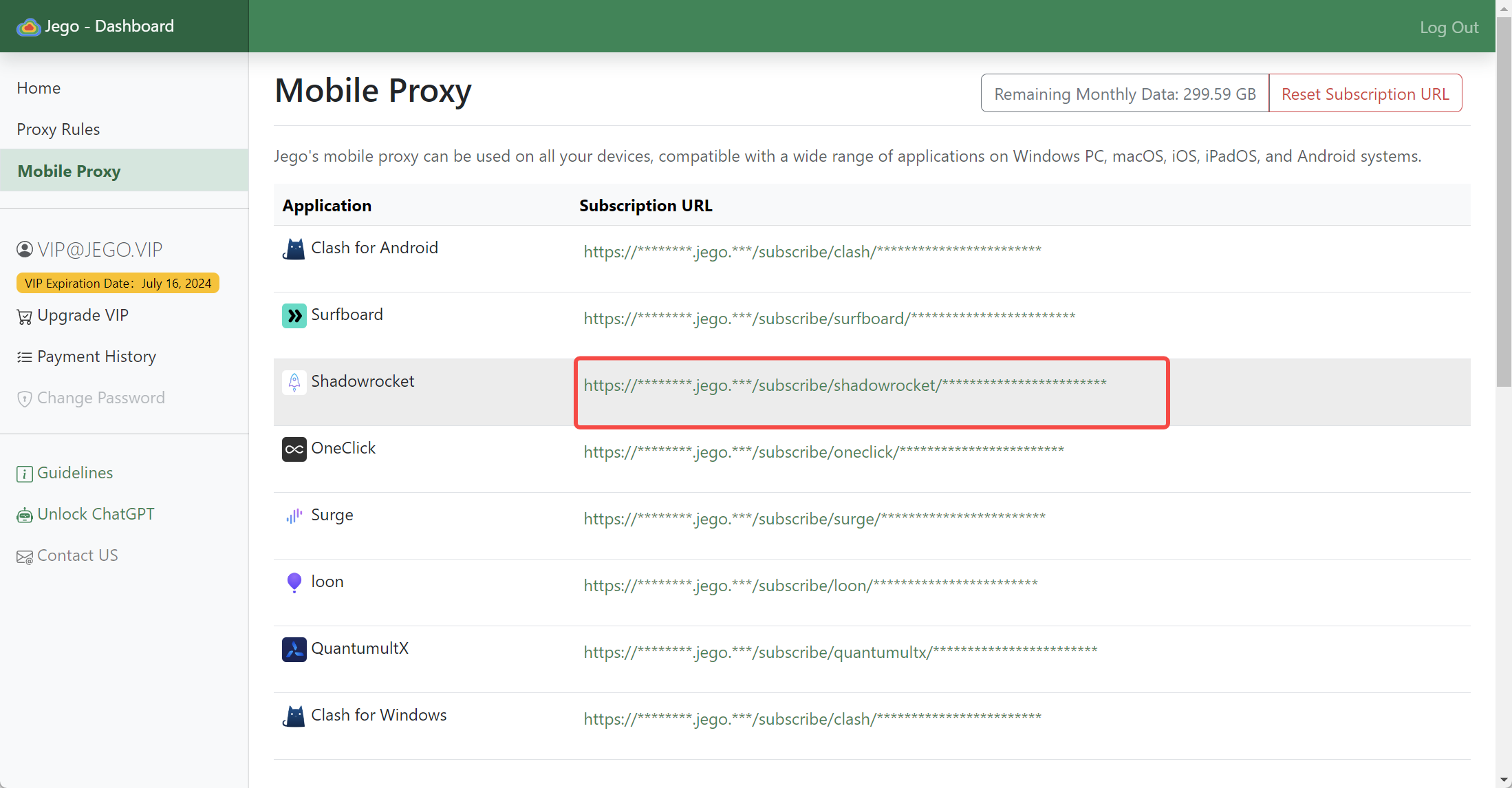
You can also get the subscription URL on your phone: open https://jego.us in the phone browser and sign in to copy it.
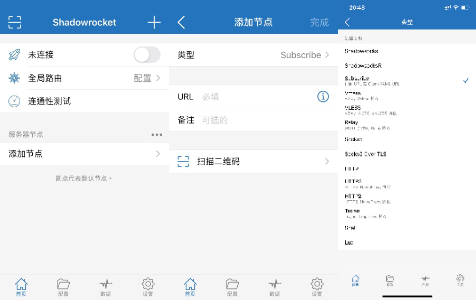
Open Shadowrocket, click the + in the upper right corner, select "Subscribe (Subscription)" for type. Paste the subscription link into URL, then click "Done" in the upper right corner, and Shadowrocket will get nodes from the subscription link.
Select Node
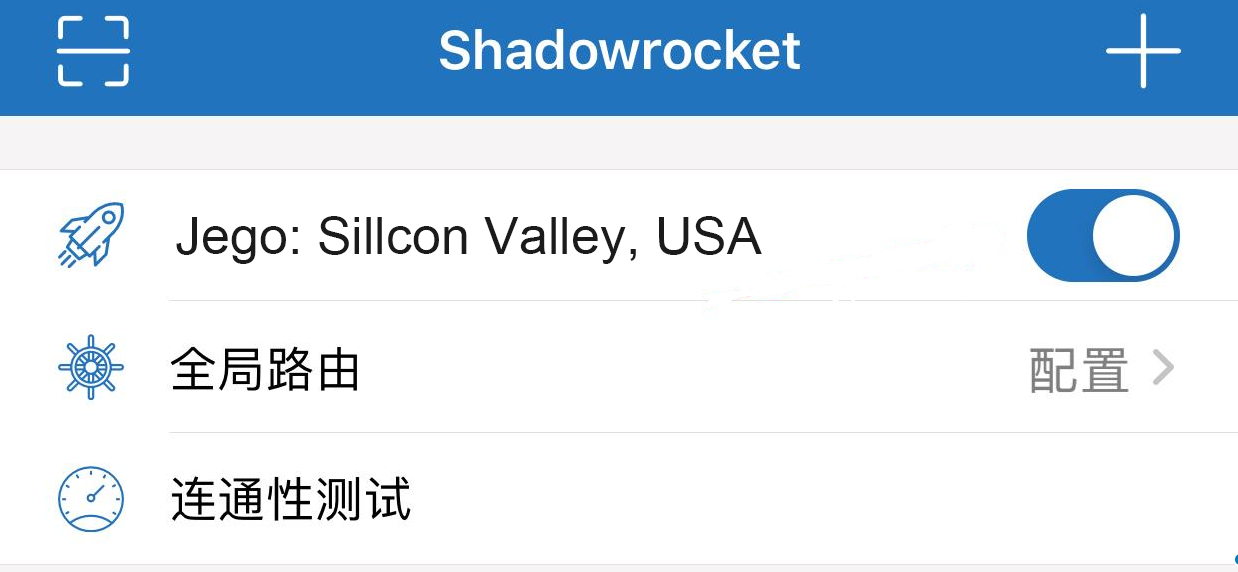
Select the node you want to use, turn on the switch in the upper right corner, click "Allow" in the popup "Add VPN Configuration", enter the iOS device password and automatically return to Shadowrocket to connect successfully.
Node Selection
If you feel the node speed is slow, just change the node below. In global routing, the configuration mode will automatically proxy most foreign websites. If the website you're accessing is still slow, please switch to proxy mode.
Auto Update
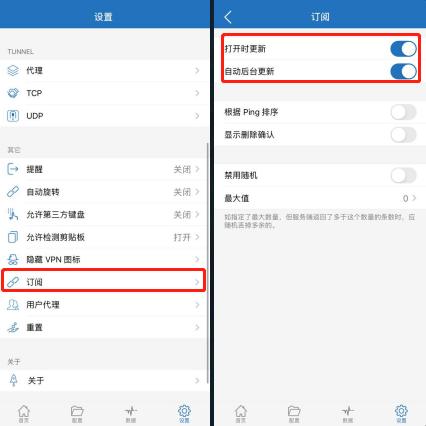
Open Shadowrocket, click "Settings" in the bottom navigation bar to enter the settings page, click "Subscription" below, turn on "Update when opened" and "Auto background update", the software will automatically update subscriptions in the background, saving you trouble.
Select Proxy Mode
Tap "Home" > "Global Routing", select the proxy mode according to your needs:
Config: Only proxy foreign traffic
Do not import a third-party remote configuration whose source, maintenance state, and content have not been verified. For rule routing, prefer the matching subscription URL exposed by the Jego Dashboard and confirm that its domain belongs to your account before importing it.
Suitable for users who use both domestic and foreign services.
In Config mode, mainland-China traffic connects directly and does not go through the proxy server.
When querying IP on mainland websites, you get the local IP address.
When querying IP on foreign websites, you get the proxy IP address.
Traffic routing rules cannot be comprehensive and have timeliness. If you encounter the following situations, try global proxy.
- Unable to open international websites;
- Slow loading of international websites;
Proxy: Proxy all traffic
Suitable for users who do not rely on mainland services.
In Proxy mode, foreign traffic goes through the proxy as usual; mainland traffic also goes through the proxy server — it works, but noticeably slower.
Direct: Do not proxy any traffic
Choosing this mode will result in inability to bypass restrictions, with the same effect as turning off VPN.
Scene: Proxy traffic according to scenarios
You can customize the required network, routing, nodes and other proxy conditions according to your own needs.