OneClick
OneClick is a free internet tool that supports mainstream encryption protocols.
Not Recommended
OneClick is no longer updated and not supported by Jego. Use the recommended client linked in the notice at the top.
Please use Jego's recommended clients
 Get OneClick
Use an account you legitimately own and the official sources below; do not buy or share accounts.
Download OneClick
- Official website: https://www.oneclick.earth/
- Google Play: https://play.google.com/store/apps/details?id=earth.oneclick
- iOS
If the official OneClick App Store page is available for your legitimate account region, install it from the store.
Add Subscription
In the Jego Dashboard, click on Mobile Proxy in the left navigation bar, find the OneClick subscription address and click Copy.
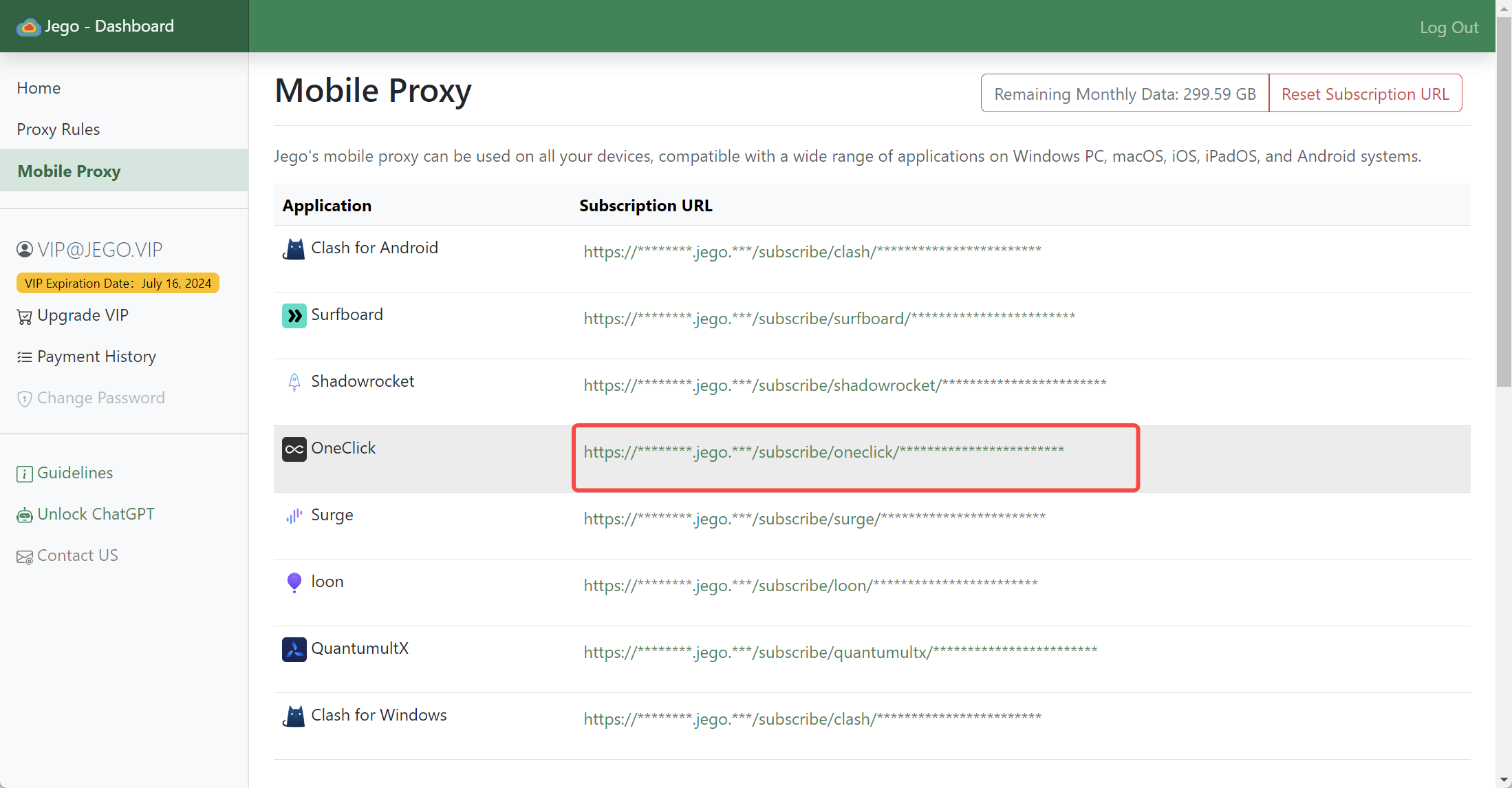
You can also get the subscription URL on your phone: open https://jego.us in the phone browser and sign in to copy it.
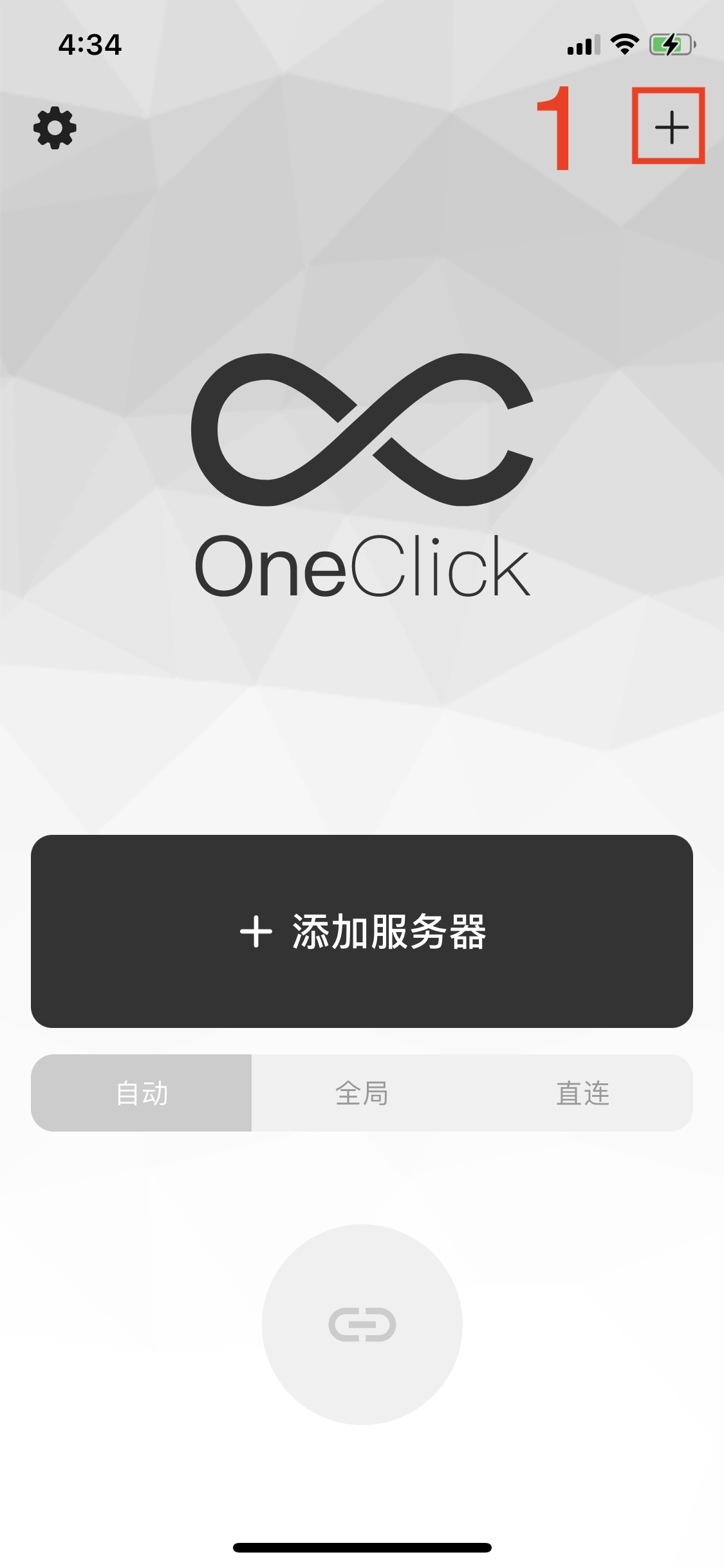
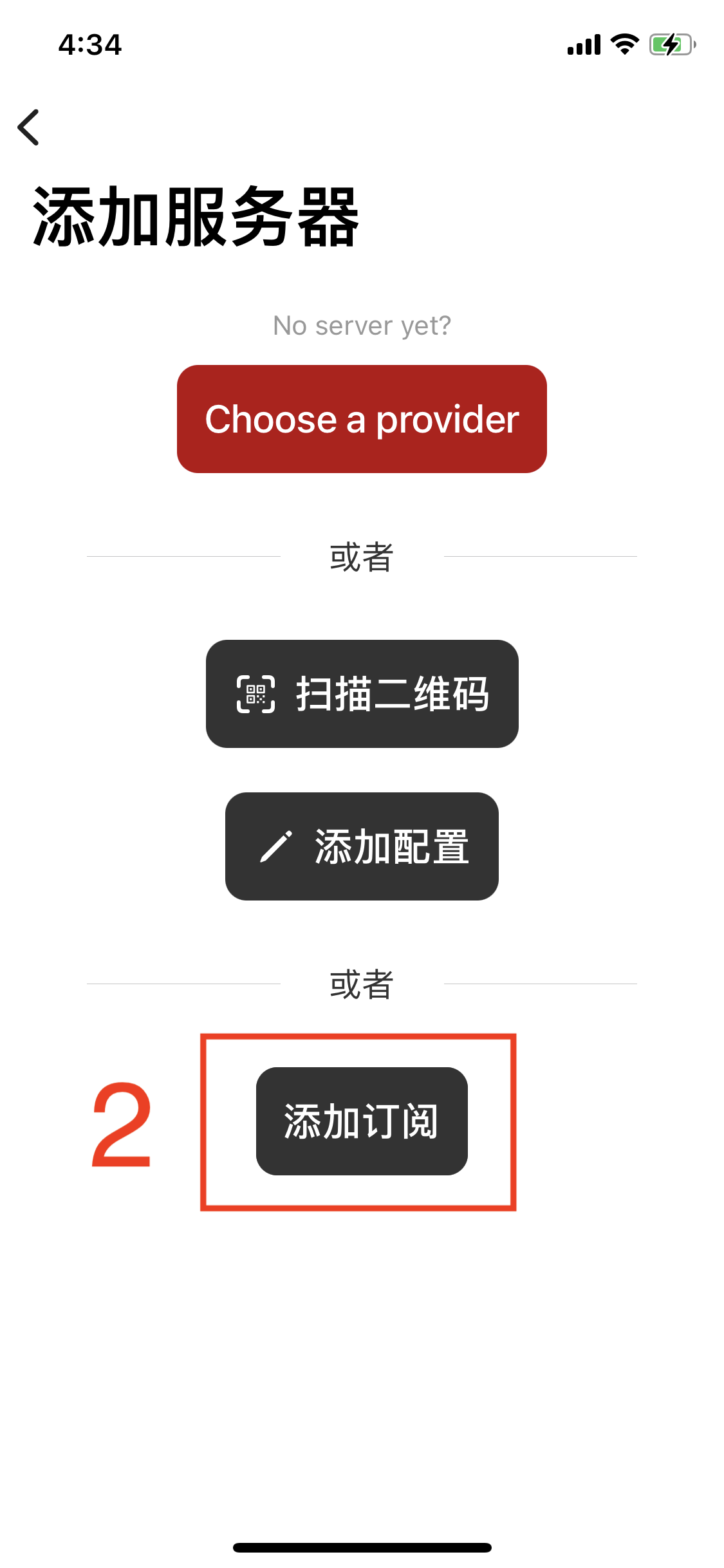
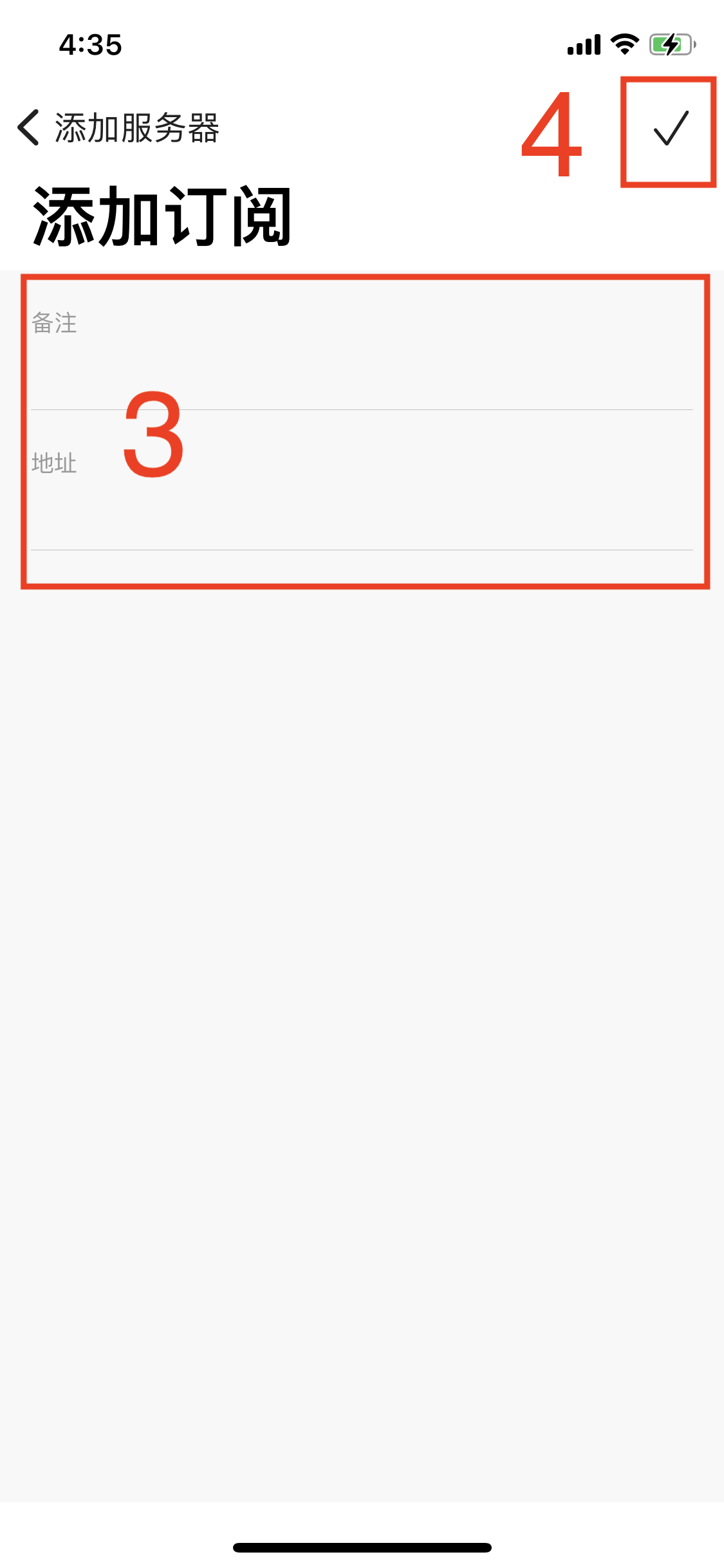
Enter OneClick, click the "+" button in the upper right corner, enter the add server interface, click the "Add Subscription" button, paste the copied subscription address into the address bar, fill in the remarks at the same time, and finally click the confirm button in the upper right corner to complete the addition.
Select Server
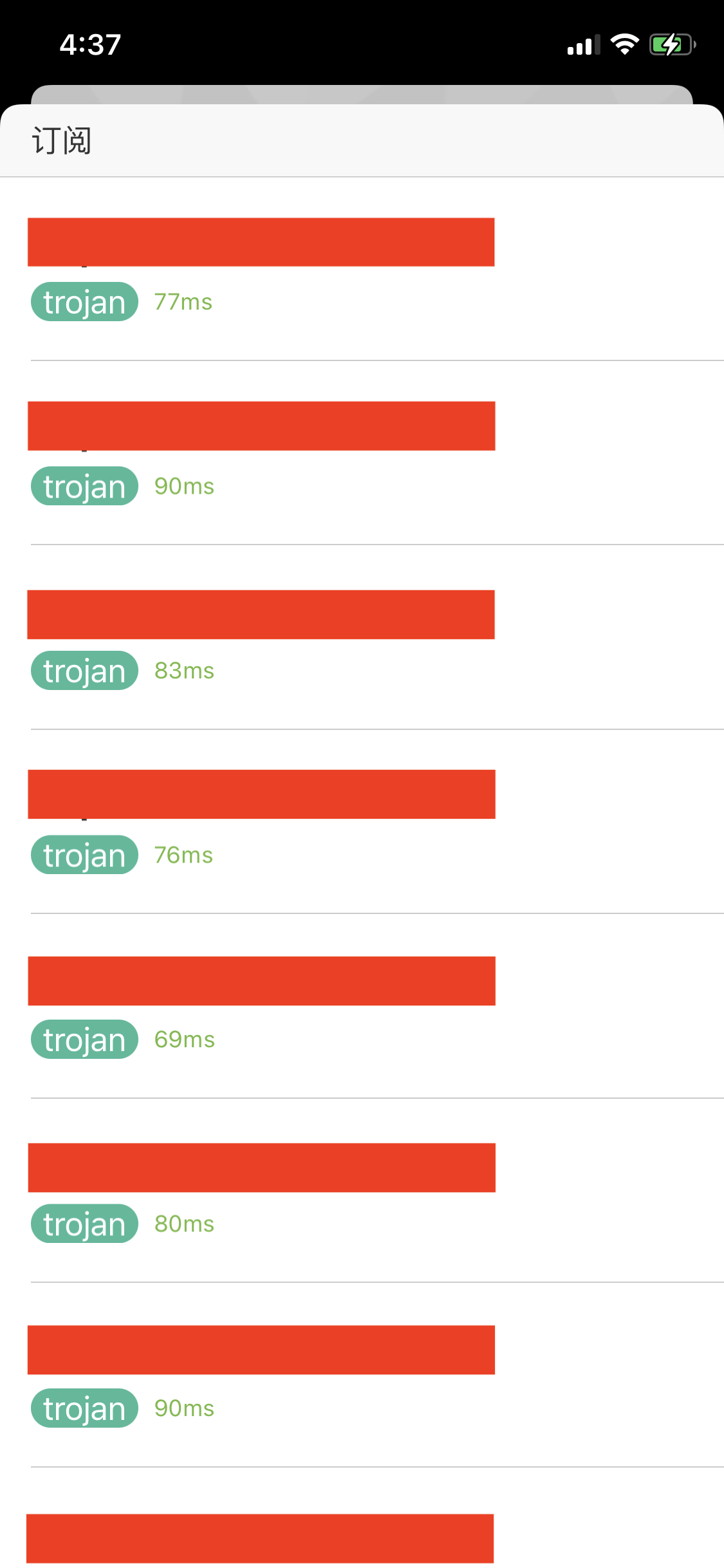
Enter the OneClick homepage, click the server selection button, enter the server list interface, and select the server you want to connect to
Select Proxy Mode
OneClick provides automatic, global, and direct modes. Click to select the specified mode.
- Automatic mode. Automatic mode means that overseas websites are accessed through proxy, while domestic websites will not go through proxy servers.
- Global mode. Global mode means that all websites are accessed through proxy, including websites that can be directly connected domestically.
- Direct mode: no traffic goes through the proxy servers.
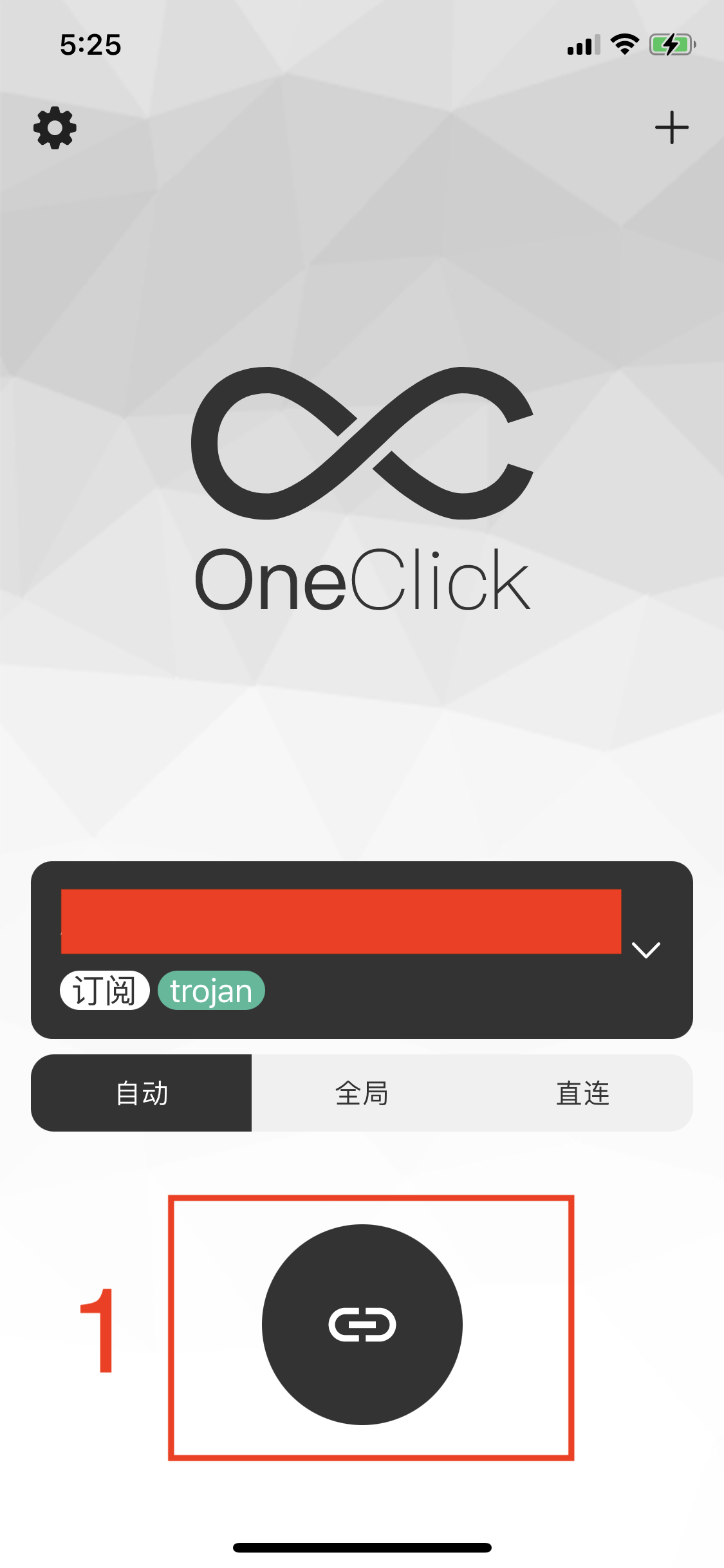
Connect to Server
Click the connect button on the OneClick homepage to connect to the server. When first started, it will request VPN permissions, and you need to click OK to allow.