
Clash for Windows
This historical tutorial covers the Clash for Windows client. The project is discontinued and receives no security updates; an old build still launching does not make it suitable for continued use.
Not Recommended
This software has not been updated for several years. Jego does not recommend continued use.
Please use Jego's recommended clients
Discontinued
Clash for Windows was discontinued on November 2, 2023.
Alternative
You can visit the Mihomo Series Software page to get the latest software.
 Historical installation note
The old archive is not an official, maintained, or integrity-verifiable distribution source, so this page no longer links it. Install a maintained replacement above. The remaining steps and screenshots exist only for subscription migration and settings identification on an old device. Do not download similarly named .7z, .exe, or .dmg files from search results.
Add Clash Configuration Subscription
Add Subscription:
In the Jego Dashboard, click on Mobile Proxy in the left navigation bar, find the Clash/Mihomo Series subscription address and click Copy.
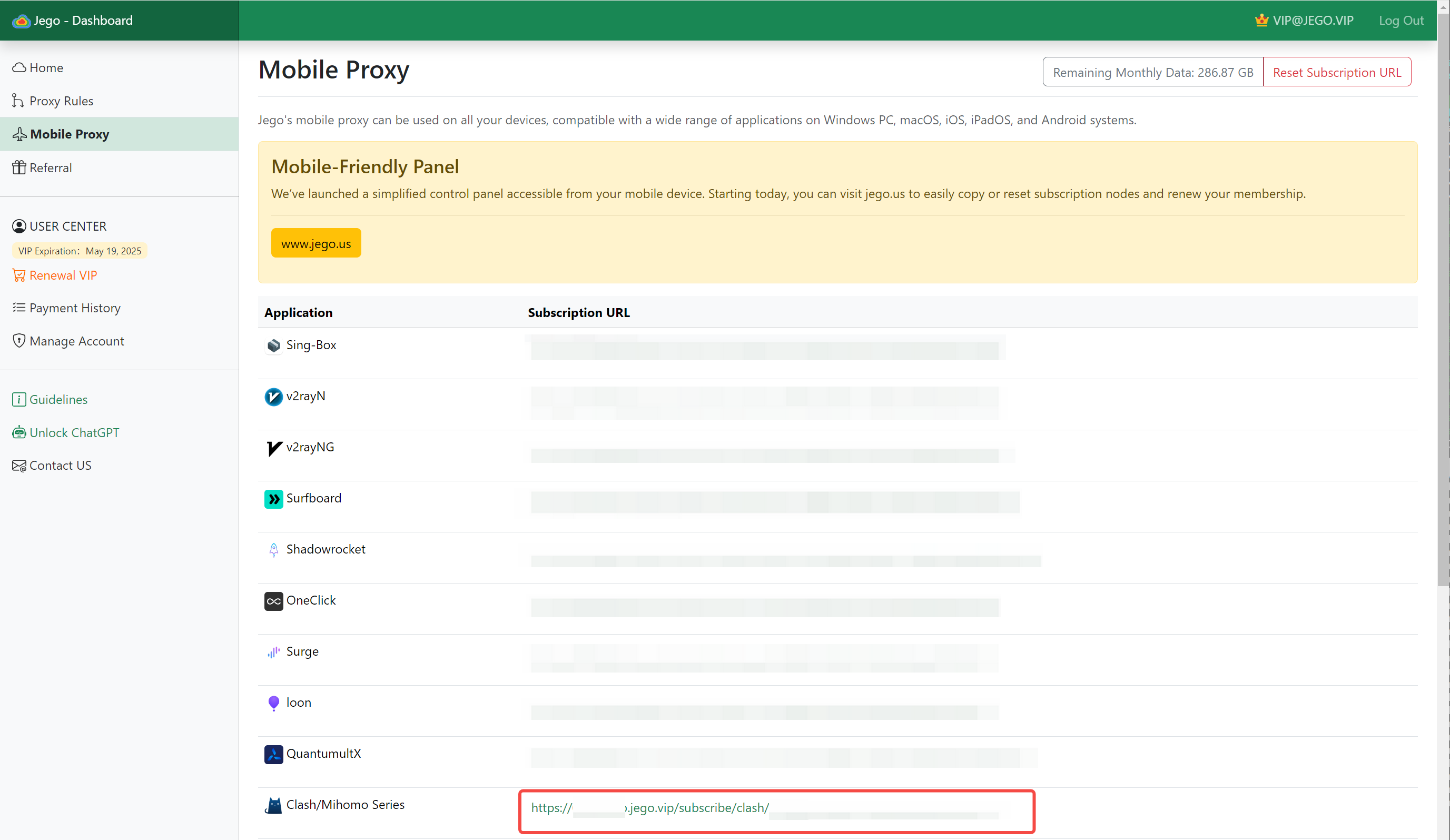
You can also get the subscription URL on your phone: open https://jego.us in the phone browser and sign in to copy it.
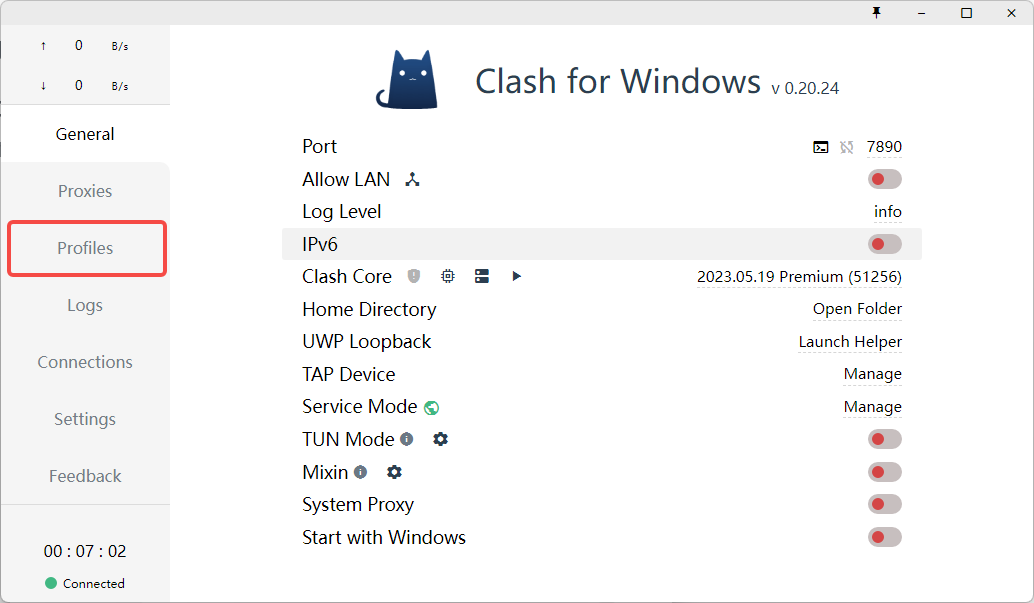
Open Clash for Windows, click on Profiles (Configuration Files) on the left side of the window.
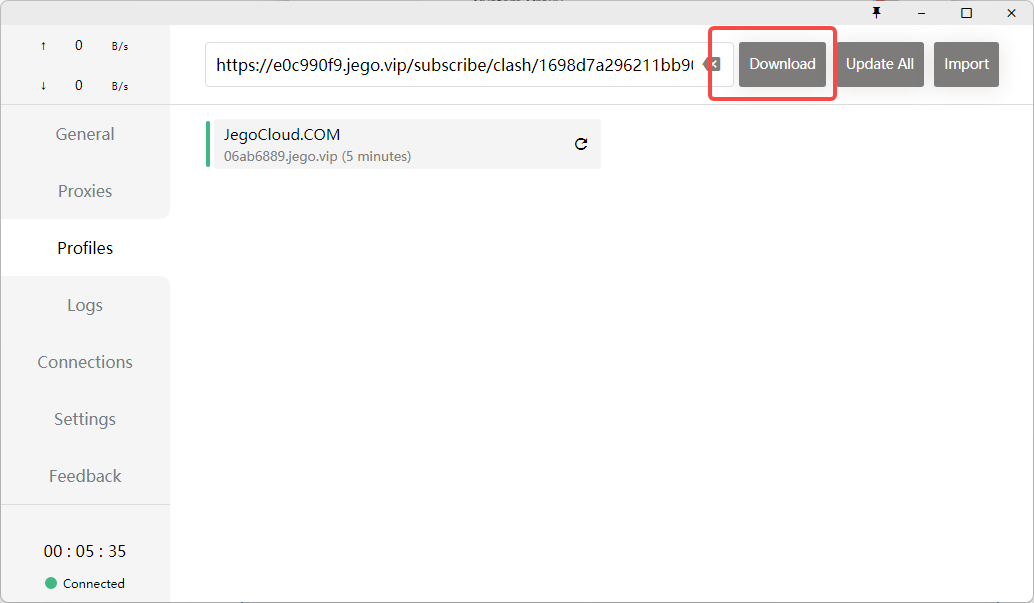
At the top of the Profiles page, paste the Clash configuration subscription link, then click Download to download the configuration file.
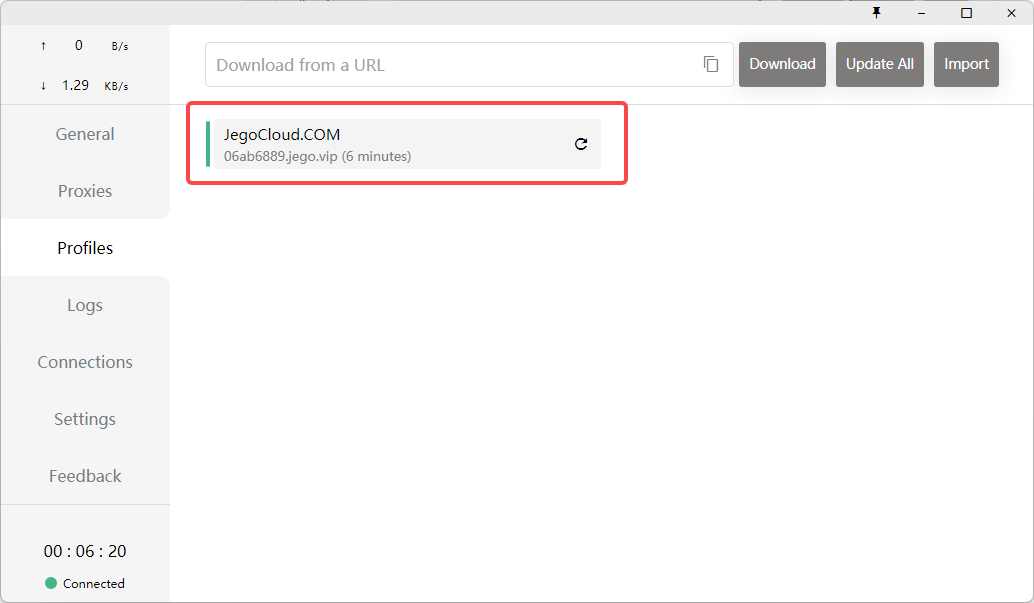
After successful download, Clash for Windows will automatically switch to the downloaded configuration file.
Usage Instructions
General
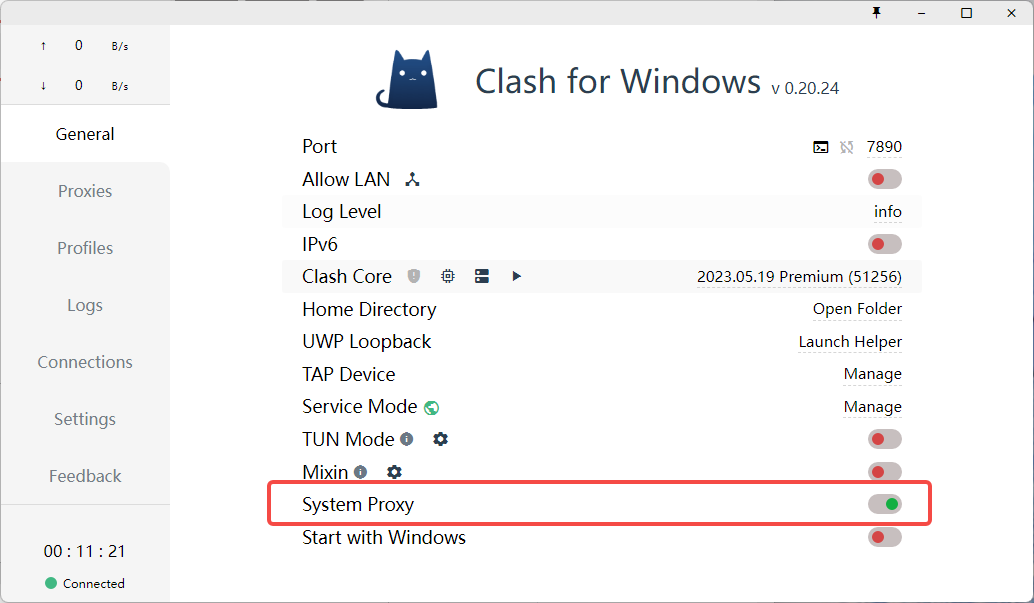
Under the General page, you can clearly understand the current configuration file settings, such as the regular http and socks5 proxy ports, etc., which is convenient for configuring proxies for certain applications separately.
Option Descriptions
- Port: Mixed(Http+Socks) proxy port
- Allow LAN: Whether to allow LAN proxy
- Network icon: Display network card information
- Log Level: Clash core log level
- IPV6: Whether to enable IPV6
- Home Directory: Clash configuration file directory (it is not recommended to modify the file content in this directory)
- GeoIP Database: GeoIP database update
- UWP Loopback: UWP application network restriction removal tool
- Service Mode: Virtual network card installation (TUN mode)
- Globe icon: Display Service Mode online status
- TUN Mode: Whether to enable TUN mode
- Settings icon: Open TUN mode settings panel
- TAP Device: Virtual network card installation (TAP mode)
- Mixin: Whether to enable Mixin mode
- Settings icon: Launch editor to modify Mixin configuration
- System Proxy: System proxy switch
- Start with Windows/macOS/Linux: Auto-start switch
Click Behaviors
- Clash for Windows (title): Quick restart software
- v x.x.x: When "new" prompt is displayed, you can directly click to download the new version installation package (check for updates every 6 hours)
- Connected/Disconnected: Display current log file in folder
Right-side Corresponding Click Behaviors
- Port:
- Terminal icon: Use command line to set system proxy
- Loop icon: Randomly set Mixed port
- Port number: Modify Mixed Port
- Log Level: Set log type
- IPv6: Set whether to enable IPv6 connection logic
- Clash Core
- Shield icon: Add firewall rules for Allow LAN and System Stack
- Core version number: Open Clash core control web page
- UWP Loopback: Quick open loopback proxy limiter
- Home Directory: Quick open configuration file directory
- GeoIP Database: Click to update GeoIP library (macOS available)
- TAP Device: Open TAP mode virtual network card control panel (Windows available)
Proxies
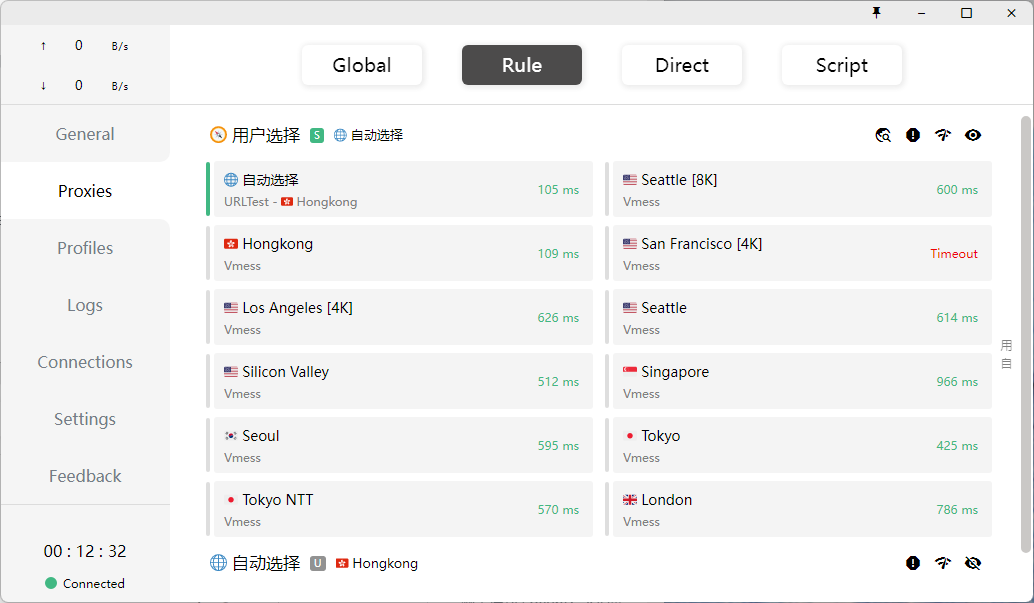
The main function of the Proxies page is to switch proxy modes and switch nodes
Switch Proxy Mode
Clash has three working modes:
- Global: All requests are sent directly to the proxy server
- Rule: All requests are routed according to configuration file rules
- Direct: All requests are sent directly to the destination
When switching different modes, the corresponding node list will change accordingly
Switch Nodes
Latency Test
Latency test (network icon) can test the latency of all nodes. You can modify the test URL in Settings→Latency Test URL
Nodes are separated by policy groups and can be tested for latency by group, making it easy to select nodes with lower latency.
Common Issues
Precautions for First Running Clash
- Do not turn off the system firewall or exit security software globally. If launch is blocked, verify the Clash executable's source and integrity, then create only the minimum app-specific exception and remove it when no longer needed.
- Must extract before running, cannot run directly in the compressed package.
- After running, the Clash icon "cat" will be displayed in the taskbar at the bottom of the screen.
- If you can't see the Clash icon, it may be hidden — click the taskbar chevron (^) to show hidden icons.
- Double-click the taskbar Clash icon to display the software main interface.
Get Subscription Address
- Be sure to 🚫 disable web translation function, otherwise the obtained subscription address may be incorrect.
- In the Jego Dashboard, select Mobile Proxy in the left navigation, find the Clash/Mihomo Series subscription address, and click Copy.
Subscription download or update fails
The following 3 reasons are most common, check in the following order:
- 🐷 Wrong subscription address
- Make sure the subscription address is copied from the Jego Dashboard.
- 📶 Network reasons
- Try changing networks, such as: your own or friend's mobile hotspot, home, company, neighbor's WIFI, etc.
- Try turning off Clash > General > System Proxy.
- Try exiting other VPN or proxy software.
- Try restarting computer, modem, router.
- Keep the system firewall on. If logs identify a blocked browser or client, add only a narrowly scoped app exception permitted by the operating system or administrator, then remove temporary rules after testing.
Set Proxy Mode
Go to the "Proxies" interface and select the proxy mode according to your needs:
Global Connection | Global: Proxy all traffic
- Suitable for users who do not rely on domestic services.
- In Global mode, foreign traffic goes through the proxy as usual; mainland traffic also goes through the proxy server — it works, but noticeably slower.
- In this mode 🈲 cannot select DIRECT and REJECT nodes, they will cause inability to access the internet.
Rule Judgment | Rules: Only proxy foreign traffic
Suitable for users who use both domestic and foreign services.
- In Rule mode, mainland-China traffic connects directly and does not go through the proxy server.
- When querying IP on domestic websites, you get the local IP address.
- When querying IP on foreign websites, you get the proxy IP address.
Traffic routing rules cannot be comprehensive and have timeliness. If you encounter the following situations, try global proxy.
- Unable to open international websites;
- Slow loading of international websites;
- Unable to unlock Netflix / Spotify and other region-restricted content.
Direct Connection | Direct: Do not proxy any traffic
Choosing this mode will result in inability to bypass restrictions, with the same effect as turning off VPN.
Script Mode | Script: Flexibly customize rules
Official manual: https://lancellc.gitbook.io/clash/clash-config-file/script
Troubleshooting
Chrome does not connect after selecting an available node
There are 2 reasons:
1️⃣ Conflict with Jego extension.
- Go to Chrome > Jego
- Switch Jego's mode to direct mode in the extension popup.
2️⃣ Insufficient permissions to follow system proxy.
- Right-click on Chrome shortcut, select Properties.
- Add one space and startup parameter after the target: --proxy-server="http://127.0.0.1:7890"
360 / QQ / Sogou or another browser cannot access foreign websites
Do not use domestic browsers to access foreign websites to prevent leaking browser history.
For domestic browsers that cannot be used, we do not provide technical support.
LINE cannot connect to the server
LINE does not follow system proxy settings and needs to manually configure proxy in LINE's advanced settings:
- Ensure the browser can normally access foreign websites.
- ✅ Enable proxy server
- Proxy server: HTTP or SOCKS5
- Server: 127.0.0.1:7890