
Clash Verge Rev
Welcome
Welcome to the 2025 Clash Verge Rev usage tutorial
Clash Verge Rev is the continuation of Clash Verge, a multi-platform proxy client developed based on Tauri using the Mihomo (formerly ClashMeta) kernel, supporting Alpha version kernel switching. It features a clean and beautiful user interface with customizable theme colors, proxy group/tray icons, and CSS Injection. Configuration file management and enhancement (Merge and Script), configuration file syntax hints. System proxy and guard, TUN (virtual network card) mode. Visual node and rule editing. WebDav configuration backup and synchronization.
 Download Clash Verge Rev
Github release
https://github.com/clash-verge-rev/clash-verge-rev/releases/latest
After opening the Github Release page, you'll see many installation packages. Don't worry, just download and install according to your operating system.
Windows
Windows 7 users should upgrade to Win10/11 first.
If you're unsure about your computer's system architecture, download the x64 architecture file (currently used by most Windows computers).
macOS
macOS 10 is not supported, please upgrade macOS to version 11 or higher.
On Apple silicon (M-series) download the aarch64 dmg; on Intel download the x64 dmg.
Operation Interface
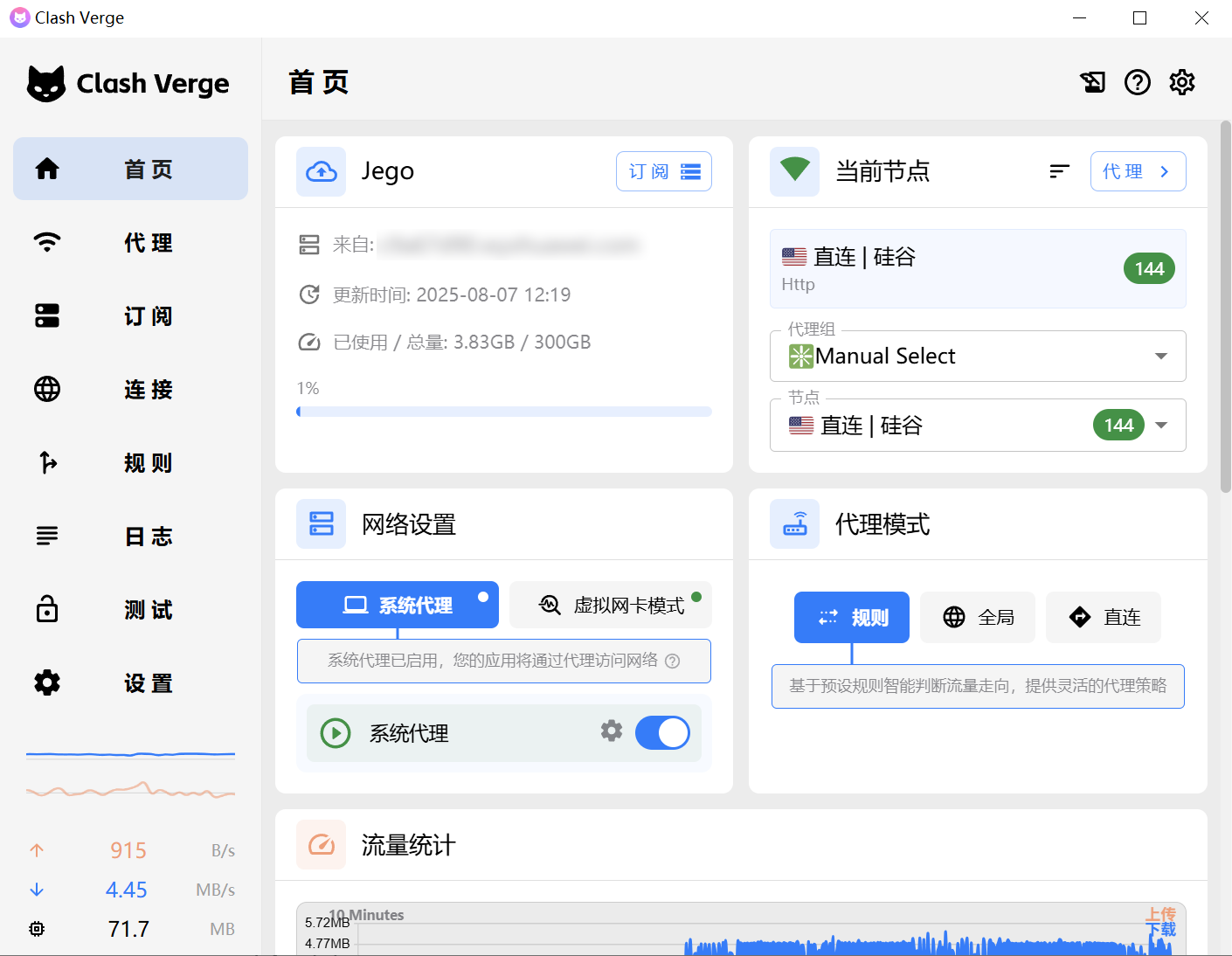
Adding Subscription
In the Jego Dashboard, click on Mobile Proxy in the left navigation bar, find the Mihomo subscription address and click Copy.
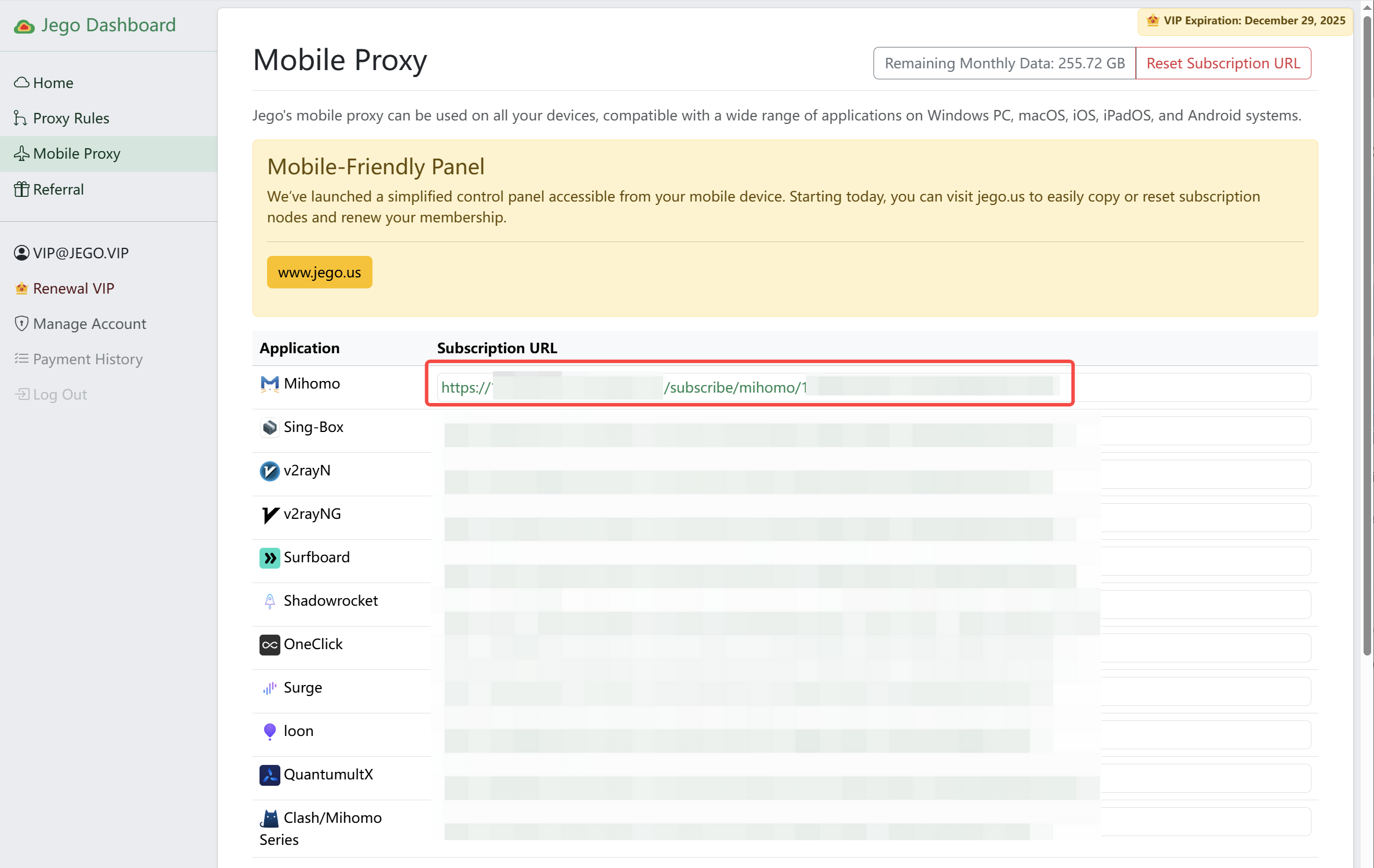
You can also get the subscription URL on your phone: open https://jego.us in the phone browser and sign in to copy it.
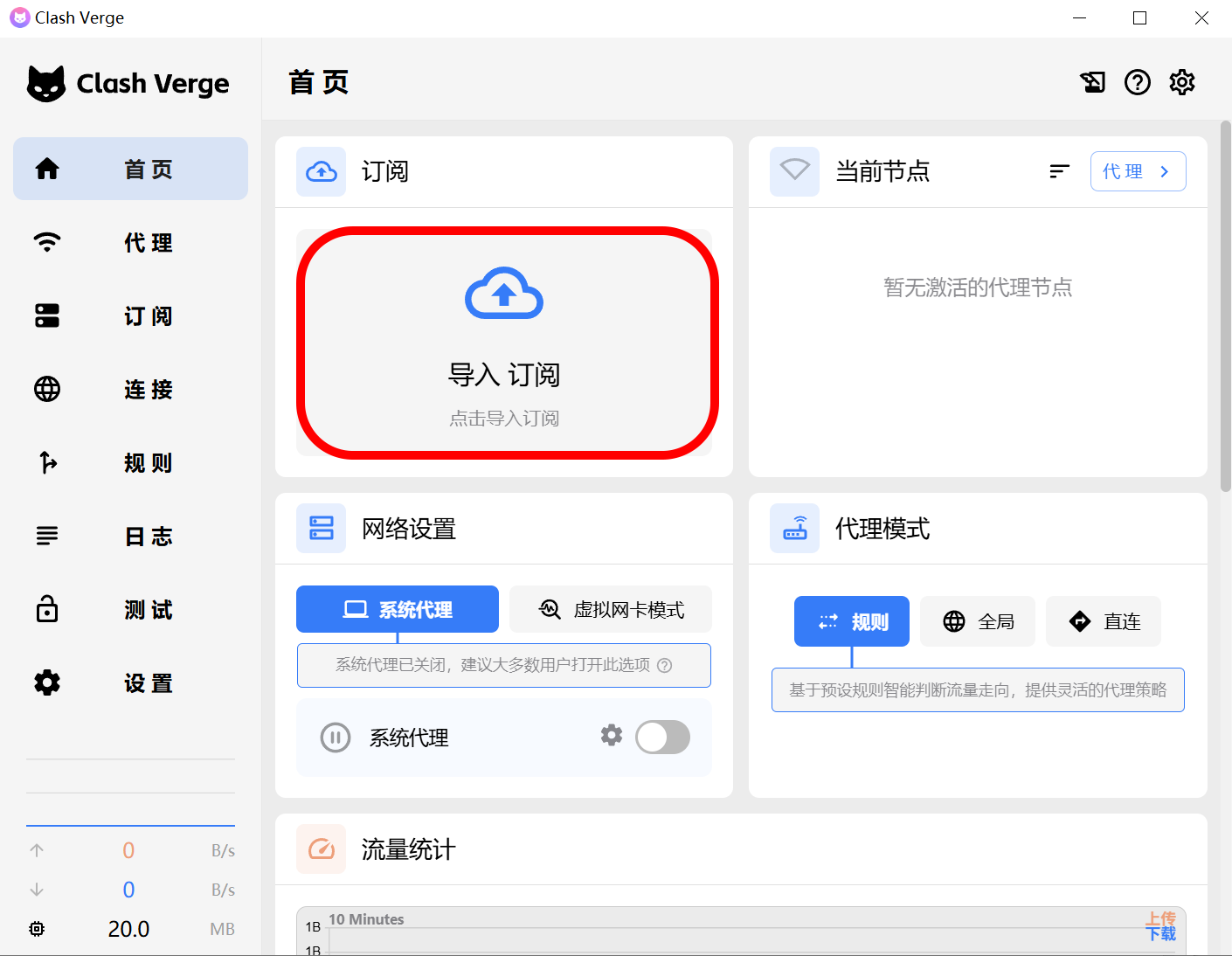
Open Clash Verge Rev, click Import Subscription in the top-left corner of the main content area on the homepage.
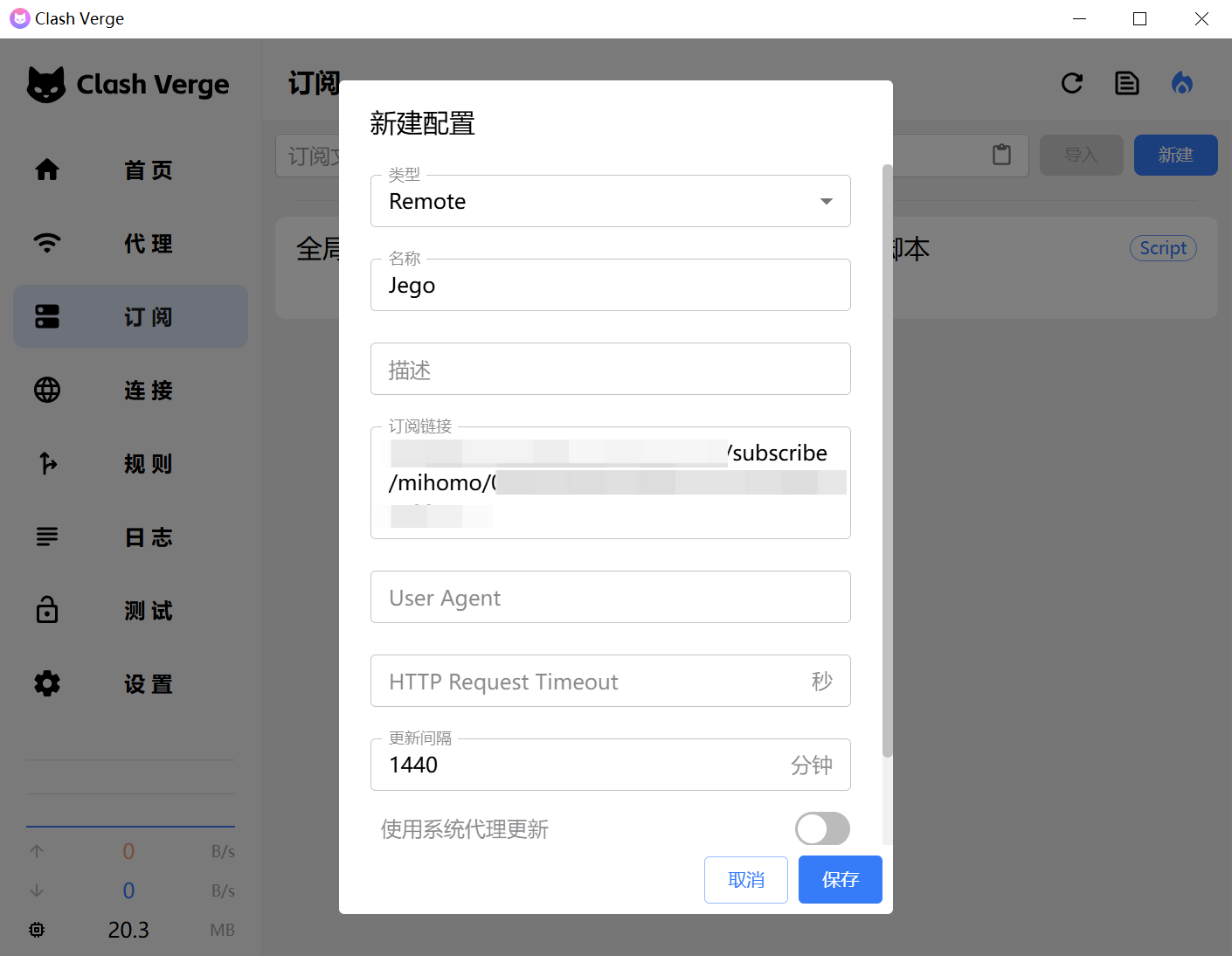
In the popup new configuration window, the Type defaults to Remote, Name should be Jego, description can be left blank, Subscription Link should be the Mihomo subscription link copied from the Jego Dashboard, Update Interval should be changed to 1440 minutes, then click Save.
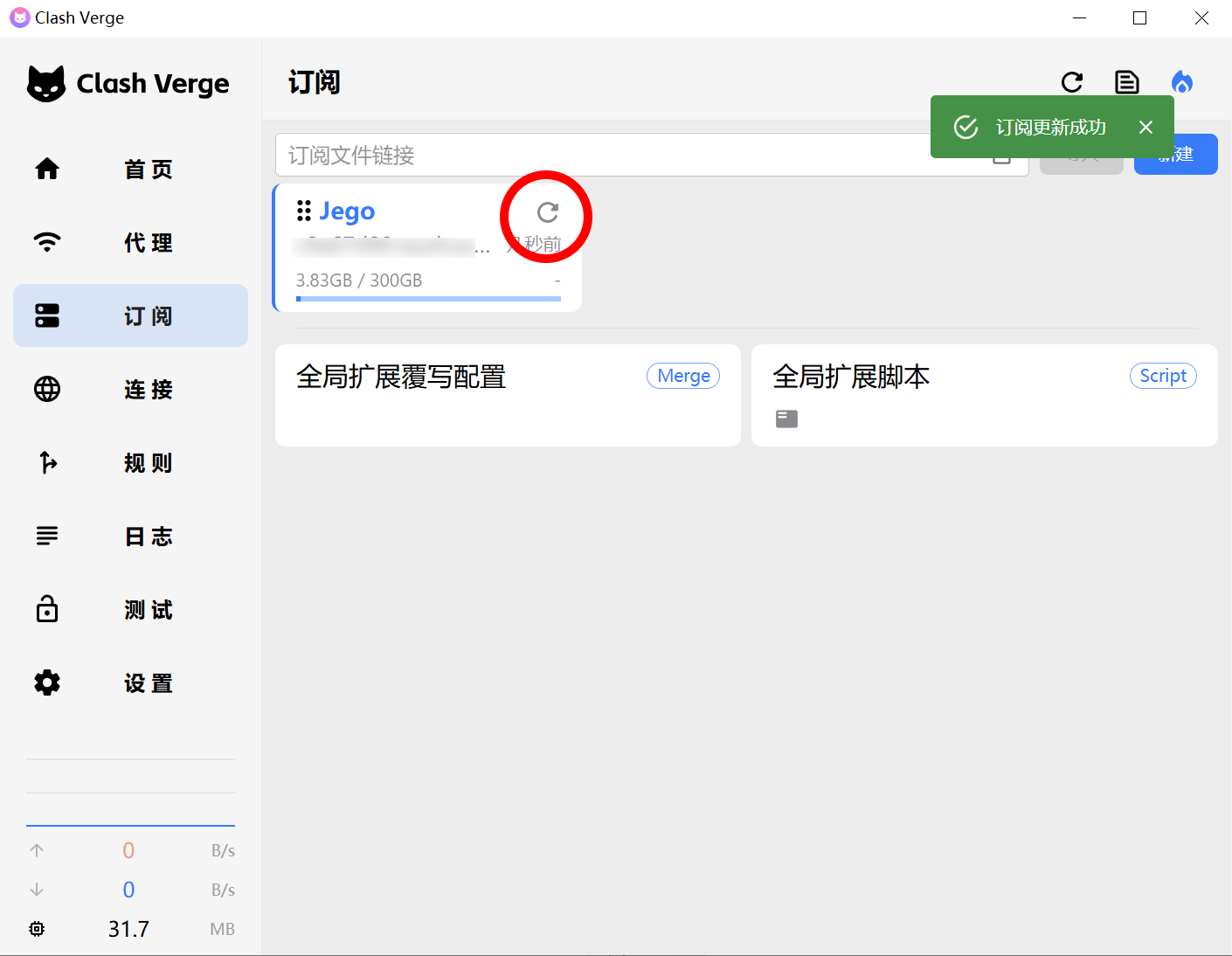
Click the refresh icon in the top-right corner of the Jego subscription card to pull the subscription to local. After successful operation, a green reminder will appear in the top-right corner as shown in the image below: Subscription Update Successful.
Enable Proxy
Then return to the homepage: turn on System Proxy and TUN Mode to enable the proxy. The node server defaults to automatic selection, but you can also select from the Current Node card. See the demonstration video below.
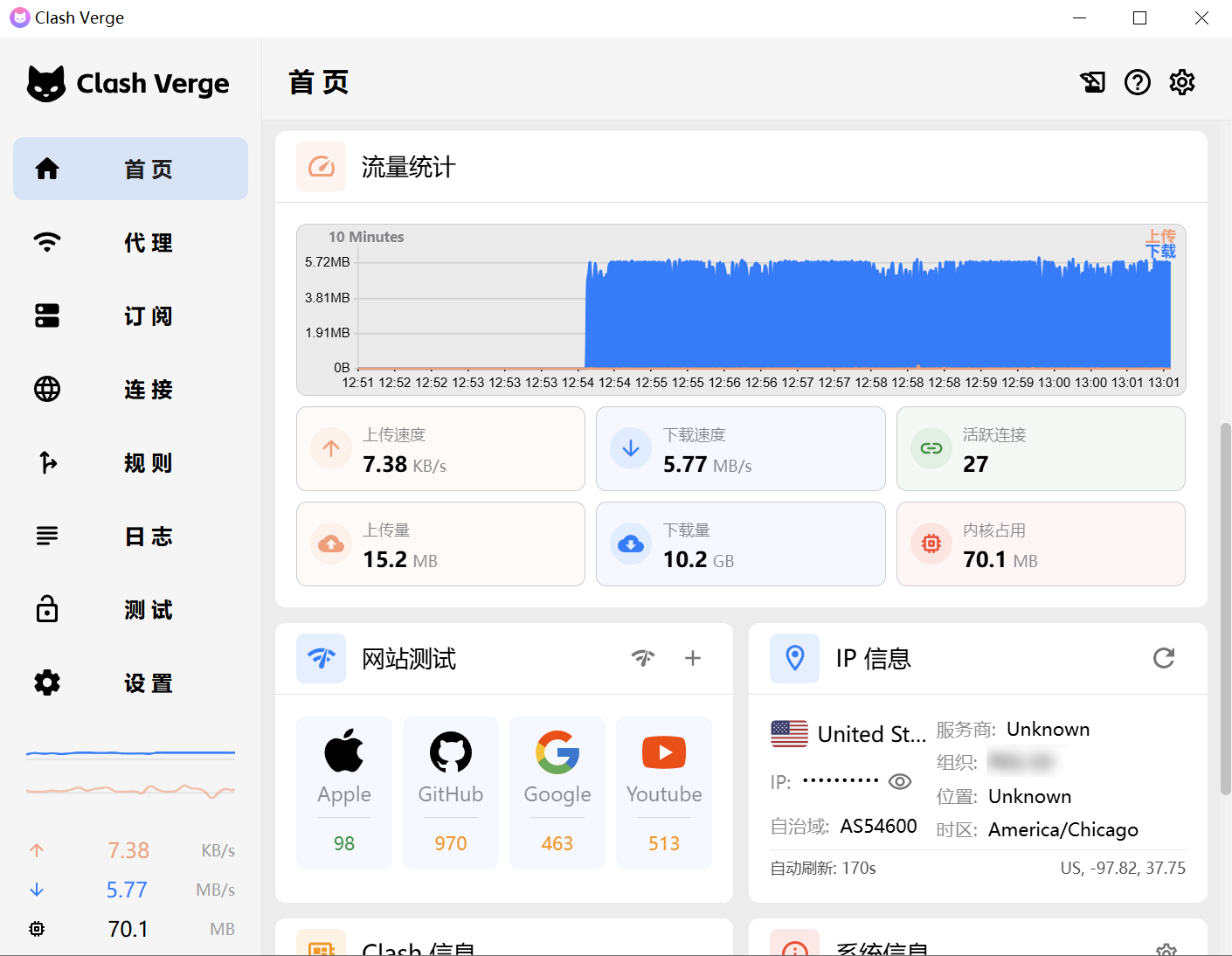
Clash Verge Rev interface when running successfully:
- The IP in the IP information card changes from China to overseas
- The website test card shows latency for Google and Youtube
Select Proxy Mode
Rule Mode: Only proxy overseas traffic
Suitable for users who use both domestic and international services.
In Rule mode, mainland-China traffic connects directly and does not go through the proxy server.
When querying IP on mainland websites, you get the local IP address.
When querying IP on overseas websites, you get the proxy IP address.
Traffic routing rules cannot be comprehensive and have timeliness. If you encounter the following situations, try global proxy.
- Unable to open international websites;
- Slow loading of international websites;
Global Mode: Proxy all traffic
All traffic goes through the proxy server, suitable for scenarios requiring global proxy access, users who don't rely on mainland services.
In Global mode, foreign traffic goes through the proxy as usual; mainland traffic also goes through the proxy server — it works, but noticeably slower.
Direct Mode: No proxy for any traffic
Selecting this mode will route all traffic without going through proxy server nodes, but through the Mihomo kernel to forward to the target server, which will result in inability to bypass restrictions, same effect as not using VPN.